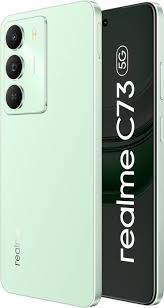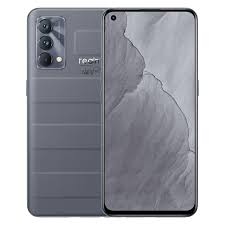
Download Oppo A3x 5G CPH2641,Mediatek Dimensity 7050 (6 nm) Flash File From Ms mobile. This file is based on Latest ColorOS and used for flash and unlock your device fix pattern lock, FRP and other problems like hang on logo, brick after software update or in any experiment , fix hanging issue and other software related issues.
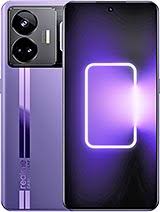
Today i am going to share Realme GT Neo 5 SE China RMX3700 Flash File Firmware with Ms mobile. So check project number carefully before flashing and unlocking the device. Download the file by link given below and always use latest version to flash Realme GT Neo 5 SE
Download Realme GT Neo 5 SE RMX3700 Flash File Firmware:
Install USB drivers (Qualcomm QDLoader/EDL + Realme/Oppo driver).
Use Realme Flash Tool or MSM Download Tool/QFIL in EDL mode (Qualcomm 9008).
On your phone:
Turn off, then press Vol Up + Vol Down + plug into PC to enter EDL.
Or use Test-Point method if needed.
Load the .ofp or QFIL firmware package, then start flashing.
After flash completes, wipe data/factory reset to avoid boot issues.
Reboot, follow setup.
Refer to the included manual in the firmware package (most packages contain detailed instructions).
🔍 Choosing the Right Version
Use a newer firmware (A.24 or A.15) for better stability and bug fixes.
Downgrading (e.g., from A.24 to A.13) may wipe data or require unlocked bootloader.
Ensure the firmware is for RMX3700 (China Domestic variant). Global variant is RMX3701.
⚠️ Important Warnings
Backup all data—flashing erases user data.
Use the correct firmware for your model.
Flashing carries risk of bricking—proceed carefully.
Drivers (Qualcomm and Realme/Oppo) must be installed on your PC first.
Some flashing tools may need a Realme/Oppo auth account.
🧭 Quick Links Summary
Version
Release Date
Size
Notes
A.13
2023‑04‑03
~8.4 GB
First domestic release
A.22
2023‑08‑02
~8.85 GB
Mid 2023 stable update
A.23
2023‑08‑12
~8.85 GB
Bug-fix incremental
A.24
2023‑09‑20
~8.8 GB
Latest 2023 build
A.15
2025‑03‑14
~9.36 GB
Newer build; more recent security
✅ Next Steps
Decide which firmware version suits you (newest recommended).
Download from one of the sources above.
Read the included flashing guide/manual.
Install necessary drivers and tools.
Flash in EDL mode and reset afterward.
If you’d like direct download links or a step-by-step walkthrough tailored to your PC environment (e.g. Windows or Linux), just let me know—I can guide you through the process.
Download Oppo A77 5GCPH2339 Flash File Firmware from Ms mobile. With this file you can unlock device Screen lock Pattern, FRP and can upgrade or downgrade the device. Always use latest flash file to flash Oppo A77 check device version by dial code *#899# in emergency dial. download the file with direct download link given below and read all flashing instructions before flashing the phone
Includes: Firmware, Realme Flash Tool, USB drivers, flash guide
Usage: Use Realme Flash Tool to flash and resolve bootloop or software issues
Same file: Oppo_A77_5G_CPH2339_EX_11_A.07_220812_RFT.zip (~12 GB)
Offers identical package with step-by-step guide .
Multiple versions of official ROMs (China, EU/Vodafone, Export regions), Android 12-based
CPH2339GDPR_11_A.06 (~5.7 GB), A.07, A.09
CPH2339export_11_A.03/A.06/A.07/A.09 (~12 GB)
Includes scatter file for SP‑FlashTool, ideal for A77 5G MT6833 platform
Offers a range of versions:
GDPR A.07/A.06/A.09 (~5.8 GB)
Export C.42/C.44/A.07/A.06/A.05/A.03 (~12–13 GB)
Includes full firmware dumps: scatter, nvram, nvdata — useful for unbricking or repairing IMEI/data partitions.
Alternate mirror downloads of flash packages, typically the same firmware
🛠️ Flash Guide (General Steps)
Download & extract your desired package (Make sure to choose the right regional version: GDPR/EU vs Export).
Install USB drivers included in the folder.
Flash tool choice:
Realme Flash Tool for OppoStockROM/FirmwareFile packages.
SP‑FlashTool for scatter-based ROMs from NeedROM or azROM.
Choose flash mode (Download Only or Firmware Upgrade).
Power off phone, connect via USB, then initiate flash.
Upon completion, reboot the phone.
⚠️ Data loss warning: Flashing erases user data—backup critical files first.
✅ Which Version Should You Use?
Region
Advantages
CPH2339GDPR_11_A.07/A.09 (EU/Vodafone)
Stable OTA region build for Europe/Middle East
CPH2339export_11_A.03/A.06/A.07
International variant — ideal if EUR build doesn’t suit your region
Scatter + nvram dump from azROM
For advanced users needing full partition repair or IMEI restoration
🧭 Recommendations
If you’re aiming to fully restore stock firmware, start with
If you prefer a smaller download or specific region, use NeedROM’s GDPR version.
For deep repairs (unbrick/NVRAM), azROM’s scatter and nvram dumps are invaluable.
🔗 Quick Start Guide
Download from OppoStockROM.com (link).
Extract and install drivers.
Open Realme Flash Tool, load firmware, select “Download”.
Connect phone ➝ flash ➝ once done, reboot.
Let me know if you want direct links to a specific version, guidance on using SP‑FlashTool vs Realme Flash Tool, or steps for restoring partitions/nvram!
Here are reliable sources and options for downloading the OPPO Find N3 (CPH2499) flash (stock firmware) files:
🔧 Flashing Instructions (Common Steps)
Charge device ≥ 50% battery.
Install OPPO/OnePlus USB and EDL/Fastboot drivers on PC.
Extract the downloaded firmware zip.
Boot into Fastboot (Power + Volume Down) or EDL/Qualcomm test-point.
Use:
OP+ Service Tool (UnofficialTWRP, ROMProvider).
QLMFlasherPro Downloader (QLMFlasher).
Qualcomm fastboot/edl flash tools (NeedROM).
Connect device via USB (often holding Vol Up + Vol Down).
Load appropriate firmware package and click Start/Flash.
Wait until flashing completes and device reboots.
Optional: perform factory reset or cache/data wipe in Recovery to prevent conflicts.
⚠️ Tips & Warnings
Always back up user data – flashing erases internal storage.
Match firmware to your device’s region variant (e.g., export, global, domestic_CN).
Flashing wrong firmware or interrupting process may brick your device.
If FRP lock is an issue, pick PHN110 loader ROM or use bootloader unlock tools (e.g., from XDA forum)
✅ Recommendations
If you just want the latest official stock ROM for everyday repair or update, go with CPH2499export_11_13.2.0.203EX01_20231214 from GSMHostingFiles or the QLMFlasherPro version.
For FRP bypass needs or bootloader unlocking, try the PHN110 loader or consult the XDA guide .
Next Steps:
Let me know:
Which firmware version you prefer (e.g., 13.2.0.203, 114, PHN110).
Whether you plan to use OP+ Service Tool or another flashing method.
I can then walk you step-by-step through downloading, verifying, and flashing the file safely.
Download Realme C75x RMX5020 Flash File Firmware from Ms mobile. With this file you can unlock device Screen lock Pattern, FRP and can upgrade or downgrade the device. Always use latest flash file to flash Realme C75x check device version by dial code *#899# in emergency dial. download the file with direct download link given below and read all flashing instructions before flashing the phone.
This is the official stock firmware suitable for restoring your device via SP Flash Tool or similar. The archive typically includes:
Scatter file
system, boot, preloader, and others
Flashing instructions
(If required) IMEI repair tools
⚙️ How to Flash the Firmware
Download the zip file and extract it.
Inside, locate the scatter file and the necessary binaries.
Install drivers:
e.g. QDLoader HS‑USB Driver (common for MediaTek devices)
Open SP Flash Tool, load the scatter file, select the firmware components.
Choose the right Flash Mode:
Use “Download only” for standard installs
“Format + Download” if previous attempts failed (CAUTION: wipes data)
Connect your phone (powered off) via USB.
Begin flashing. Wait until the green checkmark appears.
Reboot the device.
🛠️ Common Issues & Tips
IMEI loss: If IMEI repairs are needed, check if the zip includes an IMEI tool. Many Realme firmware packages include one .
Flash Tool Compatibility: Ensure you use a compatible SP Flash Tool version. Sometimes OPPO/Realme branded versions work better.
Bootloop or dead phone: Some users recommend a “full dump” or repair via tools like UnlockTool—especially if the phone is brick‑ed .
🔗 Download Sources
addROM (Stock ROM): includes download link and specs
VNROM (Vietnamese guide): direct download + driver/tool instructions
🎥 Video Guides
Here’s a helpful YouTube tutorial showing how to repair dead boot and flash using UnlockTool—even though it focuses on dead‑boot recovery, the flashing steps are similar:
Here are reliable sources for the OnePlus Pad 2 / Pad 2 Pro OPS2431 firmware files:
📦 Stock Flash Files for OPD2431 / OPD2403 (OnePlus Pad 2)
: You can download the full stock ROM (e.g. OPD2403_14.1.0.233(EX01)) from FirmwareBD.com. This is an official firmware package containing the complete flash file—just follow their flashing guide carefully (backup before flashing!).
also maintains archives listing the OnePlus Pad 2 (OPD2403) and Pad 2 Pro (OPD2413). You may find alternative download links there .
has a full OTA.zip for OPD2413 to OPD2415 (Pad 2 Pro / Pad 3). This is more recent (June 20, 2025) and specifically for the Pro variant .
🔧 Flashing Tools & Installation Guides
The typical flashing procedure involves:
Install appropriate USB drivers for MediaTek or Qualcomm.
Use a flashing tool such as QLM Flasher or the OplusFlashTool as referenced.
Boot the tablet into EDL (download) mode (usually Volume Up + Down + USB cable).
Load the firmware package (full stock ROM or OTA zip).
Hit “Start” and let the flash complete, then reboot.
✅ Safety Tips Before Flashing
Always backup your data—flashing erases everything.
Verify the firmware matches your exact model (OPD2403 vs OPD2413).
Flash in an EDL/preloader mode—not fastboot or recovery.
Use reputable sources; double-check MD5/SHA filesums if provided.
Ensure your PC has proper drivers installed; otherwise the flashing tool won’t detect the device.
ℹ️ Official OTA Method
If you’re trying to revert or update without manual flashing, consider using the official OTC method via Oxygen Updater, which supports version 14.1.0.229 for OPD2403 IN/EU/GLO
✅ What You Should Do Next
Confirm your device’s exact model via Settings → About.
Download the corresponding firmware file from the sources above.
Gather drivers (Qualcomm/MTK) and a compatible flasher.
Follow your chosen guide to flash in EDL mode.
Reboot, and your Pad should return to stock firmware.
⚠️ Disclaimer: Flashing firmware carries risks—bricking, data loss. Proceed with caution and at your own risk. If you’re uncertain, consider reaching out to OnePlus support or a trusted technician.
Let me know if you want step-by-step instructions, driver links, or help verifying your file!Here are reliable sources for the OnePlus Pad 2 / Pad 2 Pro OPS2431 firmware files:
📦 Stock Flash Files for OPD2431 / OPD2403 (OnePlus Pad 2)
OPD2403 (Pad 2 global): You can download the full stock ROM (e.g. OPD2403_14.1.0.233(EX01)) from FirmwareBD.com. This is an official firmware package containing the complete flash file—just follow their flashing guide carefully (backup before flashing!) .
FirmwareFile.com also maintains archives listing the OnePlus Pad 2 (OPD2403) and Pad 2 Pro (OPD2413). You may find alternative download links there .
XC Flasher Pro has a full OTA.zip for OPD2413 to OPD2415 (Pad 2 Pro / Pad 3). This is more recent (June 20, 2025) and specifically for the Pro variant .
🔧 Flashing Tools & Installation Guides
The typical flashing procedure involves:
Install appropriate USB drivers for MediaTek or Qualcomm.
Use a flashing tool such as QLM Flasher or the OplusFlashTool as referenced.
Boot the tablet into EDL (download) mode (usually Volume Up + Down + USB cable).
Load the firmware package (full stock ROM or OTA zip).
Hit “Start” and let the flash complete, then reboot.
✅ Safety Tips Before Flashing
Always backup your data—flashing erases everything.
Verify the firmware matches your exact model (OPD2403 vs OPD2413).
Flash in an EDL/preloader mode—not fastboot or recovery.
Use reputable sources; double-check MD5/SHA filesums if provided.
Ensure your PC has proper drivers installed; otherwise the flashing tool won’t detect the device.
ℹ️ Official OTA Method
If you’re trying to revert or update without manual flashing, consider using the official OTC method via Oxygen Updater, which supports version 14.1.0.229 for OPD2403 IN/EU/GLO .
🔗 Quick Download Recap
Source
Model
Firmware Type
FirmwareBD.com
OPD2403
Stock ROM (14.1.0.233)
XC Flasher Pro
OPD2413
Full OTA zip (latest)
FirmwareFile.com
OPD2403/2413
Flash file archive
✅ What You Should Do Next
Confirm your device’s exact model via Settings → About.
Download the corresponding firmware file from the sources above.
Gather drivers (Qualcomm/MTK) and a compatible flasher.
Follow your chosen guide to flash in EDL mode.
Reboot, and your Pad should return to stock firmware.
⚠️ Disclaimer: Flashing firmware carries risks—bricking, data loss. Proceed with caution and at your own risk. If you’re uncertain, consider reaching out to OnePlus support or a trusted technician.
Let me know if you want step-by-step instructions, driver links, or help verifying your file!
Download OnePlus 13 CPH2653 Qualcomm SM8750-AB Snapdragon 8 Elite Flash File From Ms mobile. This file is based on ColorOS 15 and used for flash and unlock your device fix pattern lock, FRP and other problems like hang on logo, brick after software update or in any experiment , fix hanging issue and other software related issues.
Includes flash tool, USB drivers, and step-by-step guide for installation
This is the standard global/OxygenOS rollout.
🧩 Alternative Mirrors
offers the same QFIL ZIP (dated Dec 23, 2024) with identical size .
They also provide a separat file (700 KB)—useful for deep-level flashing via EDL mode
🌍 Regional / Export Builds
(from April 19, 2025) lists an export build:
export_11_15.0.0.402EX01_2025010120270000 (~7.60 GB), which aligns with the EU/global package .
🧪 Community Confirmation
A Reddit user in r/androidservice notes:
This reassures the file is reliable and functional.
🔧 How to Flash Your OnePlus 13
Download the full QFIL ZIP from FirmwareFile.com or FirmwareDrive.com.
Extract the archive to your PC—this includes:
.mbn firmware files
QFIL flash tool
USB drivers
PDF manual
Install USB drivers (Qualcomm mode).
Enter EDL (Emergency Download Mode) on your phone:
Power-off → hold Volume Up + Volume Down + Power until Qualcomm 9008 appears in Device Manager.
Run QFIL:
Load firmware → press Download → connect phone.
Wait until flashing completes, then reboot.
Backup your data first—flashing wipes storage.
⚠️ Warnings & Best Practices
Ensure the file matches CPH2653, not CPH2655 or other variants.
Use the recommended QFIL flash tool from the package.
Only flash with manufacturer-approved firmware to avoid bricking.
Keep your cable and drivers reliable—flashing interruptions can cause severe issues.
✅ Summary Table
Version
Filename / Build
Size
Notes
Global (QFIL)
…_305EX01_241126_QFIL.zip
7.56 GB
Official global/OxygenOS ROM
Export Build
export_…_402EX01_2025010120270000.zip
7.60 GB
Regional/global variant
FireHose Loader
OnePlus_13_CPH2653_FireHose_File.zip
~700 KB
Low-level EDL loader
✅ Recommended Next Step
Start with the global QFIL ROM from .com—it’s verified and includes all necessary tools. If you’re in a region using an export build, opt for the corresponding ZIP from com.
Need help flashing or interpreting the manual? Just let me know!
Download Oppo Find N3 Flip CPH2519 Flash File Firmware from Ms mobile . With this file you can unlock device Screen lock Pattern, FRP and can upgrade or downgrade the device. Always use latest flash file to flash Oppo Find N3 Flip check device version by dial code *#899# in emergency dial. download the file with direct download link given below and read all flashing instructions before flashing the phone