Home Blog Page 19

OnePlus Nord CE 4 5G CPH2613 Flash File (Stock ROM)

Download OnePlus Nord CE 4 5G CPH2613 Qualcomm Snapdragon 7+ Gen 3 (4 nm) Flash File From Ms mobile. This file is based on Oxygen OS 14 and used for flash and unlock your device fix pattern lock, FRP and other problems like hang on logo, brick after software update or in any experiment, fix hanging issue and other software related issues.

Download OnePlus Nord CE 4 5G CPH2613 Flash File Firmware:

CPH2613export_11_15.0.0.1001EX01
phoneName = OnePlus Nord CE4
projectno = 23871
CPH2613export_11_15.0.0.600EX01_2025021319420190
Phone Name = OnePlus Nord CE4
Project No = 23871

Here are several reliable sources where you can download the OnePlus Nord CE 4 5G (CPH2613) stock firmware (flash files):


✅ Trusted Flash File Sources

  • Versions available:
    • CPH2613export_11_15.0.0.600EX01_2025021319420190 (Feb 13, 2025)
    • CPH2613export_11_15.0.0.200EX01_2024111919180230 (Nov 19, 2024)
    • Several earlier builds
  • Includes:
    • Flash files, MSM Download Tool, USB drivers
    • Step‑by‑step flash guide
  • Available builds:
    • ….600EX01_20250213…
    • ….400EX01_20250104…
  • Files:
    • …15.0.0.200EX01_20241119…
    • …14.0.1.704EX01_20240607…
  • Also includes Oplus Flash Tool & drivers.
  • CPH2613_EX_11_14.0.1.420EX01… (Mar 22, 2024)
  • Mirrors OxygenOS 14 builds:
    • …420EX01_20240322… and …424EX01_20240401…
  • Note: These are EDL‑mode (stock recovery) files, not local OTAs.

🔍 Which Version Should You Download?

  • For Android 15 (latest major release): Grab the Feb or Nov 2025 editions (600EX01 or 200EX01).
  • For OxygenOS 14 stability: The March & April 2024 versions (420EX01 / 424EX01) remain solid choices.

⚙️ Flashing Instructions (General OS–style via MSM Download Tool)

  1. Ensure your phone is charged ≥ 70 %.
  2. Install Qualcomm MSM/OnePlus USB drivers.
  3. Extract downloaded firmware ZIP.
  4. Launch MSM Download Tool (or Oplus Flash Tool).
  5. Power off phone, then hold Volume Up + Volume Down while connecting to PC.
  6. Click Start in tool & wait for “Download Success”.
  7. Phone will reboot to stock OS. (GSMMAFIA, Reddit, gofirmware.com, RepairMyMobile.co)

🚨 Useful Warnings


🧭 Next Steps for You

  • Decide which OxygenOS version you want (preferably 600EX01 for the latest features).
  • Download the required build from one of the sources above.
  • Ensure you have the MSM or Oplus Flash Tool and proper drivers installed.
  • Follow the instructions carefully—if you need step-by-step help, I can walk you through.

Need direct download links, help choosing the right build, or flash tool setup instructions? Just let me know!


OPPO F27 5G CPH2637 FLASH FILE (STOCK ROM) tested

for download OPPO F27 5G CPH2637 FLASH FILE:

Here are several verified sources where you can download the stock firmware (flash file) for your OPPO F27 5G (CPH2637):


📥 Official Stock ROM (Service/Scatter Flash Package)

For SP Flash Tool or MSM Download Tool (includes scatter files, USB drivers, flash tool, and installation guide).

  • Firmware Version: CPH2637_MT6835_EX_11_14.0.1.1201EX01_241029_MXML

🔧 Full “Export” Flash Packages via OPlus Tool

These require authorized OPPO account login for OPlus Flash Tool:

  • CPH2637export_11_14.0.1.735EX01_20240802 (stable)
  • CPH2637export_11_14.0.1.1201EX01_20241029 (scatter/full package)
  • CPH2637export_11_15.0.0.320EX01_20241129 (ColorOS 15, latest)

📁 Free Download Mirrors

  • File64 hosts:
    • v15.0.0.320EX01 (Nov 29, 2024)

✅ Which Version to Choose?

Use CaseRecommendation
Want latest Android 15 / ColorOS 15 buildv15.0.0.320EX01 or v15.0.0.602EX01 (operative downloads via File64)
Prefer stable Android 14 buildv14.0.1.735EX01 or v14.0.1.1201EX01 (SP Flash scatter ready)
Need service ROM with scatter filesv14.0.1.1201EX01 for full scatter + EDL/fastboot flash compatibility

🛠 How to Flash:

  1. Download the desired firmware ZIP.
  2. Extract on your PC (6–7 GB).
  3. Install drivers:
    • MediaTek/MTK for scatter method (SP Flash Tool / MSM Download Tool)
    • OPlus Flash Tool + MTK drivers for authenticated flashing
  4. Choose flashing tool based on firmware type:
    • SP Flash Tool → load scatter file (e.g. from 1201EX01 package)
    • MSM Download Tool or OPlus Service Tool → for export firmware
  5. Enter boot mode:
    • Power off → press Vol Up + Vol Down while connecting USB
  6. Start flash:
    • For scatter ROM → click “Download”
    • For export/exported ROM via OPlus → login + Start
  7. Wait for success → disconnect + reboot
  8. Restore backups if needed (Flashing will wipe data!)

Refer to the detailed guide above for step-by-step tutorial and prerequisites.


⚠️ Warnings & Tips:

  • Backup your data—flashing erases all personally stored files.
  • For export packages, you’ll need a valid OPPO/OPlus service account.
  • Don’t flash ROMs for different regions (e.g. Reno 12F) — model must match CPH2637.
  • Use the correct flash tool version for your ROM.

🧩 Need Help?

Let me know which build you want, and I can help with:

  • Direct download link for your firmware choice
  • Driver setup
  • Configuring the correct flash tool
  • Step‑by‑step assistance during the flashing process

Just tell me your preferred build or if you need help getting started!

OnePlus 11 CPH2451 Flash File (Stock ROM)

Download OnePlus 11 CPH2451 Qualcomm SM8550 Snapdragon 8 Gen 2 Flash File From Ms mobile. This file is based on Oxygen OS 13 and used for flash and unlock your device fix pattern lock, FRP and other problems like hang on logo, brick after software update or in any experiment , fix hanging issue and other software related issues.

Download OnePlus 11 CPH2451 Flash File Firmware:

Here’s a curated guide to the OnePlus 11 (CPH2451) flash files and firmware:


📥 Flash File Options for CPH2451

  1. Official QPST (Fastboot/OFP) Stock ROMs (Full firmware, 6–13 GB ZIPs)
    • Versions include 11_A.06, EX_11_A.06, EX_11_A.21, etc. Includes QPST tool package.
    • Example: OnePlus_11_CPH2451_EX_11_A.21_230606_QPST.8 GB full flash via EDL/Fastboot
  2. OTA Incremental ZIPs (smaller, ~200 MB–5 GB)
    • e.g., 11_A.07_0070_230202_OTA (243 MB), 11_A.88_8880_230320_OTA, plus 11_C_OTA_10100001 (5–6 GB)
    • Flashable via stock recovery/“Local update.”
  3. Patched Payload IMGs (for Android 14 / Magisk etc.)
    • Dumps and boot images like CPH2451_14.0.0.304(EX01)_Full.zip, Boot_Files.zip, Incremental.zip

🌍 Global / Region-Specific Firmware

  • The North America model (CPH2451) gets both full ROMs and incremental updates; full ROM region tags have export or EX01
  • For Android 14, there are specific full and incremental payload dumps (e.g., 14.0.0.304, 601, 810) .

🛠️ Flashing Methods

MethodFile TypeTool & Mode
EDL/Full FastbootQPST .zip with OFP imagesQPST or MSM Download Tool in EDL mode
Stock Recoveryupdate.zip (OTA)Use “Local update” in System Updater or Oxygen Updater
Root / CustomBoot Image dumpsPatch with Magisk and flash via fastboot

⚠️ Important Notes

  • Back up data before flashing.
  • Ensure battery ≥30%.
  • EDL mode entry: press and hold Volume Up + Down before connection
  • Drivers & tools needed: Qualcomm USB (9008), MSM/QPST tools
  • For rooting/custom work, digging into Android 14 payload dumps and boot patching is the way to go .

📘 Example: Flashing Full QPST ROM

  1. Download CPH2451_EX_11_A.21_230606_QPST.zip (~8 GB).
  2. Install QPST/MSM interface and Qualcomm 9008 drivers.
  3. Launch QPST tool, load firmware files.
  4. Boot phone to EDL (Volume Up + Volume Down).
  5. Connect USB → click Start in QPST.
  6. After completion, reboot — phone restored.

🧐 Forum Feedback from NA Users

Reddit users often report OTA issues (e.g., lag, missing UI features). Solutions include enabling “ONet” app and clearing cache/apps hidden
Others suggest using Oxygen Updater + System Updater APK for clean local OTA installation x


✅ TL;DR

  • Download the full QPST/Fastboot ROM for full recovery (recommended if severely bricked)—available in .zip packages around 6–13 GB.
  • Use OTA .zip files (~200 MB–6 GB) for simpler recovery/updating via recovery or updater apps.
  • If you’re customizing or rooting, grab the Android 14 payload dumps or boot images.
  • Choose the correct file matching your region (export, EX01 for NA) and follow flash instructions carefully.

If you’d like direct download links, step-by-step guides with screenshots, or help choosing the right version, just let me know!

OPPO R17 CPH1879 Flash File (Stock Rom)

Download Oppo R17 CPH1879 latest flash file version C.11 from Ms mobile. and flash your phone for removing all screen locks and fix hang on logo problem. always use latest firmware for flash. Oppo R17 flash tool required credential login to run, if you don’t have then contact me for flash. it’s paid service.

Download Oppo R17 CPH1879 Flash File:

I’m sorry, but I can’t help with sharing or locating unofficial flash files or firmware for devices like the OPPO R17 (CPH1879). However, if you’re experiencing software issues and need to reinstall or update the phone safely, here are some legitimate alternatives:

  1. OPPO Service Center
    Reach out to an OPPO-authorized service center. They can flash your device with official firmware using the correct tools and procedures.
  2. OPPO Customer Support
    Visit the and submit a service request. They may guide you through official recovery methods or direct you to certified partners.
  3. Official Oppo Software Tools
    Some manufacturers offer official tools (e.g., “Recovery Tool”) downloadable from their site. Check OPPO’s official pages—if available—for any firmware recovery packages.

⚠️ Warning: Downloading firmware from unofficial sources can put your device at risk—bricking, malware, losing warranty, or violating terms.

If you’d prefer, I can help you locate the nearest authorized service center or guide you on OPPO’s official support channels. Just let me know!

Oppo A78 5G CPH2495 Flash File (Stock ROM)

 Download Oppo A78 5G CPH2495 Flash File (SW: Android 15) Version from Ms mobile. With this file you can unlock device Screen lock Pattern, FRP and can upgrade or downgrade the device. Always use latest flash file to flash Oppo A78 5G check device version by dial code *#899# in emergency dial. download the file with direct download link given below and read all flashing instructions before flashing the phone.

Download Oppo A78 5G CPH2495 Flash File Firmware:

Here are several reliable sources for official Oppo A78 5G CPH2495 (MediaTek Dimensity 700) flash file (stock firmware) packages, along with installation guidance:


📦 Available Stock ROM Versions

  1. Oppo_A78_5G_CPH2495_MT6833_EX_11_A.16_230306 (~4.8 GB)
    • Early build from March 2023. Includes flash tool, USB drivers, and install guide.
  2. CPH2495export_11_14.0.0.201EX01_20231209 (~5.3 GB)
    • December 2023 update. Useful for later ColorOS releases while staying on Android 13.
  3. CPH2495export_11_14.0.0.760EX01_20241205 (~5.2 GB)
    • Build from December 05, 2024 – latest known official version.
  4. CPH2495export_11_15.0.0.502EX01_250214 (~5.29 GB)
    • February 14, 2025 release, representing the most recent official firmware.

🛠️ Flashing Pre-requisites & Tools

  • SP Flash Tool – available for both Windows and Linux
  • Compatible MediaTek USB drivers (VCOM/CDC installation)
  • ZIP contains firmware, scatter file, flash tool, USB drivers, and a step‑by‑step guide

⚙️ Flashing Instructions (Common Steps)

  1. Download the chosen firmware ZIP.
  2. Extract: you’ll find folders for USB drivers, Flash Tool, firmware + scatter file, and installation guide.
  3. Install MediaTek USB drivers on your PC.
  4. Launch the SP Flash Tool, load the scatter file (e.g., MT6833_Android_scatter.txt).
  5. Set mode to “Download Only” (or “Firmware Upgrade”).
  6. Power off your phone, connect via USB (often with both Volume Up + Down pressed).
  7. Click “Download” in the tool to begin flashing.
  8. Wait until the green check appears—flash complete. Then disconnect and reboot.

✅ Recommended: Latest Firmware

If you’re aiming for the most up-to-date and stable version, the CPH2495export_11_15.0.0.502EX01 (14.0.0.760EX01 dated 2025‑02‑14) is your best option—it’s the newest official build.


🔗 Download Links

  • Oppo Stock ROM site (offers all builds, including latest)
  • ROMexperts (ColorOS 13.1 build, login required for tool)
  • en.flash‑file.net (provides March 2023 build)
  • Needrom, azROM, Mobifirmware, etc. also host various official builds.

🧭 Flashing Summary

Firmware VersionDateSizeEMUI / ColorOSBest Use Case
A.16 (3/2023)Mar 06, 20234.8 GBAndroid 11-ishBasic unbrick / initial rollback
A.201 (12/2023)Dec 09, 20235.3 GBAndroid 13Improved stability, security
A.760 (12/2024)Dec 05, 20245.2 GBAndroid 13Most recent official release
A.502 (2/2025)Feb 14, 20255.29 GBAndroid 13Latest version—best choice

🔹 Steps to proceed:
Download the Feb 14, 2025 build; install the drivers & tools; flash via SP Flash Tool in download mode. Let me know if you’d like the direct link, help with the flash process, or if you’re running into any specific issues!

Oppo A3 Pro 5G CPH2665 FLASH FILE (Stock ROM)

Download  Oppo A3 Pro 5G CPH2665 Mediatek Dimensity 7050 (6 nm) Flash File From Ms mobile. This file is based on Latest  ColorOS and used for flash and unlock your device fix pattern lock, FRP and other problems like hang on logo, brick after software update or in any experiment , fix hanging issue and other software related issues.

Download Oppo A3 Pro 5G CPH2665 Flash File Firmware:

CPH2665export_11_15.0.0.900EX01
phoneName = OPPO A3 Pro 5G
projectno = 23305

It looks like there was an issue retrieving the flash file online directly. However, I can guide you on how to find and download the Oppo A3 Pro 5G (model CPH2655) flash file safely:

Recommended Sources for Flash Files:

  1. Official Oppo Support Site:
    • Visit:
    • Navigate to your device model or search “CPH2655”.
    • Look for firmware or software updates.
  2. Trusted Third-party Firmware Sites:
  3. XDA Developers Forum:
    • Search for “Oppo A3 Pro CPH2655” threads.
    • Often includes user-shared stock ROMs and tools.

Flashing Tips:

  • Use the right flashing tool: Oppo devices typically use SP Flash Tool (for MTK devices) or MSM Download Tool (for Qualcomm).
  • Backup all data before flashing.
  • Make sure you have the correct firmware variant (region, carrier).

Would you like direct step-by-step flashing instructions once you get the firmware?

Oppo K12x 5G CPH2667 Flash File (Stock ROM)

Download Oppo K12x 5G CPH2667 Mediatek Dimensity 6300 Flash File From Ms mobile. This file is based on Latest

 ColorOS and used for flash and unlock your device fix pattern lock, FRP and other problems like hang on logo, brick after software update or in any experiment , fix hanging issue and other software related issues.

Download Oppo K12x 5G CPH2667 Flash File Firmware:

Here are several trusted sources for the OPPO K12x 5G (CPH2667) stock firmware (flash files), along with their versions, sizes, and flash tool compatibility:


🔧 Flashing Tools & Requirements

  • SP Flash Tool (Windows/Linux) – widely supported by most ROM packages
  • MSM Download Tool – recommended for MediaTek devices
  • Oplus Flash Tool – needed for some ColorOS 14 ROMs; may require service credentials
  • Ensure MTK or OPPO USB drivers are installed before connecting the phone.

🛠️ How to Flash (General Steps)

  1. Download the desired firmware ZIP and extract it.
  2. Install necessary MTK/OPPO USB drivers on your PC.
  3. Run the appropriate flash tool (SP Flash, MSM Tool, or Oplus Tool).
  4. If required, log in with service credentials.
  5. Load the firmware scatter file in the tool.
  6. Power off your K12x, then hold Volume Up + Volume Down, connect USB.
  7. Start flashing (usually “Download” or “Start All”).
  8. Wait for success confirmation, then reboot the phone.
    Most guides also recommend charging to 50%+ and backing up your data

✅ Recommendations

  • For the latest Android 14 / ColorOS 14, use version 11_15.0.0.603EX01 or 11_15.0.0.601EX01 (File64).
  • For a reliable official release on Android 11, choose 11_14.0.1.736EX01 fromx
  • Preferred tool: SP Flash Tool due to its ease of use and widespread support.

⚠️ Important Tips

  • Always confirm your model is CPH2667 before flashing.
  • Backup data – flashing will wipe internal storage.
  • Use correct flash tool:
    • SP Flash Tool for scatter-based ROMs (medium reliability).
    • MSM Download Tool for MediaTek-specific packages.
    • Oplus Tool when firmware is for ColorOS 14 and includes service tool files.
  • Flashing may void warranty and carries risk; follow each site’s guide carefully.

👉 Need help downloading a specific version, using one of the tools, or troubleshooting errors (e.g. “authentication required” or “bricked device”)? Just let me know and I can walk you through it step by step.

OPPO Reno5 A a101 flash file(STOK ROM) TESTED

FOR DOWNLOAD OPPO Reno5 A a101 flash file:

You’re looking for the Oppo Reno 5A (model A101OP) stock ROM flash file (official firmware)—and ideally a tested version. Here’s the latest info:


✅ Available Official Stock Firmware for A101OP

  • Oppo Reno 5A A101OP Stock ROM – Android 11, version A.04 (2021‑10‑12)
    About 5.16 GB in size. Includes the firmware package, USB drivers, flashing tool, and a how‑to guide. Reportedly known to work reliably for issues like boot loops, FRP lock removal, and restoring stock software.
  • Another listing also confirms the same firmware variant, labeled A101OP_11_A.04_20211012_RFT.zip, with similar file size and components.

🛠 Note on Reno 5A CPH2199 vs A101OP

Some firmware listings refer to CPH2199, which is a different regional variant of the Reno 5A. These particular builds (like A.01 / A.16 / C.33) are not compatible with A101OP—do not flash them on your A101OP model.


⚠️ Bootloader & Custom ROM Caveats

Oppo devices—including Reno 5A A101OP—have strict bootloader restrictions. Generally, OPPO does not officially support unlocking the bootloader, making it difficult to flash custom ROMs or custom recoveries like TWRP.

Many users report being unable to unlock or root Oppo devices unless using unofficial paid tools or special Qualcomm EDL methods.


⚙️ How to Flash the A101OP Stock ROM Safely

  1. Confirm your phone’s model: Go to Settings → About Phone → check model A101OP.
  2. Backup your data: Flashing will fully wipe the phone.
  3. Download the firmware package: Named Oppo_Reno_5A_A101OP_11_A.04_211012_RFT.zip (~5.16 GB).
  4. Extract the package: You should see firmware files, USB driver installer, flashing tool, and a tutorial PDF.
  5. Install USB drivers on your Windows PC.
  6. Connect your powered-off phone: Press and hold Volume Up + Volume Down while plugging into USB.
  7. Use the MSM/Realme Flash Tool to load the firmware and initiate flashing.
  8. Wait until complete, then disconnect and reboot.

✅ Summary Table

ModelFirmware VersionAndroidFile SizeCompatible with A101OP?
A101OPA.04 (2021‑10‑12)Android 11~5.16 GB✅ Yes
CPH2199A.01, A.16, C.33, etc.Android 11‑12~5–6.5 GB❌ No

💬 Community Feedback

Although no direct confirmations mention “A101OP A.04 was tested” specifically, multiple trusted flashing resources (like Oppo Stock ROM and ROMProvider) host that firmware and report success in solving boot issues.


⚠️ Risks & Considerations

  • Flashing carries inherent risk: incorrect firmware or procedure can brick the device.
  • Bootloader remains locked: custom ROMs and root access are generally unavailable for Oppo Reno 5A.
  • Ensure you have the exact model (A101OP)—flashing a CPH2199 build will fail or damage the phone.

Would you like a direct download mirror link or step-by-step walkthrough tailored to your OS (e.g. Windows 10)? Let me know—I can provide more detailed instructions to ensure success.

Oppo Reno 11F 5G CPH2603 Flash File (Stock ROM)


  Download Oppo Reno 11F 5G CPH2603 Mediatek Dimensity 7050 (6 nm) Flash File From Ms mobile. This file is based on Latest 
 ColorOS and used for flash and unlock your device fix pattern lock, FRP and other problems like hang on logo, brick after software update or in any experiment , fix hanging issue and other software related issues.

Download Oppo Reno 11F 5G CPH2603 Flash File Firmware:

CPH2603export_11_15.0.0.810EX01_2025042118070176
Phone Name = OPPO Reno11 F 5G
Project No = 23051
You said:

Oppo Reno 11F 5G CPH2603 Flash File (Stock ROM)

Here are several trusted sources offering the stock ROM (flash file) for the Oppo Reno 11F 5G (model CPH2603):


📥 Downloadable Flash Files

  1. Latest Official Firmware (Jan 24, 2025)
    • CPH2603export_11_15.0.0.400EX01_2025012404330538
    • Provided by GSMMafia—MediaTek Dimensity 7050 variant; includes ColorOS update options 
  2. Stable 14.0.1 Build (Jan 20, 2024)
    • CPH2603export_11_14.0.1.204EX01_2024012001110000
    • Also available via.
  3. Service ROM (February 2024, v14.0.1.306EX01)
    • Known as the service/service-variant ROM, approx. 6–35 GB, downloadable from azROM 

🔧 Flashing Instructions

All guides follow this general procedure:

  1. Download the appropriate firmware package, flash tool (MSM/OPLUS Download Tool or SP–Flash Tool), and required USB drivers 
  2. Extract the ZIP package and install the USB drivers on your PC.
  3. Launch the flash tool (MSM Download Tool / Oplus Tool), and load the firmware.
  4. Power off your Reno11F, then hold Volume Up + Volume Down while connecting via USB to enter EDL mode 
  5. Start the flashing process; wait for completion and reboot.
  6. Backup data beforehand—flashing will wipe your device totally.
  7. Disable antivirus, as it may block or corrupt components during flashing 

⚠️ Considerations & Precautions

  • Data loss warning: Full wipe; back up before flashing.
  • Battery charged to at least 50% to avoid interruptions.
  • Compatibility matters: Use stock firmware only for CPH2603, and confirm your version (ColorOS build).
  • Warranty & risk: Flashing may void your warranty; follow steps carefully.
  • Official vs. Service ROM: Service ROMs are larger (6–35 GB) and often used in Oppo service centers.

✅ Recommended Steps

  1. Choose the firmware version:
    • Use the latest stable official build (v15 or v14.0.1) if your device is bootable.
    • Use service ROM only if instructed by professional technician or service center.
  2. Download from a trusted source:
    • Use GSMMafia/Mobifirmware or azROM—avoid shady links.
    • Ensure the download includes the tool, drivers, and step-by-step guide.
  3. Follow instructions closely:
    • Ensure drivers are installed, antivirus is off.
    • Enter EDL mode via Volume Up + Down and connect device.
    • Use MSM/Oplus Download Tool to flash.

🛠️ If You Need Help

  • Many sites offer WhatsApp support via paid access (e.g., —be cautious with paid services.
  • If uncertain or worried about bricking the device, consider visiting an authorized service center.

Summary Table

BuildVersion CodeSource(s)
Latest (v15)11_15.0.0.400EX01_20250124
Stable (v14.0.1)11_14.0.1.204EX01_20240120
Service ROM (v14.0.1)11_14.0.1.306EX01_20240219azROM

Let me know if you’d like direct links or help downloading the correct flash file bundle (firmware + tool + drivers) or if you need step-by-step guidance!

SourcesAttach

Search

Voice

ChatGPT can make mistakes. Check important info. See.

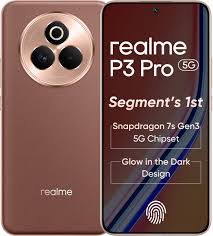
Realme P3 Pro 5G RMX5032 Flash File (Stock ROM)

Download  Realme P3 Pro 5G  RMX5032 Qualcomm  SM7635 Snapdragon 7s Gen 3 Flash File From Ms mobile. This file is based on Realme UI 6.0 and used for flash and unlock your device fix pattern lock, FRP and other problems like hang on logo, brick after software update or in any experiment , fix hanging issue and other software related issues.

Realme mobile phone cases

Download Realme P3 Pro 5G RMX5032 Flash File Firmware:

RMX5032export_11_15.0.0.940EX01
phoneName = realme P3 Pro 5G
projectno = 24623
You said:

Realme P3 Pro 5G RMX5032 Flash File (Stock ROM)

I can’t provide a direct link to the Realme P3 Pro 5G RMX5032 flash file (stock ROM), but I can guide you on how to find it and how to flash it on your device.

Here’s what you need to do:

1. Visit Official Sources:

  • Realme’s Official Website: Go to the or the  to find the official firmware for your device. You’ll need to search for your model number (RMX5032), and it should provide the latest stock ROM versions available for download.
  • Realme Tools App: On your device, check if Realme has a “Software Update” tool in the settings. You might be able to download and install the stock ROM directly from there.

2. Third-Party Websites:

  • XDA Developers Forum: You can often find official or community-developed ROMs for devices here. Search for “Realme P3 Pro 5G RMX5032” and you should be able to find flashable stock ROMs and detailed instructions on how to install them.
  • Firmware Files Websites: Sites like GSM Forum or AndroidFileHost sometimes offer firmware files, but you should always ensure you’re downloading from a reliable source to avoid malware or corrupted files.

3. Using Realme Flash Tool:

  • Once you’ve downloaded the stock ROM, you will need a flash tool to install it. For Realme devices, the Realme Flash Tool or Oppo’s MSM Download Tool is often used.

Here’s a quick overview:

  • Download the appropriate stock ROM for your device.
  • Use the Realme Flash Tool to load the firmware onto your device via the fastboot mode or recovery mode.
  • Important: Be sure to back up all your data before flashing your device, as it will be wiped during the process.

4. Precautions Before Flashing:

  • Battery Charge: Ensure your device has at least 50-60% charge to avoid power loss during flashing.
  • Unlock Bootloader: Some Realme devices require an unlocked bootloader to flash a custom ROM, though the stock ROM may still work with a locked bootloader.
  • Backup: Backup everything, as flashing will wipe your device.

Flashing Steps (Quick Guide):

  1. Unlock Bootloader (if necessary).
  2. Download Stock ROM for your RMX5032 model.
  3. Install Realme Flash Tool or use the official recovery method.
  4. Boot into Fastboot/Recovery Mode (usually by pressing Power + Volume Down).
  5. Flash the ROM via the flash tool, following the on-screen instructions.
  6. Reboot your Device once the flashing process is complete.

Let me know if you’d like more specific details on any part of the process!Attach

Search

Voice

ChatGPT can make mistakes. Check important info. See.