Home Blog Page 24

Realme GT 6T RMX3853 FLASH FILE(Stock ROM)

Download  Realme GT 6T  RMX3853 Qualcomm SM7675 Snapdragon 7+ Gen 3 (4 nm) Flash File From Ms mobile. This file is based on  Realme UI 5.0 and used for flash and unlock your device fix pattern lock, FRP and other problems like hang on logo, brick after software update or in any experiment , fix hanging issue and other software related issues.

Download Realme GT 6T RMX3853 Flash File Firmware:

RMX3853GDPR_11_15.0.0.710EX01
phoneName = realme GT 6T
projectno = 24687

Here are several reliable sources where you can download the official Stock ROM (flash files) for the Realme GT 6T (RMX3853):


📦 Available Firmware Versions

VersionAndroid / Realme UIRelease DateNotes
RMX3853export_11_14.0.1.613EX01Android 14 / UI 5.0Sept 28, 2024Latest Fastboot/EDL stable from official repo
RMX3853export_11_14.0.1.612EX01Android 14 / UI 5.0Aug 23, 2024Earlier stable build
RMX3853export_11_14.0.1.604(EX01)Android 14 / UI 5.0Apr 30, 2024Oldest variant, still functional

🚨 Flashing Precautions & Guide

  • Backup your entire data—flashing erases everything
  • Install Realme/Qualcomm USB drivers and the QFIL/MSM Download Tool or Oplus Flash Tool.
  • Depending on the firmware type:
    • EDL mode (via QFIL/MSM Download Tool) typically works best.
    • Fastboot mode tools like QPST or Oplus Download also work with some packages.
  • Follow these steps:
    1. Download and extract your chosen firmware.
    2. Install drivers; launch the flash tool.
    3. Load the firmware and click “Start Download”.
    4. Boot your phone into EDL or Fastboot (usually holding Volume Up + Down) and connect it to PC.
    5. Wait for the tool to indicate completion; reboot—your device should boot into stock firmware.

Tools and driver packages are usually bundled in the firmware zip or linked via these sites.


✅ Which Build Should You Use?

  • For a clean, up-to-date restore: go with 14.0.1.613EX01.
  • Stable older build: 14.0.1.612 is reliable.
  • Use 14.0.1.604 only in case of compatibility issues with newer tools.

🧭 Additional Suggestions

  • If planning to get Android 15 / Realme UI 6, look into the 15.x firmware builds (e.g., 15.0.0.600EX01) listed on azROM
  • For troubleshooting specific issues during flashing (e.g., device not detected), these sites advise contacting service support—or dropping queries to their WhatsApp help groups (though these may be paid).

Let me know if you’d like direct download links, help choosing the best version, or a detailed flashing guide specific to your OS.

Oppo A5 Pro 5G CPH2695 FLASH FILE (Stock ROM)

Download  Oppo A5 Pro 5G CPH2695,

 CPH2711 Mediatek Dimensity 6300 (6 nm) Flash File From Ms mobile. This file is based on Latest ColorOS and used for flash and unlock your device fix pattern lock, FRP and other problems like hang on logo, brick after software update or in any experiment , fix hanging issue and other software related issues.

Download Oppo A5 Pro 5G CPH2695, CPH2711 Flash File Firmware:

CPH2695export_11_15.0.0.705EX01_2025041822430000
Phone Name = OPPO A5 Pro 5G
Project No = 24253

Here are reliable sources where you can download the official Oppo A5 Pro 5G (CPH2695) flash files (Stock ROM):


⚠️ Flashing Advisory

Important precautions:

  1. Backup all data—flashing will erase device storage.
  2. Charge phone ≥50% to avoid power-off during flashing.
  3. Use the exact file for your region/model (e.g., “EX01” global).
  4. Install USB drivers, then launch the correct flash tool:
    • MSM Download Tool (Windows)
    • SP Flash Tool (Windows/Linux)
  5. Boot phone into Download/EDL mode (usually hold Vol+ & Vol– while connecting USB) and start flashing
  6. If flashing fails, check drivers and tool compatibility.

🔧 Flashing Steps (General)

  1. Download and unzip your chosen ROM package.
  2. Install USB drivers bundled inside.
  3. Launch the included flash tool.
  4. Load the firmware/off‐program file.
  5. Turn off the phone, then connect via USB while pressing both volume buttons.
  6. Click Start or Download in the tool.
  7. Wait for completion, then reboot.

🛠️ Region-Specific Versions

  • Global: 11.15.0.0.701EX01 from OppoStockROM and addROM
  • Indian or Thai variant: 15.0.0.705(EX01) from onfix.cn (≈5 GB)

✅ Final Suggestions

  • Prefer the latest global version (e.g., 11.15.0.0.701EX01_250322) if you’re in India or use a global ROM.
  • For region-specific needs (like Indian OTA patches), choose the regional ROMs.
  • If you encounter issues, try a different source or ensure drivers and EDL mode are working correctly.

Need direct links, step‑by‑step installer guide, or region‑specific advice? Just let me know—happy to help!

Realme 14 Pro 5G RMX5056 Flash File (Stock ROM)

Download  Realme 14 Pro 5G  RMX5056 Flash File Firmware from Ms mobile. With this file you can unlock device Screen lock Pattern, FRP and can upgrade or downgrade the device. Always use latest flash file to flash Realme 14 Pro 5G check device version by dial code *#899# in emergency dial. download the file with direct download link given below and read all flashing instructions before flashing the phone.

Download Realme 14 Pro 5G RMX5056 Flash File Firmware

Here are the reliable sources where you can download the official flash files (stock ROM) for Realme 14 Pro 5G (RMX5056), along with guidance on how to flash them safely:


🔹 Download Links & Details

  1. Latest Global Firmware (Android 15, Realme UI 6.0)
    • Version: 15.0.0.540EX01
    • Release Date: February 13, 2025
    • Size: ~8.4 GB, EDL mode (Emergency Download Mode)
  2. Alternate Builds (for rollback compatibility):
    • 15.0.0.660EX01 – released February 19, 2025 (~8.3 GB)
    • 15.0.0.1010EX01 – released May 24, 2025
  3. Larger “GDPR” & “export” packages (full dumps including OTA/complete firmware): multiple versions ranging ~8–25 GB

🛠️ Flashing Requirements & Guide

  • Flash Tool: Oplus/Realme Download Tool (log-in often required) – version v5.6.44.0 is commonly used.
  • USB Drivers: Qualcomm + MediaTek (if using EDL) or Oplus USB drivers
  • Instructions (general procedure across sources):
    1. Download and extract firmware + flash tool + drivers.
    2. Install required USB drivers on PC.
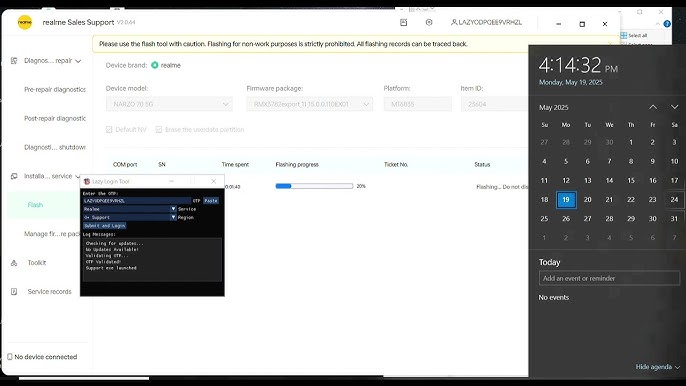
    3. Launch the Oplus/Realme download tool and log in if prompted.
    4. Load the firmware in the tool.
    5. Power off the phone, hold Volume Up + Volume Down, and connect to PC.
    6. Press Start and wait for flashing to complete. (
  • Precautions:
    • Backup all data — flashing will wipe your device
    • Ensure at least 50–60% battery before starting
    • Verify your model & firmware version via *#899# on your dial pad

📥 Quick Download Table

VersionRelease DateModeSize
15.0.0.1010EX01May 24, 2025EDL~8 GB
15.0.0.660EX01Feb 19, 2025EDL~8.3 GB
15.0.0.540EX01Feb 13, 2025EDL~8.4 GB

Choose the version based on your needs—15.0.0.1010EX01 is the most recent, while 540EX01 is the widely-used stable global build.


📝 Final Steps

  1. Pick one of the firmware versions above and download from your preferred trusted source.
  2. Gather the flash tool + drivers.
  3. Follow the step-by-step flashing instructions carefully.
  4. If any issues arise (e.g., tool login, port not detected, authentication errors), let me know—I’ve also spotted detailed Reddit and forum discussions that might help you troubleshoot. A good first step: search for “Realme Download Tool login” or check the local install / deep testing process.

⚠️ Disclaimer: Flashing carries some risks. Make sure you understand each step, back up your data, and proceed only if you’re confident. Let me know if you need help picking the right build, setting up tools, or navigating errors!

OnePlus Nord CE 2 5G IV2201 Flash File (Stock ROM)

Download  OnePlus Nord CE 2 5G IV2201 MediaTek MT6877 Dimensity 900 5G Flash File From Ms mobile. This file is based on

 Oxygen OS 11 and used for flash and unlock your device fix pattern lock, FRP and other problems like hang on logo, brick after software update or in any experiment , fix hanging issue and other software related issues.

Download OnePlus Nord CE 2 5G IV2201 Flash File Firmware:

Here are several reliable sources where you can download the OnePlus Nord CE 2 5G (model IV2201) stock ROM (flash files), including various Android 11 and Android 12 builds:


📂 Available Flash Files

Region/BuildFilenameSizeNotes
Global Export (Android 11 A.09)OnePlus_Nord_CE_2_IV2201_EX_11_A.09_220121_11.zip~4.66 GBBase factory build (whatmydevice.com, en.flash-file.net)
GDPR (Android 11 A.09/A.10/A.11/A.13)Variant builds (~4.89 GB)~4.89 GBEU/Global GDPR builds
India Export (Android 11 A.12/A.13)OnePlus_Nord_CE_2_India_IV2201_EX_11_A.12_220425.zip (~4.65 GB)~4.65 GBIndia-specific build
Android 12 “C series” previewIV2201GDPR_11_C.10 (Dec 2022)~4.8 GBLatest Android 12 EU preview build

🔧 How to Flash the Stock ROM

Most of these packages include the stock firmware, flash tool, USB drivers, and a flashing guide. Here’s a general step-by-step:

  1. Download the appropriate ZIP for your region/device.
  2. Extract it—inside you’ll find:
    • Scatter or fastboot files (for SP Flash Tool or MSM).
    • Flash tools (e.g., SP Flash Tool, MSM Download Tool).
    • USB drivers.
    • A “How‑to” guide.
  3. Install USB drivers (MediaTek or Qualcomm depending on build).
  4. Load firmware into the flash tool:
    • For SP Flash Tool: use scatter file.
    • For Qualcomm/MSM Tool: load the .fld or .xml.
  5. Connect your device in download mode:
    • Usually Power + Volume Up/Down held while plugging into USB.
  6. Begin flashing and wait for completion (green check or Success message).
  7. Reboot device; a full wipe is typically done during flash.

🛠 Tips & Warnings

  • Ensure bootloader is unlocked, especially for fastboot/SPFlash modes.
  • Use the correct region-specific firmware to avoid compatibility issues.
  • Some users report issues with the MSM tool—if flashing fails, try unlocking the bootloader and using fastboot methods or SP Flash Tool instead
  • Double-check that you’re flashing to the exact model (IV2201).

🧰 Where to Download


✅ Next Steps

  1. Choose the firmware matching your original region and Android version.
  2. Download and prepare flash tools and drivers.
  3. Flash using SP, MSM, or Fastboot as instructed in the package.
  4. Reboot and restore your data.

Let me know if you need direct download links, help choosing the right build, or step-by-step flashing assistance!

Oppo Reno 10 Pro 5G CPH2525 Flash File (Stock ROM)

Download  Oppo Reno 10 Pro 5G CPH2525 Flash File Firmware from Ms mobile. With this file you can unlock device Screen lock Pattern, FRP and can upgrade or downgrade the device. Always use latest flash file to flash Oppo Reno 10 Pro 5G check device version by dial code *#899# in emergency dial. download the file with direct download link given below and read all flashing instructions before flashing the phone.

Smartphone deals

Download Oppo Reno 10 Pro 5G CPH2525 Flash File Firmware:

Here are reliable sources where you can download the OPPO Reno 10 Pro 5G (CPH2525) stock firmware (flash files), along with flashing tools and instructions:


📥 Official Stock ROM Packages

  1. OppoStockRom.com
    • Firmware: CPH2525_11_13.1.1.501EX01_230918_QFIL.zip (~2.6 GB)
    • Includes QFIL flash tool, USB drivers, and flash guide in the archive (oppostockrom.com).
  2. GsmMafia.com
    • Multiple versions available:
      • CPH2525export_11_15.0.0.500EX01 (Mar 7, 2025)
      • 11_13.1.1.501EX01 (Sep 18, 2023)
      • Earlier builds like A.07, A.04, etc. (firmware-file.in, gsmmafia.com).
  3. RepairMyMobile.co
    • Firmware: CPH2525_11_13.1.1.501EX01_230918
    • USB/MTK drivers included; uses MSM Download Tool (repairmymobile.co).
  4. AddROM, TUSERHP, Mobifirmware, FirmwareBD, unofficialTWRP and others also host these ROMs—some offer slight variations (e.g. export, GDPR editions), but all refer to the same core version (tuserhp.com).

🔧 Flashing Tools & Requirements


✅ Recommended Steps to Flash


⚠️ Important Warnings

  • Always back up your data—flashing will erase everything
  • Some tools (MSM Download Tool) require login or service center credentials
  • Flash at your own risk—incorrect flashing can brick your device.

🔗 Download Sources Summary

VersionSourceNotes
11_15.0.0.500EX01 (Mar 7 2025)GsmMafiaLatest build, direct download
11_13.1.1.501EX01 (Sep 18 2023)OppoStockRomIncludes QFIL + instructions
11_13.1.1.501EX01RepairMyMobileMSM Tool version

In summary:
For a full, up-to-date firmware (Mar 2025), grab the 11.15.0.0.500EX01 build from GsmMafia. Back up your data, install the correct drivers, boot into EDL mode, and flash using QFIL. If you encounter authentication prompts, you may need service tool access—official OPPO service centers can assist.

Let me know if you need step-by-step guidance on any part of the process!

Oppo F29 5G CPH2721 Flash File (Stock ROM) tested

Download  Oppo F29 5G CPH2721 Flash File Firmware from Ms mobile. With this file you can unlock device Screen lock Pattern, FRP and can upgrade or downgrade the device. Always use latest flash file to flash Oppo F29 5G check device version by dial code *#899# in emergency dial. download the file with direct download link given below and read all flashing instructions before flashing the phone.

Smartphone deals

Download Oppo F29 5G CPH2721 Flash File Firmware:

Here are reliable sources where you can download the official stock firmware (flash file) for the Oppo F29 5G (model CPH2721) along with detailed installation guides and tools:


📦 Firmware Download & Details

  • Official Oppo Stock ROM (CPH2721)
    • Filename: Oppo_F29_5G_CPH2721_EX_11_15.0.0.604EX01_250225_QFIL.zip
    • Size: ~6.95 GB
    • Contents: Stock firmware, USB drivers, QFIL flash tool, installation manual
  • Alternate Mirror – Firmware Drive
    • Same file: EX_11_15.0.0.604EX01_250225_QFIL.zip (6.95 GB)

🔧 Installation Tools

  • QFIL (Qualcomm Flash Image Loader) — required to flash the firmware
  • Qualcomm / Oppo USB Drivers — included in firmware bundle or downloadable separately

🛠 Step‑by‑Step Flashing Guide

  1. Prepare
    • Ensure at least 50% battery, and back up all data (flashing erases internal storage)
  2. Download & Extract
    • Unzip the firmware package on your Windows PC to access .mbn or .xml files, along with the QFIL executable and USB drivers.
  3. Install USB Drivers
    • Install the drivers included in the bundle.
  4. Launch QFIL
    • Select Flat Build mode, then browse and load the firmware file (.mbn / .xml).
  5. Enter EDL / Download Mode
    • Power off the device. Hold Volume Up + Volume Down simultaneously, then connect via USB to enter EDL mode
  6. Flash Firmware
    • In QFIL, click Download. Wait until it shows a successful completion.
  7. Reboot
    • Disconnect your phone and boot it. The first boot may take several minutes

✅ Why Flashing May Be Needed

  • Fixes boot loops or device stuck on logo
  • Removes software issues, FRP lock, forgotten password
  • Allows updating or downgrading Android (ColorOS 14 / Android 14)

⚠️ Important Precautions

  • Match Device Model: Ensure your device is CPH2721, else flashing can brick it
  • Warranty / Risk: Flashing stock ROM typically restores warranty, but wrong steps may cause boot failures
  • EDL Access Issues: If QFIL can’t detect your device, verify drivers or use a deep‑flash cable to force EDL mode
  • Version Alternatives: There’s also firmware 15.0.0.608(EX01) and 15.0.0.606(EX01) available

📌 Quick Download Links Summary


🗣 Reddit Insights

Reddit users caution that flashing Oppo devices via EDL mode and QFIL is mostly supported for official stock ROM. Attempting custom ROMs or root may require EDL cables, deep-flash tools, or professional service, and carries a high risk of bricking (reddit.com).


✅ Summary

To flash your Oppo F29 5G (CPH2721):

  • Use the official 6.95 GB QFIL bundle (firmware + tools)
  • Follow the step-by-step guide to flash via EDL mode with QFIL
  • Backup data and confirm model match before proceeding

Let me know if you’d like help with download links, detailed flashing errors, or choosing between firmware versions!

Realme 11 5G RMX3780 FLASH FILE (Stock ROM) tested

Download  Realme 11 5G  RMX3780 Flash File Firmware from Ms mobile. With this file you can unlock device Screen lock Pattern, FRP and can upgrade or downgrade the device. Always use latest flash file to flash Realme 11 5G check device version by dial code *#899# in emergency dial. download the file with direct download link given below and read all flashing instructions before flashing the phone.

Download Realme 11 5G RMX3780 Flash File Firmware:

Phone Name = Realme 11 5G

Project No = 23661

RMX3780GDPR_11_15.0.0.110EX01
Phone Name - Realme 11 5G
Project no - 23361

Here are several reliable sources for downloading the official stock firmware (flash file) for the Realme 11 5G (RMX3780), along with steps and cautions to flash it properly:


🔧 Flashing Steps Overview

Most packages include:

  • Official firmware ZIP,
  • Flashing tool (SP Flash Tool for MTK),
  • USB drivers,
  • “How‑to flash” PDF or guide.

General procedure:

  1. Download & extract the firmware package.
  2. Install USB/MTK drivers on PC.
  3. Launch SP Flash Tool or Realme/Oplus flash tool.
  4. Load firmware (scatter file or whole ROM).
  5. Boot phone into EDL mode: Power off → press Volume Up + Down → connect USB.
  6. Start flashing and wait until completed.
  7. Reboot device.

✅ Choosing the Right Firmware

  • If you’re targeting the latest global/Indian build, go with 14.0.0.320EX01 (Jan 26 2025) from KumarElectronics, Mobifirmware, or OppoStockROM
  • For earlier stability or specific use cases, the A.24→A.53 range (mid‑2023 to early 2024) from ROMExperts or Mobifirmware works well.

📝 Summary Table

Firmware VersionRelease DateSource(s)
14.0.0.320EX01 (EX)Jan 26 2025KumarElectronics, OppoStockROM
14.0.0.310EX01, 105EX01Dec 2024, Jun 2024ROMExperts
A.24 → A.41 (mid-2023)Jul ’23 – Oct ’23ROMExperts, Mobifirmware
A.24 (13.12 GB full ROM)Jul 27 2023EN.Flash‑File / GetDroidTips

🛠️ Flashing Tips

  • Use scatter-based SP Flash Tool for MediaTek.
  • Ensure device shows “MediaTek USB” in PC Device Manager.
  • Realme/Oplus tool may require login—prepare your Realme credentials.
  • Charge your phone to ≥50% before flashing.
  • If flashing fails, try different tool versions (e.g., SP Flash Tool for Linux/Windows, Realme flash tool v5.x).

✅ Next Steps

  1. Decide which firmware version you want (latest 14.0.0.320EX01 recommended).
  2. Download from one of the sources above.
  3. Follow the included instructions and flash accordingly.

Let me know which version you’re leaning toward or if you need help finding a direct download or with the flashing steps!

Realme 14 5G RMX5070 Flash File (Stock ROM) TESTED

Download  Realme 14 5G RMX5070 Qualcomm Snapdragon 6 Gen 4 Flash File From Ms mobile. This file is based on

 Realme UI 6.0 and used for flash and unlock your device fix pattern lock, FRP and other problems like hang on logo, brick after software update or in any experiment , fix hanging issue and other software related issues.

Download Realme 14 5G RMX5070 Flash File Firmware:

Here are the official and community-verified Realme 14 5G (RMX5070) flash files (stock firmware) that you can use to unbrick, downgrade, bypass FRP/pattern lock, or restore your device:


🔧 Available Flash File Versions

  1. Based on Realme UI 6.0 (Android 15)
    • 15.0.0.670EX01 – Released April 25, 2025
    • 15.0.0.660EX01 – Released April 15, 2025
  2. Older build
    • 15.0.0.600EX01 – Released March 28, 2025

📦 Download Sources


🛠️ Flashing Instructions (Goal: Factory Restore)

  1. Choose a firmware version (e.g., 15.0.0.670EX01 is the newest).
  2. Download the firmware package (export or GDPR build).
  3. Extract the firmware.
  4. Install Oplus/QFIL drivers and download tool on PC.
  5. Launch the tool (Oplus Flash Tool v5.x or QFIL).
  6. Load the firmware folder into the tool.
  7. Power off your Realme 14 5G.
  8. Boot into download mode by holding both Volume Up + Volume Down while connecting USB cable.
  9. Click ‘Start All’ / ‘Download’ and wait until flashing completes.
  10. Reboot your device after success.

⚠️ Cautions Before Flashing

  • Backup everything: Flashing will erase all data.
  • Model match: Ensure your phone is Realme 14 5G RMX5070.
  • Battery ≥ 50%: Prevent interruptions mid-flash.
  • Correct tool login: Many require valid credentials.
  • Wrong firmware = brick risk: Always double-check version strings.
  • Drivers installed correctly: Verify that Qualcomm or Oplus USB drivers are recognized.

✅ Recommendations

  • Use 15.0.0.670EX01 for the latest stable firmware.
  • If login/password is required for the tool, check
  • For smaller files/dev-size constraints, azROM offers multiple variants including GDPR (9–11 GB MF) or export (33 GB)

If you’d like, I can guide you step-by-step through flashing using QFIL or Oplus Flash Tool—or help locate the specific download link you need. Just let me know!

Oppo F29 Pro 5G CPH2705 Flash File (Stock ROM)

Download  Oppo F29 Pro 5G CPH2705 Mediatek Dimensity 7300 Energy Flash File From Ms mobile. This file is based on Latest ColorOS and used for flash and unlock your device fix pattern lock, FRP and other problems like hang on logo, brick after software update or in any experiment, fix hanging issue and other software related issues.

Download Oppo F29 Pro 5G CPH2705 Flash File Firmware:

  • Version: Same 11_15.0.0.801EX01 build
  • Includes: Flashing tool and USB drivers, with clear step‑by‑step instructions .

4. FirmwareDrive – Direct ZIP Download


🛠️ Flashing Steps Overview

Though steps vary slightly by tool, the general process is:

  1. Download the downloaded flash‑file package (usually ~7.7 GB ZIP).
  2. Extract it to reveal:
    • The .zip or .bin firmware,
    • USB drivers (Oplus/MediaTek),
    • Flash tool (OplusFlashTool/SP Flash Tool).
  3. Install USB drivers on your PC.
  4. Run the flash tool:
    • For OplusFlashTool: click Start All
    • For SP Flash Tool: load scatter file and click Download
  5. Reboot phone into download mode by holding Volume + & Volume – while plugging into PC.
  6. Flash begins; once successful, disconnect and reboot.

⚠️ Important Precautions

  • Ensure your model is exactly CPH2705.
  • Back up all data – flashing erases everything.
  • Keep the phone charged above 50% to avoid interruptions.
  • Use the correct USB drivers for MediaTek/Qualcomm.
  • Flash only firmware files from March–May 2025 builds:
    • 11_15.0.0.700EX01 (Feb 28 build) or
    • 11_15.0.0.801EX01 (Mar 31 build)
  • If you encounter errors like authentication failures, tools like MTKClient or MTK dongles might help — similar to troubleshooting approaches seen with other Oppo devices

🧭 Getting Started

  1. Pick a source above (GSMMafia recommended for tools).
  2. Download and extract everything.
  3. Follow the built‑in guide for your chosen flash tool.
  4. Enter the correct mode and begin flashing.
  5. If you get stuck—errors like handshake failures—you may need a bypass tool (e.g. MTKClient or deep‑testing APK), as often advised in related Oppo guides

📩 Need Further Help?

  • Struggling with download or tool issues?
  • Facing a specific error message?
  • Need guidance for deeper unlocks (MTKClient, deep-debug tools)?

Just reply with your error message or step where you’re stuck—I’m here to help!

Realme Narzo 70 Turbo 5G RMX5003 FLASH FILE(Stock ROM)

Download Realme Narzo 70 Turbo 5G RMX5003 Mediatek Dimensity 7300 Energy (4 nm) Flash File From Ms mobile. This file is based on Realme UI 5.0 and used for flash and unlock your device fix pattern lock, FRP and other problems like hang on logo, brick after software update or in any experiment , fix hanging issue and other software related issues. Realme flash tool required login credential to run, if you don’t have then contact me for flash. it’s paid service. Always use latest flash file to flash your device.

Download Realme Narzo 70 Turbo 5G RMX5003 Flash File:

RMX5003export_11_15.0.0.600EX01
phoneName = realme NARZO 70 Turbo 5G
projectno = 24703

Here are several reliable sources where you can download the official flash file (Stock ROM) for the Realme Narzo 70 Turbo 5G (RMX5003), along with flashing instructions:

GSMAmit provides the firmware package (~3.5 GB), scatter file, SP Flash Tool, and MTK USB drivers. It supports Android 14 (Realme UI 5.0) and MediaTek Dimensity 8200. Includes a step‑by‑step SP Flash Tool guide.

Oppostockrom.com includes an 8.12 GB package plus SP Flash Tool for Windows/Linux and detailed flashing steps .


🔧 Quick flashing steps (using SP Flash Tool)

  1. Download the correct firmware package for RMX5003.
  2. Extract it on your PC.
  3. Install MTK/Realme USB driver.
  4. Open SP Flash Tool → Load the scatter file from firmware.
  5. Set mode to “Download Only” (or “Firmware Upgrade”).
  6. Power off your phone.
  7. Connect by holding both Volume Up + Down while plugging USB.
  8. Flashing takes ~5–10 minutes. Wait for the green success prompt.
  9. Disconnect and reboot your device. Backup before flashing—data will be wiped .

⚠️ Precautions & version advice

  • Always check the build number (e.g., 11_14.1.0.410 vs 11_15.0.0.404).
  • Newer builds may include bugfixes; older builds useful for rollback.
  • Files up to ~8 GB may take longer to download.
  • Follow driver and tool setup guidance carefully to avoid flashing issues.
  • Always charge at least 50%, use a good USB cable, disable antivirus temporarily .

✅ Summary Table

SourceVersionSize (≈)Tool / Drivers Included
RealmeFirmware11_14.1.0.4108.1 GBSP Flash Tool
ROMExperts15.0.0.404EX / …Realme Flash Tool
GSMAmitAndroid 14 (Realme UI)3.5 GBSP Flash + drivers
OppoStockROM11_14.1.0.410 (MT6878)8.12 GBSP Flash Tool (Win/Linux)

🧭 Recommended steps:

  1. Choose a source and firmware version you prefer.
  2. Download the package and necessary tools/drivers.
  3. Backup your data completely.
  4. Follow the flashing guide using SP Flash Tool.
  5. Reboot your phone and set it up.

If you need direct download links, custom tool guidance (e.g., MSM Download Tool), or want help with specific build versions (e.g., downgrade vs latest build), let me know—I can help locate exact links!

Exit mobile version