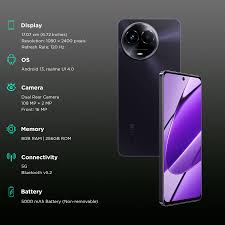
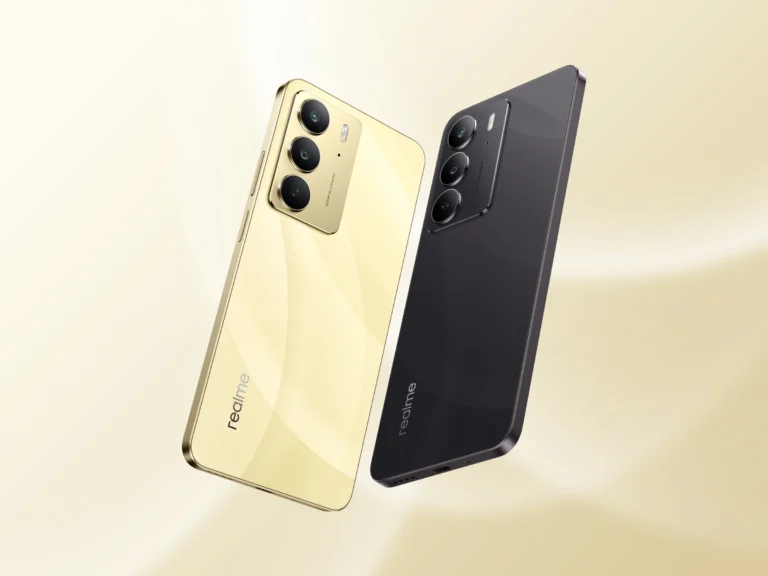
Download Oppo A98 5G CPH2529 Flash File Firmware from Ms mobile. With this file you can unlock device Screen lock Pattern, FRP and can upgrade or downgrade the device. Always use latest flash file to flash Oppo A98 5G check device version by dial code *#899# in emergency dial. download the file with direct download link given below and read all flashing instructions before flashing the phone.
Smartphone deals
Download Oppo A98 5G CPH2529 Flash File Firmware:
JioBharat A1 4G Kw301 Password Unlock || JioBharat A1 4G Kw301 Flashing || Kw301 Flash File LinkWhatsApp-6239486392
https://wa.me/+916239486392Connect Info :-•YouTube Channel:-https://www.youtube.com/@MHKSmobileengineer
•2nd YouTube Channel:-https://www.youtube.com/@mithileshmobitech
•Website:-https://msmobileinstitute.com/
•Facebook Page:-https://www.facebook.com/share/16TC4ExXzj/
•WhatsApp:-https://wa.me/+916239486392All Xiaomi/Redmi/Poco HyperOs 2.0 FRP Bypass Android 15 | All HyperOS 2.0 FRP Unlock By-AMT Tool-https://youtu.be/-1aLpjVJaPk?si=-4omThsGJMH4Sg_1
============================================Vivo V29 V29e V30 FRP Bypass New Security 2024 || All Vivo FRP Bypass Android 14 New Security 2024-https://youtu.be/tt5w9iUvi5Q
=========================================================Android Multi Tool (AMT) Video Playlist- https://youtube.com/playlist?list=PL-yo6fmrufev0YhjoF5ebJXquoU8v-8ck&si=7SNeNhNXV1kam9mWSamsung FRP UMT New Update || Vivo MTK November Security Add Unlock ToolVivo Y91 No Service Problem Solutions-https://youtu.be/aHAl4OobV6E
Samsung A21s Dead Phone Recover-https://youtu.be/HyRwezkXLrQBlack Pasted CPU- https://youtu.be/f69OdfJ-bCA
EMMC Cleaning Rebol-https://youtu.be/thC6KBmnnAQVivo Y12 & 15 Unlock SP Flash Tool-https://youtu.be/AFWK_sHCNmw
Vivo Y91 Y91i Password Unlock New Security-https://youtu.be/eNFJldpeuCE
Vivo Y91 Y91i FRP Bypass Without PC-https://youtu.be/N8mEsYz4EiwAll Realme 12 5G FRP Bypass Android 14 Latest Security Julay 2024 || All Oppo/Realme FRP BypassHow to Use Mirical Power Tool MTK Tab-https://youtu.be/9KRC36rObpsVivo Y91 Y91i Live Test Unlocking -https://youtu.be/dBZG6TgaVZgJio F320B Charger Connect Phone On
===================≠===========jio f320b network running problem Solve
================================
Vivo Y16 FRP Bypass NEW Security JUL 2024 | Vivo v2214 Frp New Security Android 12 Frp Bypass 2024All Moto G84 G85 5G FRP Bypass New Security OCT 2024 Without Pc || All Moto FRP Bypass Android 14
all oppo frp bypass share article note working,oppo k12x 5g frp bypass share article note working,oppo a78 5g frp bypass share article note working,oppo a79 5g frp bypass share article note working,oppo frp bypass share article,cph2667 frp bypass share article note open,oppo frp bypass new trick,all oppo frp unlock new trick 2025,cph2477 frp unlock share article note open,frp remove any oppo android 12,android tricks,tecno spark 20 pro price
realme 13 pro plus frp bypass share article not working,
realme 13 pro plus frp bypass android 14 2025,
realme 13 plus frp bypass new security share article not working,
JioBharat V3 4G (JBV191M1) Password Unlock || How To Flash JioBharat V3 Logo Problem Fixpoco m6 5g frp bypass xiaomi hyperos,
poco m6 5g frp bypass,
poco m6 5g frp bypass miui 14,
poco m6 5g frp bypass hyperos,
poco m6 5g frp bypass activity launcher not working,
poco m6 5g frp bypass 2024,
poco m6 5g frp bypass android 14,
poco m6 5g frp bypass latest version,
poco m6 5g frp bypass umt#FixShareArticleNotWorking
#Android14AllRealmeFrpBypass2025
#FixClonePhoneAppNotShowing
#AllOppoAndroid14FrpUnlock2025
#Realme9FrpBypass2025Android14
#RealmeNarzo50BypassFrpShareArticleNotWorking
#Realme9i5gGoogleAccountBypass2025
#Realme10ProFrpBypassClonePhoneAPPNotShow
#RealmeNarzo50aFrpBypass
#Realme8sFrpUnlockNewTrick2025
#mhksmobileengineer #mithileshmobitech all realme frp bypass android xiaomi hyperos frp
share article not working,oppo android 15 frp bypass,oppo frp bypass android 15,oppo android 14 frp bypass,all oppo android 14 frp bypass,oppo frp bypass android 14 share not working,android 15 frp bypass,how to frp bypass oppo android 14,oppo a3 pro 5g frp bypass android 15,all oppo moto frp bypass 2025,motorola moto g35 frp bypass 2025 latest security,motorola moto g35 frp file latest security 2025,moto g35 5g frp bypass 2025,bypass phone security,moto g 32 5g frp bypass latest security,#moto g34 5g frp bypass unlock tool,frp bypass,motorola g85 5g frp bypass letest sequrity update,letest sequrity update g85 5g frp bypass,bypass,moto g35 frp bypass new security,moto g35 5g frp unlock free tool 2025,moto g35 5g frp unlockall moto frp bypass 2025, motorola frp unlock 2025, moto frp unlock, moto android 15 frp unlock without box 2025, oppo frp unlock 2025, all moto frp how to unlock jio bharat phone, how to unlock how to unlock jio bharat b1 phjio bharat phone password unlock,bharat karbonn mobile password unlock,jio bharat v2 password remove keise kare,karbonn bharat k1 4g unlock,karbonn bharat k1 4g unlock tool,jiobharat k2 hard reset 1,jiobharat b1 4g dead problem,jiobharat b1 4g dead solution,jiobharatk2,jiobharatheardreset
CPH2529GDPR_11_15.0.0.701EX01
phoneName = OPPO A98 5G
projectno = 22248
JioBharat A1 4G Kw301 Password Unlock || JioBharat A1 4G Kw301 Flashing || Kw301 Flash File LinkWhatsApp-6239486392
https://wa.me/+916239486392Connect Info :-•YouTube Channel:-https://www.youtube.com/@MHKSmobileengineer
•2nd YouTube Channel:-https://www.youtube.com/@mithileshmobitech
•Website:-https://msmobileinstitute.com/
•Facebook Page:-https://www.facebook.com/share/16TC4ExXzj/
•WhatsApp:-https://wa.me/+916239486392All Xiaomi/Redmi/Poco HyperOs 2.0 FRP Bypass Android 15 | All HyperOS 2.0 FRP Unlock By-AMT Tool-https://youtu.be/-1aLpjVJaPk?si=-4omThsGJMH4Sg_1
============================================Vivo V29 V29e V30 FRP Bypass New Security 2024 || All Vivo FRP Bypass Android 14 New Security 2024-https://youtu.be/tt5w9iUvi5Q
=========================================================Android Multi Tool (AMT) Video Playlist- https://youtube.com/playlist?list=PL-yo6fmrufev0YhjoF5ebJXquoU8v-8ck&si=7SNeNhNXV1kam9mWSamsung FRP UMT New Update || Vivo MTK November Security Add Unlock ToolVivo Y91 No Service Problem Solutions-https://youtu.be/aHAl4OobV6E
Samsung A21s Dead Phone Recover-https://youtu.be/HyRwezkXLrQBlack Pasted CPU- https://youtu.be/f69OdfJ-bCA
EMMC Cleaning Rebol-https://youtu.be/thC6KBmnnAQVivo Y12 & 15 Unlock SP Flash Tool-https://youtu.be/AFWK_sHCNmw
Vivo Y91 Y91i Password Unlock New Security-https://youtu.be/eNFJldpeuCE
Vivo Y91 Y91i FRP Bypass Without PC-https://youtu.be/N8mEsYz4EiwAll Realme 12 5G FRP Bypass Android 14 Latest Security Julay 2024 || All Oppo/Realme FRP BypassHow to Use Mirical Power Tool MTK Tab-https://youtu.be/9KRC36rObpsVivo Y91 Y91i Live Test Unlocking -https://youtu.be/dBZG6TgaVZgJio F320B Charger Connect Phone On
===================≠===========jio f320b network running problem Solve
================================
Vivo Y16 FRP Bypass NEW Security JUL 2024 | Vivo v2214 Frp New Security Android 12 Frp Bypass 2024All Moto G84 G85 5G FRP Bypass New Security OCT 2024 Without Pc || All Moto FRP Bypass Android 14
all oppo frp bypass share article note working,oppo k12x 5g frp bypass share article note working,oppo a78 5g frp bypass share article note working,oppo a79 5g frp bypass share article note working,oppo frp bypass share article,cph2667 frp bypass share article note open,oppo frp bypass new trick,all oppo frp unlock new trick 2025,cph2477 frp unlock share article note open,frp remove any oppo android 12,android tricks,tecno spark 20 pro price
realme 13 pro plus frp bypass share article not working,
realme 13 pro plus frp bypass android 14 2025,
realme 13 plus frp bypass new security share article not working,
JioBharat V3 4G (JBV191M1) Password Unlock || How To Flash JioBharat V3 Logo Problem Fixpoco m6 5g frp bypass xiaomi hyperos,
poco m6 5g frp bypass,
poco m6 5g frp bypass miui 14,
poco m6 5g frp bypass hyperos,
poco m6 5g frp bypass activity launcher not working,
poco m6 5g frp bypass 2024,
poco m6 5g frp bypass android 14,
poco m6 5g frp bypass latest version,
poco m6 5g frp bypass umt#FixShareArticleNotWorking
#Android14AllRealmeFrpBypass2025
#FixClonePhoneAppNotShowing
#AllOppoAndroid14FrpUnlock2025
#Realme9FrpBypass2025Android14
#RealmeNarzo50BypassFrpShareArticleNotWorking
#Realme9i5gGoogleAccountBypass2025
#Realme10ProFrpBypassClonePhoneAPPNotShow
#RealmeNarzo50aFrpBypass
#Realme8sFrpUnlockNewTrick2025
#mhksmobileengineer #mithileshmobitech all realme frp bypass android xiaomi hyperos frp
share article not working,oppo android 15 frp bypass,oppo frp bypass android 15,oppo android 14 frp bypass,all oppo android 14 frp bypass,oppo frp bypass android 14 share not working,android 15 frp bypass,how to frp bypass oppo android 14,oppo a3 pro 5g frp bypass android 15,all oppo moto frp bypass 2025,motorola moto g35 frp bypass 2025 latest security,motorola moto g35 frp file latest security 2025,moto g35 5g frp bypass 2025,bypass phone security,moto g 32 5g frp bypass latest security,#moto g34 5g frp bypass unlock tool,frp bypass,motorola g85 5g frp bypass letest sequrity update,letest sequrity update g85 5g frp bypass,bypass,moto g35 frp bypass new security,moto g35 5g frp unlock free tool 2025,moto g35 5g frp unlockall moto frp bypass 2025, motorola frp unlock 2025, moto frp unlock, moto android 15 frp unlock without box 2025, oppo frp unlock 2025, all moto frp how to unlock jio bharat phone, how to unlock how to unlock jio bharat b1 phjio bharat phone password unlock,bharat karbonn mobile password unlock,jio bharat v2 password remove keise kare,karbonn bharat k1 4g unlock,karbonn bharat k1 4g unlock tool,jiobharat k2 hard reset 1,jiobharat b1 4g dead problem,jiobharat b1 4g dead solution,jiobharatk2,jiobharatheardreset
JioBharat A1 4G Kw301 Password Unlock || JioBharat A1 4G Kw301 Flashing || Kw301 Flash File LinkWhatsApp-6239486392
https://wa.me/+916239486392Connect Info :-•YouTube Channel:-https://www.youtube.com/@MHKSmobileengineer
•2nd YouTube Channel:-https://www.youtube.com/@mithileshmobitech
•Website:-https://msmobileinstitute.com/
•Facebook Page:-https://www.facebook.com/share/16TC4ExXzj/
•WhatsApp:-https://wa.me/+916239486392All Xiaomi/Redmi/Poco HyperOs 2.0 FRP Bypass Android 15 | All HyperOS 2.0 FRP Unlock By-AMT Tool-https://youtu.be/-1aLpjVJaPk?si=-4omThsGJMH4Sg_1
============================================Vivo V29 V29e V30 FRP Bypass New Security 2024 || All Vivo FRP Bypass Android 14 New Security 2024-https://youtu.be/tt5w9iUvi5Q
=========================================================Android Multi Tool (AMT) Video Playlist- https://youtube.com/playlist?list=PL-yo6fmrufev0YhjoF5ebJXquoU8v-8ck&si=7SNeNhNXV1kam9mWSamsung FRP UMT New Update || Vivo MTK November Security Add Unlock ToolVivo Y91 No Service Problem Solutions-https://youtu.be/aHAl4OobV6E
Samsung A21s Dead Phone Recover-https://youtu.be/HyRwezkXLrQBlack Pasted CPU- https://youtu.be/f69OdfJ-bCA
EMMC Cleaning Rebol-https://youtu.be/thC6KBmnnAQVivo Y12 & 15 Unlock SP Flash Tool-https://youtu.be/AFWK_sHCNmw
Vivo Y91 Y91i Password Unlock New Security-https://youtu.be/eNFJldpeuCE
Vivo Y91 Y91i FRP Bypass Without PC-https://youtu.be/N8mEsYz4EiwAll Realme 12 5G FRP Bypass Android 14 Latest Security Julay 2024 || All Oppo/Realme FRP BypassHow to Use Mirical Power Tool MTK Tab-https://youtu.be/9KRC36rObpsVivo Y91 Y91i Live Test Unlocking -https://youtu.be/dBZG6TgaVZgJio F320B Charger Connect Phone On
===================≠===========jio f320b network running problem Solve
================================
Vivo Y16 FRP Bypass NEW Security JUL 2024 | Vivo v2214 Frp New Security Android 12 Frp Bypass 2024All Moto G84 G85 5G FRP Bypass New Security OCT 2024 Without Pc || All Moto FRP Bypass Android 14
all oppo frp bypass share article note working,oppo k12x 5g frp bypass share article note working,oppo a78 5g frp bypass share article note working,oppo a79 5g frp bypass share article note working,oppo frp bypass share article,cph2667 frp bypass share article note open,oppo frp bypass new trick,all oppo frp unlock new trick 2025,cph2477 frp unlock share article note open,frp remove any oppo android 12,android tricks,tecno spark 20 pro price
realme 13 pro plus frp bypass share article not working,
realme 13 pro plus frp bypass android 14 2025,
realme 13 plus frp bypass new security share article not working,
JioBharat V3 4G (JBV191M1) Password Unlock || How To Flash JioBharat V3 Logo Problem Fixpoco m6 5g frp bypass xiaomi hyperos,
poco m6 5g frp bypass,
poco m6 5g frp bypass miui 14,
poco m6 5g frp bypass hyperos,
poco m6 5g frp bypass activity launcher not working,
poco m6 5g frp bypass 2024,
poco m6 5g frp bypass android 14,
poco m6 5g frp bypass latest version,
poco m6 5g frp bypass umt#FixShareArticleNotWorking
#Android14AllRealmeFrpBypass2025
#FixClonePhoneAppNotShowing
#AllOppoAndroid14FrpUnlock2025
#Realme9FrpBypass2025Android14
#RealmeNarzo50BypassFrpShareArticleNotWorking
#Realme9i5gGoogleAccountBypass2025
#Realme10ProFrpBypassClonePhoneAPPNotShow
#RealmeNarzo50aFrpBypass
#Realme8sFrpUnlockNewTrick2025
#mhksmobileengineer #mithileshmobitech all realme frp bypass android xiaomi hyperos frp
share article not working,oppo android 15 frp bypass,oppo frp bypass android 15,oppo android 14 frp bypass,all oppo android 14 frp bypass,oppo frp bypass android 14 share not working,android 15 frp bypass,how to frp bypass oppo android 14,oppo a3 pro 5g frp bypass android 15,all oppo moto frp bypass 2025,motorola moto g35 frp bypass 2025 latest security,motorola moto g35 frp file latest security 2025,moto g35 5g frp bypass 2025,bypass phone security,moto g 32 5g frp bypass latest security,#moto g34 5g frp bypass unlock tool,frp bypass,motorola g85 5g frp bypass letest sequrity update,letest sequrity update g85 5g frp bypass,bypass,moto g35 frp bypass new security,moto g35 5g frp unlock free tool 2025,moto g35 5g frp unlockall moto frp bypass 2025, motorola frp unlock 2025, moto frp unlock, moto android 15 frp unlock without box 2025, oppo frp unlock 2025, all moto frp how to unlock jio bharat phone, how to unlock how to unlock jio bharat b1 phjio bharat phone password unlock,bharat karbonn mobile password unlock,jio bharat v2 password remove keise kare,karbonn bharat k1 4g unlock,karbonn bharat k1 4g unlock tool,jiobharat k2 hard reset 1,jiobharat b1 4g dead problem,jiobharat b1 4g dead solution,jiobharatk2,jiobharatheardreset
JioBharat A1 4G Kw301 Password Unlock || JioBharat A1 4G Kw301 Flashing || Kw301 Flash File LinkWhatsApp-6239486392
https://wa.me/+916239486392Connect Info :-•YouTube Channel:-https://www.youtube.com/@MHKSmobileengineer
•2nd YouTube Channel:-https://www.youtube.com/@mithileshmobitech
•Website:-https://msmobileinstitute.com/
•Facebook Page:-https://www.facebook.com/share/16TC4ExXzj/
•WhatsApp:-https://wa.me/+916239486392All Xiaomi/Redmi/Poco HyperOs 2.0 FRP Bypass Android 15 | All HyperOS 2.0 FRP Unlock By-AMT Tool-https://youtu.be/-1aLpjVJaPk?si=-4omThsGJMH4Sg_1
============================================Vivo V29 V29e V30 FRP Bypass New Security 2024 || All Vivo FRP Bypass Android 14 New Security 2024-https://youtu.be/tt5w9iUvi5Q
=========================================================Android Multi Tool (AMT) Video Playlist- https://youtube.com/playlist?list=PL-yo6fmrufev0YhjoF5ebJXquoU8v-8ck&si=7SNeNhNXV1kam9mWSamsung FRP UMT New Update || Vivo MTK November Security Add Unlock ToolVivo Y91 No Service Problem Solutions-https://youtu.be/aHAl4OobV6E
Samsung A21s Dead Phone Recover-https://youtu.be/HyRwezkXLrQBlack Pasted CPU- https://youtu.be/f69OdfJ-bCA
EMMC Cleaning Rebol-https://youtu.be/thC6KBmnnAQVivo Y12 & 15 Unlock SP Flash Tool-https://youtu.be/AFWK_sHCNmw
Vivo Y91 Y91i Password Unlock New Security-https://youtu.be/eNFJldpeuCE
Vivo Y91 Y91i FRP Bypass Without PC-https://youtu.be/N8mEsYz4EiwAll Realme 12 5G FRP Bypass Android 14 Latest Security Julay 2024 || All Oppo/Realme FRP BypassHow to Use Mirical Power Tool MTK Tab-https://youtu.be/9KRC36rObpsVivo Y91 Y91i Live Test Unlocking -https://youtu.be/dBZG6TgaVZgJio F320B Charger Connect Phone On
===================≠===========jio f320b network running problem Solve
================================
Vivo Y16 FRP Bypass NEW Security JUL 2024 | Vivo v2214 Frp New Security Android 12 Frp Bypass 2024All Moto G84 G85 5G FRP Bypass New Security OCT 2024 Without Pc || All Moto FRP Bypass Android 14
all oppo frp bypass share article note working,oppo k12x 5g frp bypass share article note working,oppo a78 5g frp bypass share article note working,oppo a79 5g frp bypass share article note working,oppo frp bypass share article,cph2667 frp bypass share article note open,oppo frp bypass new trick,all oppo frp unlock new trick 2025,cph2477 frp unlock share article note open,frp remove any oppo android 12,android tricks,tecno spark 20 pro price
realme 13 pro plus frp bypass share article not working,
realme 13 pro plus frp bypass android 14 2025,
realme 13 plus frp bypass new security share article not working,
JioBharat V3 4G (JBV191M1) Password Unlock || How To Flash JioBharat V3 Logo Problem Fixpoco m6 5g frp bypass xiaomi hyperos,
poco m6 5g frp bypass,
poco m6 5g frp bypass miui 14,
poco m6 5g frp bypass hyperos,
poco m6 5g frp bypass activity launcher not working,
poco m6 5g frp bypass 2024,
poco m6 5g frp bypass android 14,
poco m6 5g frp bypass latest version,
poco m6 5g frp bypass umt#FixShareArticleNotWorking
#Android14AllRealmeFrpBypass2025
#FixClonePhoneAppNotShowing
#AllOppoAndroid14FrpUnlock2025
#Realme9FrpBypass2025Android14
#RealmeNarzo50BypassFrpShareArticleNotWorking
#Realme9i5gGoogleAccountBypass2025
#Realme10ProFrpBypassClonePhoneAPPNotShow
#RealmeNarzo50aFrpBypass
#Realme8sFrpUnlockNewTrick2025
#mhksmobileengineer #mithileshmobitech all realme frp bypass android xiaomi hyperos frp
share article not working,oppo android 15 frp bypass,oppo frp bypass android 15,oppo android 14 frp bypass,all oppo android 14 frp bypass,oppo frp bypass android 14 share not working,android 15 frp bypass,how to frp bypass oppo android 14,oppo a3 pro 5g frp bypass android 15,all oppo moto frp bypass 2025,motorola moto g35 frp bypass 2025 latest security,motorola moto g35 frp file latest security 2025,moto g35 5g frp bypass 2025,bypass phone security,moto g 32 5g frp bypass latest security,#moto g34 5g frp bypass unlock tool,frp bypass,motorola g85 5g frp bypass letest sequrity update,letest sequrity update g85 5g frp bypass,bypass,moto g35 frp bypass new security,moto g35 5g frp unlock free tool 2025,moto g35 5g frp unlockall moto frp bypass 2025, motorola frp unlock 2025, moto frp unlock, moto android 15 frp unlock without box 2025, oppo frp unlock 2025, all moto frp how to unlock jio bharat phone, how to unlock how to unlock jio bharat b1 phjio bharat phone password unlock,bharat karbonn mobile password unlock,jio bharat v2 password remove keise kare,karbonn bharat k1 4g unlock,karbonn bharat k1 4g unlock tool,jiobharat k2 hard reset 1,jiobharat b1 4g dead problem,jiobharat b1 4g dead solution,jiobharatk2,jiobharatheardreset
Here are trusted sources where you can download the official flash (stock firmware) file for the Oppo A98 5G (model CPH2529)
🔧 Flashing Instructions (General Workflow)
- Backup your data – flashing will wipe all user data.
- Download and extract the stock ROM .zip (EX or OFP) to your PC.
- Install USB drivers:
- Qualcomm (QCOM 9008 EDL mode) for EX builds
- MSM (Qualcomm) for OFP builds
- Choose the flash tool:
- QSPT Flash Tool for EX builds
- MSMDownloadTool (aka OPLUS_download_tool) for OFP builds––requires Oppo service login credentials
- Boot your phone into EDL/download mode:
- Power off ➝ Connect USB cable while holding Volume Up + Volume Down
- Load the firmware in the tool, click Start/Download, and wait for completion.
- Reboot device after success.
JioBharat A1 4G Kw301 Password Unlock || JioBharat A1 4G Kw301 Flashing || Kw301 Flash File LinkWhatsApp-6239486392
https://wa.me/+916239486392Connect Info :-•YouTube Channel:-https://www.youtube.com/@MHKSmobileengineer
•2nd YouTube Channel:-https://www.youtube.com/@mithileshmobitech
•Website:-https://msmobileinstitute.com/
•Facebook Page:-https://www.facebook.com/share/16TC4ExXzj/
•WhatsApp:-https://wa.me/+916239486392All Xiaomi/Redmi/Poco HyperOs 2.0 FRP Bypass Android 15 | All HyperOS 2.0 FRP Unlock By-AMT Tool-https://youtu.be/-1aLpjVJaPk?si=-4omThsGJMH4Sg_1
============================================Vivo V29 V29e V30 FRP Bypass New Security 2024 || All Vivo FRP Bypass Android 14 New Security 2024-https://youtu.be/tt5w9iUvi5Q
=========================================================Android Multi Tool (AMT) Video Playlist- https://youtube.com/playlist?list=PL-yo6fmrufev0YhjoF5ebJXquoU8v-8ck&si=7SNeNhNXV1kam9mWSamsung FRP UMT New Update || Vivo MTK November Security Add Unlock ToolVivo Y91 No Service Problem Solutions-https://youtu.be/aHAl4OobV6E
Samsung A21s Dead Phone Recover-https://youtu.be/HyRwezkXLrQBlack Pasted CPU- https://youtu.be/f69OdfJ-bCA
EMMC Cleaning Rebol-https://youtu.be/thC6KBmnnAQVivo Y12 & 15 Unlock SP Flash Tool-https://youtu.be/AFWK_sHCNmw
Vivo Y91 Y91i Password Unlock New Security-https://youtu.be/eNFJldpeuCE
Vivo Y91 Y91i FRP Bypass Without PC-https://youtu.be/N8mEsYz4EiwAll Realme 12 5G FRP Bypass Android 14 Latest Security Julay 2024 || All Oppo/Realme FRP BypassHow to Use Mirical Power Tool MTK Tab-https://youtu.be/9KRC36rObpsVivo Y91 Y91i Live Test Unlocking -https://youtu.be/dBZG6TgaVZgJio F320B Charger Connect Phone On
===================≠===========jio f320b network running problem Solve
================================
Vivo Y16 FRP Bypass NEW Security JUL 2024 | Vivo v2214 Frp New Security Android 12 Frp Bypass 2024All Moto G84 G85 5G FRP Bypass New Security OCT 2024 Without Pc || All Moto FRP Bypass Android 14
all oppo frp bypass share article note working,oppo k12x 5g frp bypass share article note working,oppo a78 5g frp bypass share article note working,oppo a79 5g frp bypass share article note working,oppo frp bypass share article,cph2667 frp bypass share article note open,oppo frp bypass new trick,all oppo frp unlock new trick 2025,cph2477 frp unlock share article note open,frp remove any oppo android 12,android tricks,tecno spark 20 pro price
realme 13 pro plus frp bypass share article not working,
realme 13 pro plus frp bypass android 14 2025,
realme 13 plus frp bypass new security share article not working,
JioBharat V3 4G (JBV191M1) Password Unlock || How To Flash JioBharat V3 Logo Problem Fixpoco m6 5g frp bypass xiaomi hyperos,
poco m6 5g frp bypass,
poco m6 5g frp bypass miui 14,
poco m6 5g frp bypass hyperos,
poco m6 5g frp bypass activity launcher not working,
poco m6 5g frp bypass 2024,
poco m6 5g frp bypass android 14,
poco m6 5g frp bypass latest version,
poco m6 5g frp bypass umt#FixShareArticleNotWorking
#Android14AllRealmeFrpBypass2025
#FixClonePhoneAppNotShowing
#AllOppoAndroid14FrpUnlock2025
#Realme9FrpBypass2025Android14
#RealmeNarzo50BypassFrpShareArticleNotWorking
#Realme9i5gGoogleAccountBypass2025
#Realme10ProFrpBypassClonePhoneAPPNotShow
#RealmeNarzo50aFrpBypass
#Realme8sFrpUnlockNewTrick2025
#mhksmobileengineer #mithileshmobitech all realme frp bypass android xiaomi hyperos frp
share article not working,oppo android 15 frp bypass,oppo frp bypass android 15,oppo android 14 frp bypass,all oppo android 14 frp bypass,oppo frp bypass android 14 share not working,android 15 frp bypass,how to frp bypass oppo android 14,oppo a3 pro 5g frp bypass android 15,all oppo moto frp bypass 2025,motorola moto g35 frp bypass 2025 latest security,motorola moto g35 frp file latest security 2025,moto g35 5g frp bypass 2025,bypass phone security,moto g 32 5g frp bypass latest security,#moto g34 5g frp bypass unlock tool,frp bypass,motorola g85 5g frp bypass letest sequrity update,letest sequrity update g85 5g frp bypass,bypass,moto g35 frp bypass new security,moto g35 5g frp unlock free tool 2025,moto g35 5g frp unlockall moto frp bypass 2025, motorola frp unlock 2025, moto frp unlock, moto android 15 frp unlock without box 2025, oppo frp unlock 2025, all moto frp how to unlock jio bharat phone, how to unlock how to unlock jio bharat b1 phjio bharat phone password unlock,bharat karbonn mobile password unlock,jio bharat v2 password remove keise kare,karbonn bharat k1 4g unlock,karbonn bharat k1 4g unlock tool,jiobharat k2 hard reset 1,jiobharat b1 4g dead problem,jiobharat b1 4g dead solution,jiobharatk2,jiobharatheardreset
⚠️ Key Considerations
- Tool Login Required: OFP packages (Oppo/Realme newer models) require authenticated login (Oppo service accounts). TUSERHP confirms this restriction.
- Corrupted or unsupported ROM combo may brick your device—always match your exact model (CPH2529) and build type (EX or OFP).
- Need help with login or flashing steps? It’s recommended to visit an official Oppo service center if you don’t have the login ID, especially for OFP builds.
🔗 Download Links
- For EX build (no login required) – Best if you want full offline flashing:
Oppo_A98_5G_CPH2529_EX_11_A.05_230512_QPST.zip (~16.5 GB) — available via Oppo Stock ROM, Flash-File.net, WhatMyDevice
- For OFP builds (need login):
CPH2529export_11_A.07_2023061001520000.zipCPH2529export_11_A.05_2023051200410000.zip- Older:
A.04 etc.
- MSM Download Tool & Drivers:
- Included within OFP package or available separately (Google “MSM Download Tool Oppo CPH2529”).
🧭 Recommended Approach
- If you just want to unbrick, bypass FRP, or restore stock ROM, go with the EX build and use QSPT — no login needed.
- If you need the latest OFP build (including new ColorOS features or security patches), be prepared to use MSM tool with Oppo login or visit an authorized repair shop.
🧠 Why This Works
Reddit discussions confirm that MSMDownloadTool often requires authentication for newer Qualcomm-based Oppo phones, and qualcomm EDL mode (QCOM9008) is commonly used for flashing .
Let me know if you’d like direct links to specific builds or step‑by‑step help with the flash tools!