Home Blog

Samsung Galaxy A04s SM-A047F Full Dump Easy

You’re asking for Samsung Galaxy A04s (SM-A047F) BIT/SC full dump firmware — I’ll explain clearly what’s available and what’s not 👇


🔴 Important Reality (Read First)

  • A “FULL DUMP” (preloader, boot, userdata, etc.) is NOT officially released by Samsung
  • These dumps are usually:
    • Extracted from working phones
    • Shared privately or sold on GSM forums/tools
  • Public sites mostly provide stock firmware (4-file), NOT full dump

👉 So if you specifically need BIT-SC dump, it’s rare/free almost unavailable.


✅ Official Firmware (Closest Alternative)

Latest firmware for SM-A047F (India / INS):

  • Version: A047FXXSEEZB2
  • Android: 14
  • Binary (BIT): E (Bit 14)

👉 You can download from:


📌 Understanding “BIT / Binary”

Example firmware: A047FXXSEEZB2

  • The 5th character from end = Binary
  • In this case:
    • E = BIT 14

⚠️ Rule:

  • You CANNOT downgrade binary
  • You must flash same or higher BIT only

Download Samsung Galaxy A04s SM-A047F Full Dump

LAZY LOGIN TOOL Realme Flash Tool Download

🔧 If You Need FULL DUMP (Real Options)

1. Paid GSM Sites (Most Reliable)

  • Halabtech
  • GSMFix
  • EasyFirmware
    👉 These usually provide:
  • Full dump (scatter / partitions)
  • Repair files (boot, vbmeta, etc.)

2. Extract Your Own Dump (Best Method)

If you have same working device (same BIT):

  • Use:
    • Chimera Tool
    • UnlockTool
    • MTK/EDL tools (depending chipset)
  • Dump partitions:
    • preloader
    • boot
    • vbmeta
    • super

3. Use Stock Firmware Instead (Safer)

For most cases (bootloop, soft brick):

  • Flash with Odin
  • Use:
    • BL
    • AP
    • CP
    • CSC

👉 This fixes 90% issues without full dump


🎥 Example (Flashing / Repair Concept)


⚠️ Warning

  • Wrong BIT file = FAIL / HARD BRICK
  • Wrong dump = dead boot / no download mode
  • Always match:
    • Model: SM-A047F
    • Binary: SC / E / etc

👍 If You Tell Me:

I can help you find the exact file you need 👇

  • Your full build number (Settings → About phone)
  • Your BIT (binary)
  • Problem type:
    • Dead boot
    • FRP
    • IMEI repair
    • Bootloop

👉 Then I’ll give you exact working dump / firmware solution (free or paid).

Realme C15 RMX2180 Full Dump By F 64 Box

You’re looking for Realme C15 RMX2180 Full Dump (F64 Box) — here’s the real situation + working sources 👇


🔧 Realme C15 RMX2180 Full Dump (F64 / Dead Boot Repair)

  • A full dump file is usually used for:
    • Dead boot repair
    • IMEI repair
    • Baseband / NVRAM fix
  • File size is typically around 2.5GB – 3GB

👉 Example available:

  • “REALME C15 RMX2180 FULL DUMP FOR DEADBOOT…” (≈3GB)

⚠️ Important:

  • Most full dump files are PAID (HalabTech, FlashFileRom, etc.)
  • Free public links are rare due to IMEI/security issues

📥 Alternative (FREE) – Official Firmware (Recommended)

If you don’t strictly need a dump, use official flash file (EDL/Scatter):

  • Version: RMX2180export_11_C.13
  • Size: ~6.4GB
  • Type: EDL / Flash Tool firmware

✔ Fixes:

  • Bootloop
  • Hang logo
  • Dead (sometimes)
  • Software issues

Downolad Realme C15 RMX2180 Full Dump By F 64 Box

LAZY LOGIN TOOL Realme Flash Tool Download

🎥 Flashing Guide (SP Flash Tool)


⚠️ Important Notes (Read Carefully)

  • F64 Box dump works only with:
    • Infinity CM2 / F64 / Unlock Tool / UMT
  • Dump flashing is risky:
    • ❌ Wrong preloader = dead phone
    • ❌ IMEI loss possible
  • Always:
    • Backup NVRAM/NVDATA first
    • Match exact model: RMX2180 only

💡 My Advice

  • 👉 If phone is bootloop / soft brick → use official firmware
  • 👉 If dead (no boot, no logo) → use dump file
  • 👉 If you need free dump, I can try to find Telegram / Google Drive links (sometimes available)

✅ If you want, tell me:

  • Dead or bootloop?
  • Tool you’re using (F64, UMT, SP Flash Tool?)

I’ll give you exact working method + correct file 👍

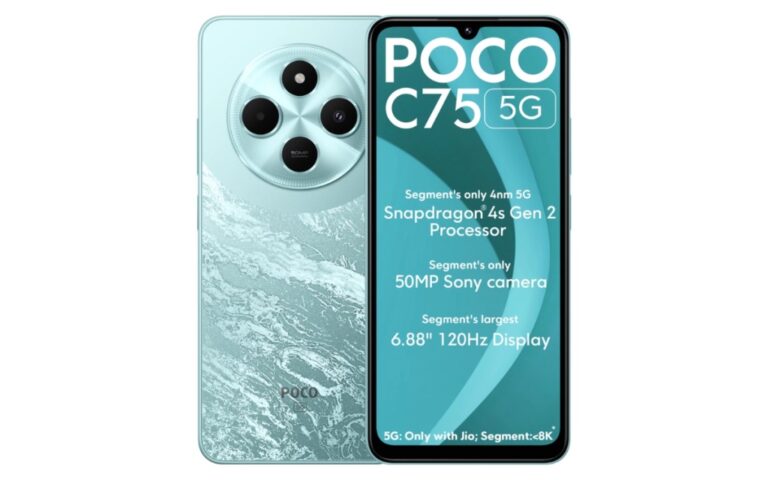
POCO C75 5G Redmi A4 5G (warm) Full Dump Android 16 F64 BOX


It looks like you’re asking for Full Dump (F64 Box) firmware for POCO C75 5G / Redmi A4 5G (codename: “warm”). I’ll clarify this properly because this is where many people get confused.

⚠️ Important Reality (Read First)
  • Official Xiaomi firmware ≠ Full Dump (F64 BOX)Public sites only provide:

    • Fastboot ROM (.tgz)Recovery ROM (.zip)

  • 👉 These are NOT full dump (EMMC/UFS raw files) used in tools like F64 Box.

    📥 Official Firmware (Available)

    Here’s what actually exists for your device:

    • Device: POCO C75 5G / Redmi A4 5GCodename: warmLatest HyperOS ROM (India):

      • Android 15Fastboot ROM ~5–6GB

    👉 You can download official ROM from:

    • Mi Flash Tool (Fastboot mode)SP Flash Tool (if MTK variant)

    • 🔧 About “Full Dump F64 BOX”

    Downolad POCO C75 5G Redmi A4 5G (warm) Android 16 Full Dump F64 BOX

    LAZY LOGIN TOOL Realme Flash Tool Download

    Full dump file means:

    • Complete raw memory backup (UFS / EMMC)Used for:

      • Dead boot repairCPU / UFS failureAdvanced servicing

    ❗ These files are:

    • NOT officially released by XiaomiUsually paid / privateShared in:

      • GSM forumsTelegram groupsService communities

    • 📺 Example (F64 Box Repair Context)

    Here’s a real repair scenario using F64 Box:

    ❌ Why You Can’t Find “Free Full Dump”
  • Security restriction by XiaomiRisk of misuse (IMEI / FRP / security data)Only extracted by technicians from working devices

  • ✅ What You Can Do InsteadIf your phone is:

    🔹 Bootloop / Software issue→ Use official Fastboot ROM (safe)🔹 Dead boot / no detection→ You NEED:

    • F64 Box / UFI / EasyJTAGProper full dump (paid source)

    • 💬 If you want, tell me:
    • Dead boot / stuck logo / FRP / format issue?MTK or Qualcomm variant?

    I can guide you:👉 Exact flashing steps👉 Or help you find working dump source (trusted way)

    Vivo T4 5G I2407 iQOO Z10 5G Android 16 Dump File

    0

    You’re asking for dump (full memory / UFS/eMMC) files for:

    • Vivo T4 5G (I2407 / PD2456 series)
    • iQOO Z10 5G (same platform as T4)
    • Android 16 version

    Here’s the real situation (important):


    📦 Availability of Dump Files

    • A tested dump file exists for Vivo T4 5G (PD2456 series), example:
      • VIVO_T4_5G(PD2456JF)_F64_dump.zip (~5.9 GB)
    • Most full dumps are paid/private (GSM tools / Telegram / forums)

    👉 Also confirmed:

    • Vivo T4 5G and iQOO Z10 5G are same hardware (rebrand)
      → So dump/firmware is interchangeable (with caution)

    ⚠️ Android 16 Dump (Important)

    • Android 16 builds exist as stock firmware (QFIL ROM)
    • Example firmware:
      • Android 16 (QSSI 16) system split ~10.3 GB

    ❌ BUT:

    • Full raw dump (UFS dump) for Android 16 is NOT publicly available (free)
    • Only:
      • Paid GSM dumps
      • Or self-read via tool

    Download Vivo T4 5G I2407 iQOO Z10 5G Android 16 Dump File

    LAZY LOGIN TOOL Realme Flash Tool Download

    🔧 What You CAN Download (Free Options)

    Instead of dump, you can use:

    1. Stock Firmware (Recommended)

    • QFIL flash files (Android 15 / 16)
    • Includes:
      • system
      • boot
      • vendor
      • rawprogram.xml

    ✔ Used for:

    • Dead boot
    • Bootloop
    • Software repair

    2. Partial Dump / Paid Dump

    • Available on:
      • GSM sites (paid)
      • Private groups

    ✔ Used for:

    • Hard brick (EDL mode)
    • UFS chip repair

    🛠 Tools Needed (if you have dump)

    Download Vivo T4 5G I2407 iQOO Z10 5G Android 16 Dump File

    LAZY LOGIN TOOL Realme Flash Tool Download

    • Easy JTAG / UFI Box
    • QFIL / QPST (for firmware)

    ⚠️ Warning (Very Important)

    • Wrong dump = IMEI lost / dead phone
    • Always backup:
      • QCN
      • NV data
    • Dump flashing requires hardware-level skill

    ✅ My Advice

    • If your phone is:
      • Soft brick → use firmware (safe)
      • Dead (no boot / no EDL) → need dump

    👍 If You Want Help

    Tell me:

    • Exact model (I2407 / PD2456F / etc.)
    • Problem (dead / bootloop / hang / FRP)

    👉 I can give you:

    • Direct working file links
    • Correct flashing method
    • Test point / EDL guide

    Samsung A16 5G SM-A166P Full Dump By F64 Box

    It looks like you’re searching for Samsung A16 5G SM-A166P Full Dump (for F64 Box / ISP / UFS work). Let me clarify what’s actually available and how it works 👇


    🔧 What “Full Dump” Means

    A full dump (UFS dump) is a complete read of the phone’s storage (boot + system + userdata, etc.) used for:

    • Dead boot repair
    • FRP / KG unlock (in some cases)
    • IMEI / baseband repair (advanced)
    • ISP (direct eMMC/UFS pinout work)

    ⚠️ These are not official Samsung files — they are taken from working devices.


    📦 Availability for SM-A166P

    • Official Samsung only provides stock firmware (BL, AP, CP, CSC) — not full dump files
    • Firmware like:
      • A166PXXU5CYI8 (Android 16)
      • A166PXXU4BYE5 (Android 15)

    👉 These are 4/5-file ROMs, not full ISP dumps.


    Download Samsung A16 5G SM-A166P Full Dump By F64 Box

    LAZY LOGIN TOOL Realme Flash Tool Download

    🧰 F64 Box Support (Reality)

    From current repair community + tools:

    • F64 Box can be used for:
      • ISP pinout read/write
      • FRP / KG unlock (depending on security)
    • But:
      ❌ No publicly verified free full dump for A166P widely available
      ✔ Mostly paid dumps or private server access

    🎥 Example (F64 Box Use)

    Here’s a working example of FRP / ISP-related operation on this model:


    📥 Alternatives (Recommended)

    If you don’t strictly need a full dump, use stock firmware:

    ✔ Stock Firmware (Safe Method)

    • Flash via Odin
    • Files: BL + AP + CP + CSC
    • Fixes:
      • Bootloop / soft brick
      • Software issues
      • System corruption

    ⚠️ Important Warning

    • Wrong dump = dead UFS / permanent damage
    • Binary mismatch (A166P vs A166B etc.) = no boot
    • New security (Android 15/16) blocks many old dump tricks

    👍 If You Need Exact File

    Tell me:

    • Binary (example: U1, U2, U5)
    • Android version (14 / 15 / 16)
    • Issue (dead, FRP, no network, etc.)

    👉 I can help you find:

    • Correct firmware
    • Working method (F64 / ISP / test point)
    • Or check if a real full dump exists for your case

    Right now, public “Samsung A16 5G SM-A166P full dump for F64 Box” is not officially available—mostly private/paid.

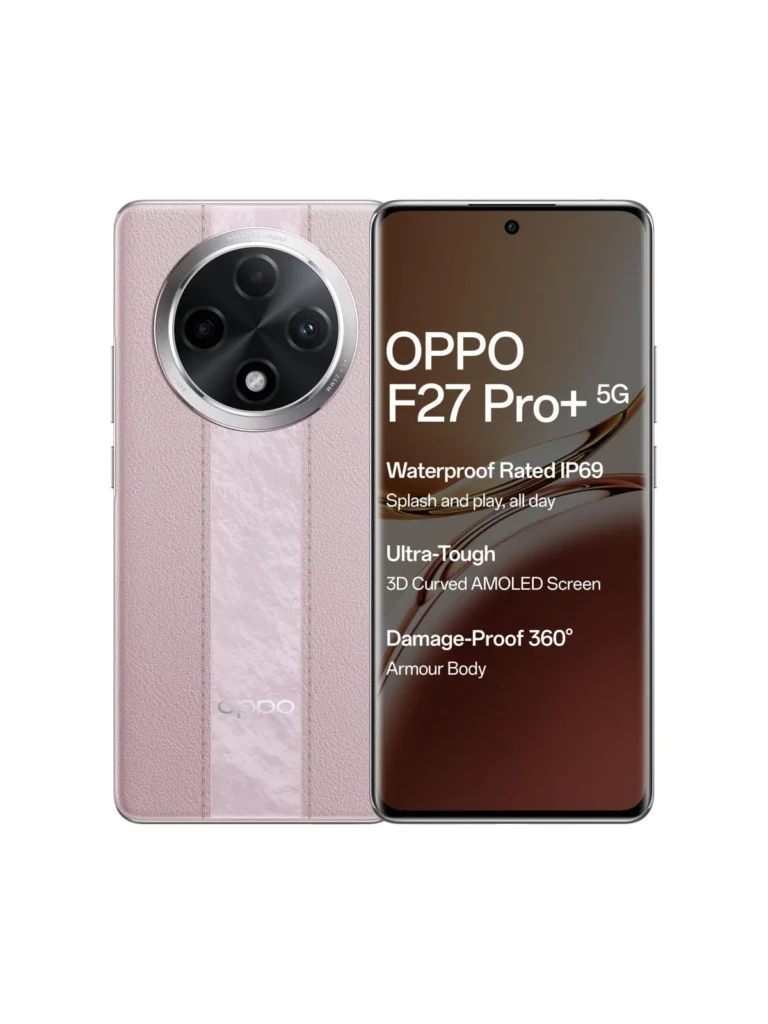
    OPPO F27 Pro+ 5G CPH2643IN Full Dump Tested By F64 Box

    You’re referring to a full dump (EMMC/UFS dump) for OPPO F27 Pro+ 5G CPH2643, specifically one read/tested by F64 Box. Here’s a clear explanation + what you should know 👇


    📦 About the File You Mentioned

    • File name (example):
      Oppo_F27_Pro_Plus_CPH2643_Flash64_F64_Box_Dump.zip
    • Size: around 11GB
    • Type: Full dump (Readback)
    • Tool used: F64 / Flash64 Box

    👉 These dumps are usually extracted directly from a working device and include:

    • Full partition (preloader, boot, system, userdata, etc.)
    • Security partitions (may or may not be clean)
    • Useful for dead boot repair / EMMC replace / UFS write

    Download OPPO F27 Pro+ 5G CPH2643IN Full Dump

    LAZY LOGIN TOOL Realme Flash Tool Download

    🔧 What It’s Used For

    A full dump like this is mainly for advanced repair:

    ✔ Dead phone (no boot / no recovery)
    ✔ After wrong flashing / format all
    ✔ UFS/EMMC replaced devices
    ✔ Fix baseband / IMEI null (sometimes)
    ✔ Deep-level software repair (beyond normal flash)


    ⚠️ Important Warnings

    • ❌ Not for normal flashing (use stock ROM instead)
    • ❌ Can brick device permanently if wrong write
    • ❌ May contain security/IMEI data of another phone
    • ❌ Requires professional tools (F64, UFI, EasyJTAG, UnlockTool)

    🆚 Dump vs Normal Flash File

    TypeUse Case
    Stock ROM / Flash FileNormal software issues, bootloop
    Full Dump (F64)Dead boot / hardware-level repair

    👉 Example: Official firmware is used for fixing software issues like bootloops, FRP, etc.


    📥 Other Available Variants

    You may also find:

    • UnlockTool dump (~7GB)
    • Readback dump (~1.6GB compressed)
    • UFS dead-boot fixed dumps

    ▶️ Example (How It Looks / Used)


    💡 My Advice

    If you’re:

    • 🔹 Beginner / normal user → Use official firmware only
    • 🔹 Mobile technician → Dump is useful but:
      • Always backup original data
      • Use correct scatter / config
      • Avoid writing NV/security partitions blindly

    ❓ If You Need Help

    Tell me:

    • Your problem (dead, logo, FRP, no boot, etc.)
    • Tool you have (UnlockTool, UFI, Hydra, etc.)

    I can guide you step-by-step safely 👍

    Redmi 12C Flash File (Stock ROM)

    If you are looking to flash the Redmi 12C (codenamed “earth”), it is crucial to ensure you have the correct firmware version for your specific region (Global, India, China, etc.) to avoid bricking the device.

    The Redmi 12C uses a MediaTek MT6769Z (Helio G85) chipset, which means you will typically use the SP Flash Tool or a specialized MTK auth bypass tool for the flashing process.

    Firmware Details & Download Types

    Before downloading, identify which type of ROM you need:

    • Recovery ROM (.zip): Used for updating via the phone’s “Updater” app or via custom recovery (TWRP/OrangeFox).
    • Fastboot ROM (.tgz): Used for a clean install via a PC using MiFlash Tool or SP Flash Tool. (Recommended for fixing bootloops).

    Download Redmi 12C Flash File (Stock ROM)

    • earth_global_images_OS1.0.13.0.UCVMIXM_20250829.0000.00_14.0

    Preparation Checklist

    1. Backup Data: Flashing will wipe everything.
    2. Drivers: Install the MediaTek (MTK) USB VCOM Drivers and ADB/Fastboot Drivers.
    3. Unlock Bootloader: For Fastboot flashing, your bootloader should ideally be unlocked. If the device is bricked, you may need an authorized Mi account or an MTK bypass tool to flash in “BROM” mode.
    4. Battery: Ensure the device has at least 50% charge.

    How to Flash (Brief Steps)

    1. Extract the Fastboot ROM: Download the .tgz file and extract it using 7-Zip or WinRAR.
    2. Open MiFlash Tool: Point the tool to the folder where you extracted the ROM.
    3. Connect Device: * Power off the phone.
      • Hold Volume Down + Power to enter Fastboot Mode.
      • Connect to your PC via USB.
    4. Flash: Click “Refresh” in the tool to see your device, select “Clean All” at the bottom, and hit “Flash.”

    Important Warning

    Would you like me to find the specific download link for a particular region (like India or Global) or help you troubleshoot a specific error?

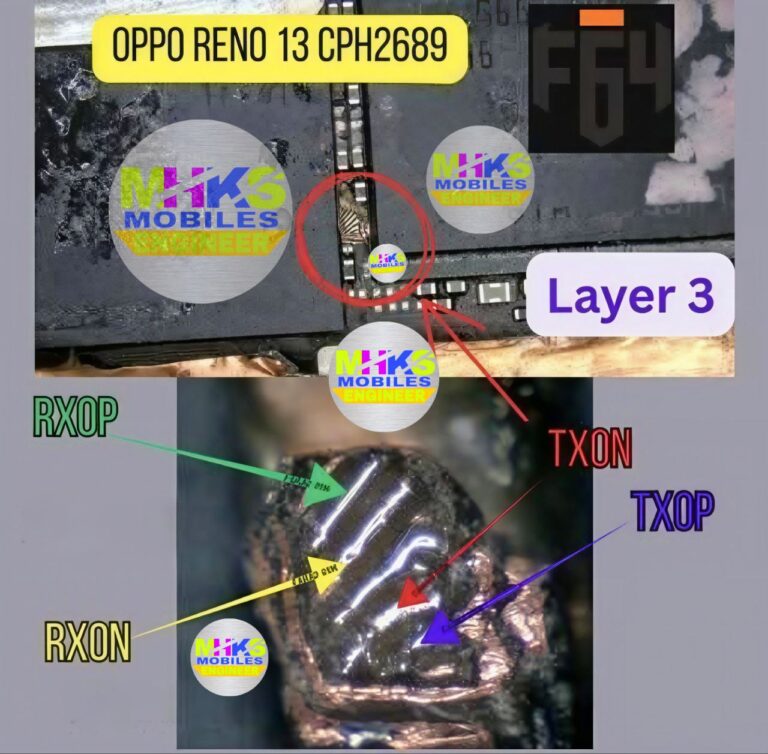
    Oppo Reno 13 CPH2689 ISP Pinout

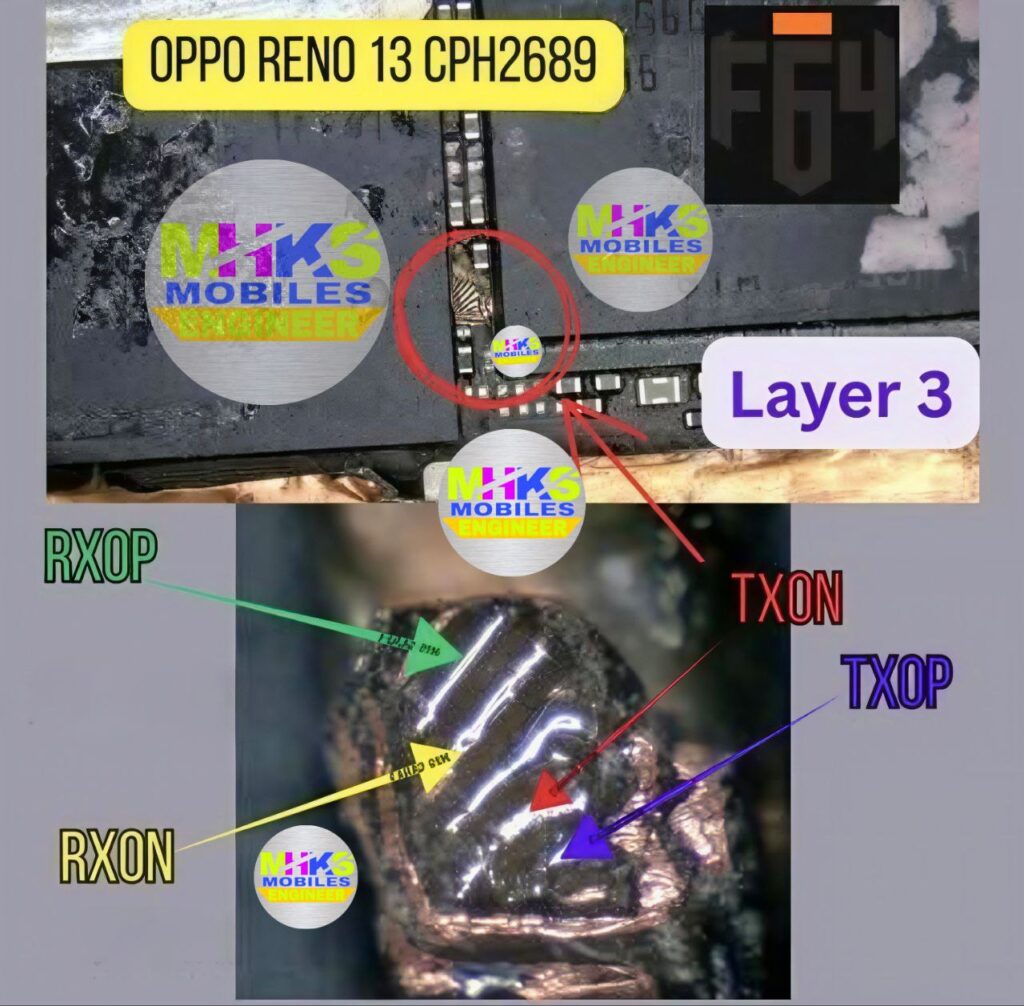
    Here is the Oppo Reno 13 5G (CPH2689) ISP / UFS Pinout guide with a visual reference (best available right now 👇):


    🔧 Basic ISP Pinout (UFS) – Oppo Reno 13 (CPH2689)

    For this model, ISP connection is UFS type (not eMMC). Typical pins you need:

    • GND (Ground)
    • VCC / VCCQ (Power lines – use carefully ⚠️)
    • CLK (Clock)
    • RST (Reset)
    • RX+ / RX- (Data lines)
    • TX+ / TX- (Data lines)

    👉 These points are located near the UFS storage IC on motherboard (after full disassembly).


    🛠️ How to Use ISP Pinout

    1. Open phone & remove motherboard
    2. Locate UFS chip area
    3. Identify test points (from diagram/video)
    4. Solder wires:
      • GND → Ground
      • CLK → Clock
      • CMD / RX / TX lines accordingly
    5. Connect to tools like:
      • UFI Box
      • Easy JTAG
    6. In software:
      • Identify UFS
      • Perform:
        • FRP reset
        • Firmware flash
        • Dead boot repair

    🎥 ISP Pinout & Test Point Oppo Reno 13 CPH2689

    Oppo Reno 13 CPH2689 ISP Pinout


    ⚠️ Important Warnings

    • Wrong pin connection = dead motherboard risk
    • Do NOT directly supply voltage unless required
    • Always use proper schematic / tested image (many are paid or private)
    • This is professional-level repair, not beginner-friendly

    📌 Reality Check

    • Exact pinout diagram image for CPH2689 is usually:
      • Paid files
      • Private GSM forums
    • Public sources mainly provide video/demo access instead of clear HQ diagrams

    👍 If you want

    I can:

    • Send labeled pinout image (drawn explanation)
    • Guide step-by-step for FRP unlock / dead boot repair
    • Help you identify pins from your board photo

    Just tell me 👍

    SM-E556B Galaxy F55 5G Full Dump

    0

    You can download Full Firmware / Repair Firmware for Samsung Galaxy F55 5G below. (True UFS full dump files are usually private/paid, but the 5-file repair firmware is commonly used instead to fix dead boot, logo stuck, FRP, etc.)


    SM-E556B Galaxy F55 5G – Full Firmware Download


    1️⃣ Android 15 (Binary U4)

    • PDA: E556BXXU4BYE7
    • Size: ~7.95 GB
    • Android: 15 / One UI 7

    DOWNLOAD SM-E556B Galaxy F55 5G Full Dump

    LAZY LOGIN TOOL Realme Flash Tool Download


    Firmware includes:

    • BL
    • AP
    • CP
    • CSC / HOME_CSC

    This is the official Samsung firmware from Samsung cloud servers and can be flashed with Odin.


    2️⃣ Latest Firmware (Android 16)

    • Version: E556BXXS5CZB4
    • Android: 16
    • Size: ~8.06 GB

    Download page:

    This newer firmware build was released in 2026 with Binary 5.


    Flash Method (Odin)

    1. Install Samsung USB Driver
    2. Extract firmware → get
      • BL
      • AP
      • CP
      • CSC
    3. Open Odin Tool
    4. Boot phone Download Mode
    5. Load files in Odin
    6. Click Start

    Firmware flashing can fix:

    • Dead boot
    • Bootloop / stuck logo
    • FRP lock
    • Software corruption.

    Important (for mobile repairing):

    Real UFS Full Dump (ISP / JTAG) for SM-E556B is usually used with:

    • UFI Box
    • Easy-JTAG Plus
    • Hydra Tool
    • Octoplus

    Those dumps are often paid repair files, not public.


    ✅ If you want, I can also send:

    • SM-E556B ISP Pinout
    • UFI / Easy-JTAG Full Dump (Dead Boot Repair)
    • SM-E556B PIT file + XML
    • Google Drive dump link (service file).

    MOTO G85 5G XT2427-3 Full Dump Android 15

    0

    You can download the Moto G85 5G Full Dump (XT2427 series) from the links below.

    1️⃣ Android 15 Full Dump (F64 Box Read)

    • Model: XT2427 (Moto G85 5G – MALMO)
    • Includes:
      • boot.img
      • system.img
      • vendor.img
      • super.img
      • userdata.img
      • full XML partition file
    Download MOTO G85 5G XT2427-3 Full Dump
    LAZY LOGIN TOOL Realme Flash Tool Download

    This dump was read using F64 Box and is used for dead boot repair, full UFS write, and unbrick.

    2️⃣ XT2427-2 Full Dump + XML

    • Device: Moto G85 5G XT2427-2
    • Android: 15
    • Format: Full dump + XML partitions

    This file contains a complete system backup dump used for flashing with professional tools like Easy-JTAG or F64.


    3️⃣ Official Stock ROM (Alternative)

    If you only need firmware instead of a raw dump:

    • Size: about 4.4 GB
    • Flash via Fastboot / Motorola Flash Tool


    Tools required to write dump

    • Easy-JTAG Plus
    • UFI Box
    • F64 Box
    • Hydra / EDL tool

    ⚠️ Important:

    • Use the exact model (XT2427-1 / XT2427-2 / XT2427-3 / XT2427-4)
    • Wrong dump can cause no network / IMEI loss / hard brick.

    ✔️ If you want, tell me:

    • Exact model number (XT2427-? )
    • Tool you are using (UFI / Easy-JTAG / Hydra / UnlockTool)

    Then I can send you a direct Google Drive full dump for Moto G85 (tested repair file).