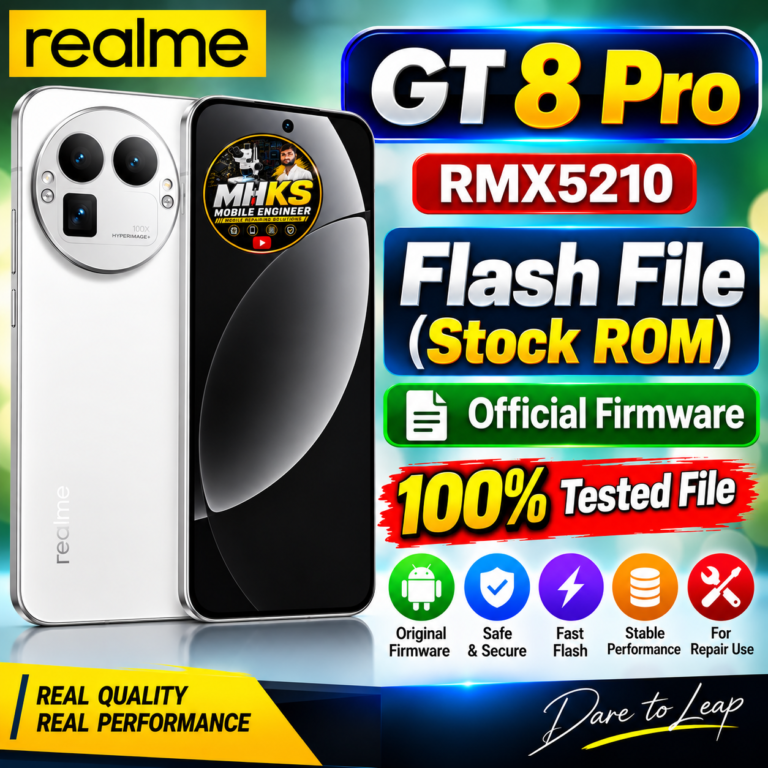
Realme GT 8 Pro RMX5210 Flash File (Stock ROM) – Official Firmware
Download the Realme GT 8 Pro RMX5210 Flash File (Stock ROM) for repairing software-related problems, boot loop, hang on logo, system errors, and other firmware issues. This stock ROM can be useful for mobile technicians and advanced users who need to restore the original software on the Realme GT 8 Pro.
Download Realme GT 8 Pro RMX5210 Flash File (Stock ROM)
The Realme GT 8 Pro RMX5210 Stock ROM is the original firmware package designed for the device. Installing the correct firmware can help resolve many software-related issues and restore the phone to its factory software condition.
What Problems Can This Firmware Help Fix?
Realme GT 8 Pro stuck on logo
Boot loop problem
Software crashing
System error
Hanging problem
Failed software update
Firmware corruption
Slow or unstable system
Recovery/OTA software issues
Restore original Realme software
Before Flashing Realme GT 8 Pro RMX5210
Before installing the firmware, make sure you have the exact RMX5210 model and the correct regional/software version. Using an incompatible firmware can cause serious software problems.
Important:
Take a complete backup of your personal data.
Charge the battery sufficiently before starting.
Use a good-quality USB cable.
Install the required Realme USB drivers/tools.
Verify the firmware package before flashing.
Follow the correct flashing procedure for your device and firmware package.
How to Flash Realme GT 8 Pro RMX5210
Download the correct Realme GT 8 Pro RMX5210 Stock ROM.
Extract the firmware package if required.
Install the required USB drivers on your PC.
Use the appropriate Realme flashing/recovery method for the firmware package.
Connect the phone to the computer in the required mode.
Select the correct firmware file.
Start the flashing or software installation process.
Wait until the process is completed.
Restart the phone and complete the initial setup.
Realme GT 8 Pro RMX5210 Stock ROM Download
Firmware: Realme GT 8 Pro RMX5210 Stock ROM Model: RMX5210 Purpose: Software Repair / Firmware Restore
Disclaimer
This firmware information is provided for mobile repair and software troubleshooting purposes. Flashing firmware incorrectly can cause data loss or software problems. MHKS Mobile Engineer / MSMobileInstitute is not responsible for any damage caused by incorrect flashing, incompatible firmware, or improper use of flashing tools.
Related Searches
Realme GT 8 Pro RMX5210 Flash File, Realme GT 8 Pro Stock ROM, RMX5210 Firmware, Realme RMX5210 Firmware Download, Realme GT 8 Pro Software, RMX5210 Stock Firmware, Realme Flash File, Realme GT 8 Pro Firmware Download.
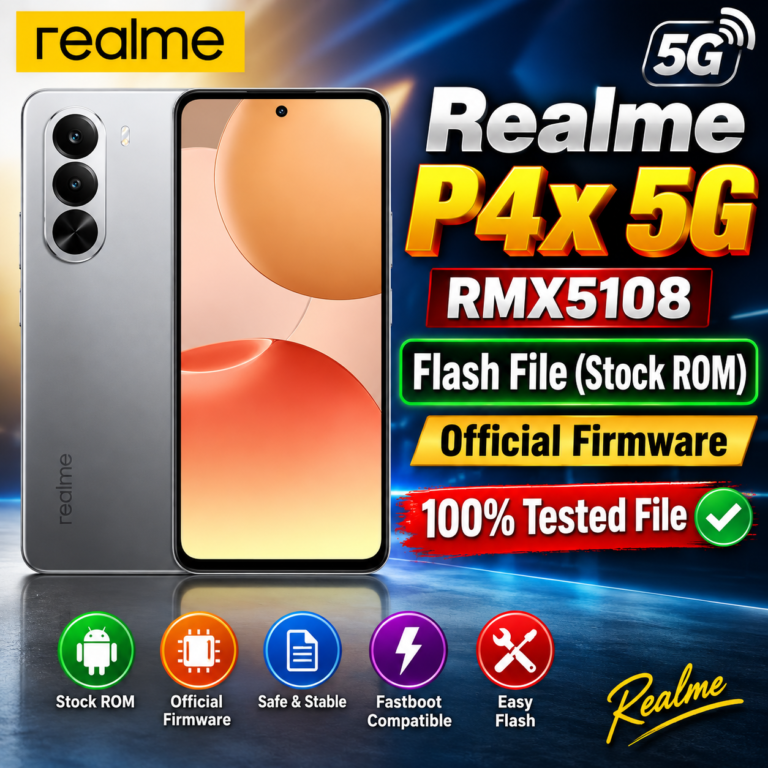
Looking for the Realme P4x 5G RMX5108 Flash File (Stock ROM)? On this page, you can find firmware information and flashing guidance for the Realme P4x 5G RMX5108.
The stock ROM can be useful for repairing software-related problems such as bootloop, system errors, software corruption, hanging on the Realme logo, and other firmware-related issues.
Installing the correct stock firmware may help resolve several software problems, including:
Realme P4x 5G stuck on logo
Bootloop problem
Software corruption
System crash or instability
Failed software update
Slow or hanging device caused by software issues
Firmware-related errors
Recovery from certain failed flashing attempts
Important Before Flashing
Before flashing the Realme P4x 5G RMX5108, make sure that you have selected the exact model and correct firmware/build for your device.
Important: Flashing the wrong firmware can cause serious software problems or potentially brick the device. Always verify the model number, region, build number, and firmware compatibility before proceeding.
Recommended Precautions
Back up important personal data whenever possible.
Charge the phone sufficiently before starting the flashing process.
Use a good-quality USB cable.
Install the required Realme/MediaTek USB drivers if applicable.
Use a compatible flashing tool and the correct firmware package.
Do not disconnect the phone during the flashing process.
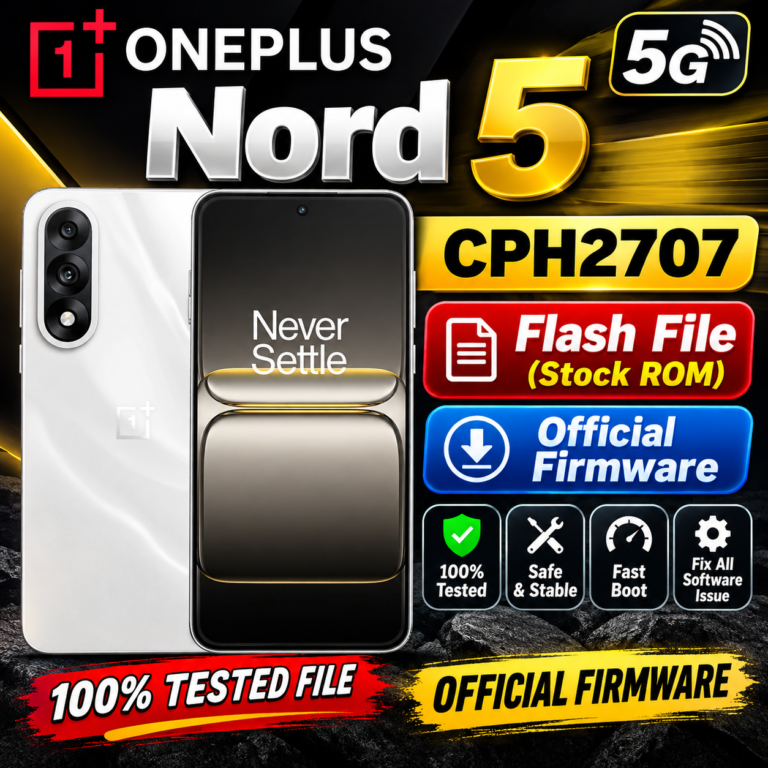
OnePlus Nord 5 5G CPH2707 Flash File (Stock ROM) – Official Firmware
Looking for the OnePlus Nord 5 5G CPH2707 Flash File / Stock ROM? On this page, you can find information about the official firmware, stock ROM, and software repair process for the OnePlus Nord 5 5G.
The stock firmware can be useful for mobile technicians and advanced users who need to repair software-related problems such as boot loops, software errors, system crashes, or failed software updates.
OnePlus Nord 5 5G CPH2707 Flash File
Device Name: OnePlus Nord 5 5G Model Number: CPH2707 Firmware Type: Stock ROM / Official Firmware Network: 5G Brand: OnePlus Android Version: Check the firmware package before flashing File Type: Official Stock Firmware
Download OnePlus Nord 5 5G CPH2707 Flash File (Stock ROM)
The official Stock ROM may help to resolve various software-related issues, including:
OnePlus Nord 5 CPH2707 boot loop problem
Stuck on OnePlus logo
Software crash or system error
Failed OTA update
System instability
Corrupted system files
Software-related hanging problems
Recovery from certain failed flashing procedures
OnePlus Nord 5 5G CPH2707 Firmware
Before flashing any firmware, make sure that the firmware package is specifically compatible with OnePlus Nord 5 5G CPH2707. Using an incorrect firmware file can cause serious software problems.
Always check the region, build number, Android version, and firmware variant before starting the flashing process.
How to Flash OnePlus Nord 5 5G CPH2707
The flashing procedure depends on the firmware package and the supported OnePlus flashing method.
Basic Steps
Download the correct OnePlus Nord 5 5G CPH2707 Stock ROM.
Extract the firmware package if it is compressed.
Install the required USB drivers on your computer.
Back up important user data whenever possible.
Boot the phone into the appropriate software/recovery mode.
Use the correct official or compatible flashing method for the firmware package.
Select the required firmware files.
Start the flashing process.
Wait until the process is completed successfully.
Restart the device and allow the first boot to complete.
Important: Flashing firmware can erase user data and may carry a risk of software failure if an incorrect file or method is used. Proceed carefully and use firmware intended specifically for your device variant.
Download OnePlus Nord 5 5G CPH2707 Flash File
The correct firmware should always be downloaded from a trusted and reliable source. Before downloading, verify the model number CPH2707 and compare the firmware build and region with your device.
OnePlus Nord 5 5G CPH2707 Stock ROM – Conclusion
The OnePlus Nord 5 5G CPH2707 Stock ROM is useful for software repair and restoring the device to an official firmware environment. Always use the correct firmware version and follow the appropriate flashing procedure to avoid unnecessary problems.
If you are a mobile repair technician, keep the exact CPH2707 model number and firmware build information in mind before starting any software repair.
Keywords
OnePlus Nord 5 5G CPH2707 Flash File, OnePlus Nord 5 Stock ROM, OnePlus Nord 5 5G Firmware, CPH2707 Firmware, OnePlus CPH2707 Flash File, OnePlus Nord 5 Software, OnePlus Nord 5 Firmware Download, OnePlus Nord 5 Stock Firmware, CPH2707 Stock ROM, OnePlus Nord 5 5G Software Repair
Disclaimer
This website does not guarantee that every firmware package is compatible with every regional variant. Always verify the model number, build number, region, and firmware version before flashing. Flashing firmware is performed at your own risk.
Looking for the OPPO Reno13 5G CPH2689 Dump File for Android 16? In this post, we are sharing information about the F64 Dump File for OPPO Reno13 5G CPH2689.
This dump file may be useful for professional mobile repair technicians working on software, memory, or boot-related repair procedures.
OPPO Reno13 5G CPH2689 Dump File Features
OPPO Reno13 5G CPH2689
Android 16 Support
F64 Dump File
FREE Download
Useful for Mobile Repairing
Suitable for Professional Technicians
Dump File for Repairing Purpose
How to Use OPPO Reno13 5G CPH2689 Dump File
Before using the dump file, always verify the exact model number, CPU, storage type, firmware version, and hardware configuration of the device.
Take a complete backup of the original device data before performing any programming or flashing operation. Using an incorrect dump file can cause boot problems or potentially make the device unresponsive.
OPPO Reno13 5G CPH2689 Android 16 File Information
The OPPO Reno13 5G CPH2689 Android 16 Dump File By F64 can be downloaded from the button below.
📥 Download File
[ DOWNLOAD OPPO RENO13 CPH2689 DUMP FILE ]
DOWNLOAD
Important Note
This file is intended for professional mobile repair purposes. Always keep a backup of the original partitions and important user data before attempting any repair operation.
Do not use an unverified file on another model or hardware variant. Make sure the file matches the device before proceeding.
Conclusion
The OPPO Reno13 5G CPH2689 Android 16 Dump File By F64 can be useful for mobile repair technicians who need a dump file for compatible repair work.
For more OPPO Dump Files, Firmware, ISP Pinouts, FRP Solutions, Boot Repair Files, and Mobile Repairing Tools, keep visiting our website for the latest updates.
OnePlus Nord CE4 Lite 5G (CPH2619) Full Dump File Android 16 (100% Tested) Read By F64 Box | MHKS Mobile Engineer
Download the OnePlus Nord CE4 Lite 5G (Model: CPH2619) full dump firmware file tested on Android 16. This dump file is directly read and verified using the F64 Box Programmer by MHKS Mobile Engineer. It provides a 100% working solution for dead boot repair, fixing hang-on-logo issues, eMMC/UFS IC programming, and recovering devices hard-bricked after bad flashing.
Device & Firmware Information
Detail
Specification
Brand
OnePlus
Model Name
OnePlus Nord CE4 Lite 5G
Model Number
CPH2619
Processor (CPU)
Qualcomm Snapdragon 695 5G (SM6375)
Storage Type
UFS 2.2
Android Version
Android 16 (OxygenOS)
Programmer Tool
F64 Box
Tested & Verified By
MHKS Mobile Engineer
File Status
100% Tested & Clean
Key Repair Functions of This Dump File
Dead Boot Repair: Fixes Qualcomm 9008 / EDL port-only dead conditions after software failure.
UFS IC Replacement & Repartitioning: Essential partition structure for programming new or erased UFS chips.
Boot Loop & Hang on Logo: Resolves restart issues caused by damaged system partitions or corrupted base firmware.
Security & Calibration Partition Safety: Proper partitioning blocks for modem, EFS, and bootloader integrity.
Flashing & Writing Instructions via F64 Box
Safety First: Always backup the device’s original modemst1, modemst2, and fsg partitions to preserve original IMEI and network baseband data.
Connect the UFS chip or ISP pinout directly to the F64 Box socket/hardware interface.
Launch the F64 Box software and select Qualcomm > UFS interface.
Detect the storage and ensure partitions (LUN0, LUN1, LUN2, LUN3, LUN4, LUN5) are identified correctly.
Load the extracted CPH2619 Android 16 Dump File into the respective LUN config slots.
Click Write Dump / Program IC and wait for the successful write confirmation.
Re-write the original security partitions, resolder/assemble the motherboard, and power on the device.
Disclaimer: This file is strictly intended for professional mobile technicians and educational hardware repair purposes. Always verify board hardware versions before programming.
SCSI Supported Vital Product Data Parameters: Unit Serial Number Device Identification Extended INQUIRY Data Mode Page Policy Block Limits Block Device Characteristics Logical Block Provisioning
SCSI Supported Mode Pages: Read-Write Recovery Caching Control
UFS Health: Dynamic Capacity Resource Policy: Per Memory Type Resource Management Life Time Estimation A (SLC): 0% – 10% Device Life Time Used Life Time Estimation B (MLC): 0% – 10% Device Life Time Used Pre End of Life Info: Normal
NAND ONFI Parameter: Supports ONFI version: 4.2 Device Manufacturer: MICRON Device Model: MT29F512G08EBLEE3W Number of data bytes per page: 16,384 Number of spare bytes per page: 1,968 Number of pages per block: 2,112 Number of blocks per logical unit (LUN): 2,224 Number of logical units (LUNs): 01 Number of bits per cell: 03 Bad blocks maximum per LUN: 120 Number of programs per page: 01 Number of bits ECC correctability: 255
Micron Health Report: Factory bad blocks count: 7 Run-time bad blocks count: 0 Spare blocks count: 26 Exhausted Life Percentage (Normal): 2% Metadata corruption: 0 Minimum block erase (Normal): 1 Maximum block erase (Normal): 72 Average block erase (Normal): 66 Initialization count (with PON): 4,437,177 Initialization count (without PON): 5,744 Read reclaim count (Normal): 3 Read data size (Normal) unit 100MB: 409,947 Written data size (Normal) unit 100MB: 49,949 Sudden power-off recovery write fail count: 1 Sudden power-off recovery count: 5,744 Low-voltage detection count: 0 Uncorrectable ECC count: 0 Read retry count: 330 Temperature information: All-time Maximum: 95°C All-time Minimum: 12°C Current Maximum: 44°C Current Minimum: 43°C Exhausted Life Percentage (Enhanced Memory 1): 3% Read data size (Enhanced Memory 1) unit 100MB: 1 Written data size (Enhanced Memory 1) unit 100MB: 0 Minimum block erase (Enhanced Memory 1): 1,378 Maximum block erase (Enhanced Memory 1): 1,873 Average block erase (Enhanced Memory 1): 1,414 Read reclaim count (Enhanced Memory 1): 0
vivo V40e (PD2406F) Full Dump Android 16_Read BY-MHKS Mobile Engineer.rar
Vivo V40e 5G (PD2406F) Full Dump File
Vivo V40e 5G (PD2406F) Full Dump File Android 16 BY-F64 Box 100% Tested File
📱 Model: Vivo V40e 5G 🔢 Model Code: PD2406F ⚙️ Processor: MediaTek Dimensity 7300 🤖 Android: 16 🛠️ File Type: Full Dump 🔧 Tool: F64 Box ✅ Status: Tested File
The Vivo V40e uses the MediaTek Dimensity 7300 platform. Current firmware listings also show Android 16 builds for model PD2406F.
Keywords: Vivo V40e Full Dump, PD2406F Dump File, Vivo V40e Android 16 Dump, Vivo PD2406F Full Dump, F64 Box Dump File, Vivo V40e 5G Dump, Tested Dump File
Download Vivo V40e 5G (PD2406F) Tested Full Dump File (Android 16 / Funtouch OS 16)
RPMB Technical Information: RPMB Region 0 Counter: 190572
UFS Health: Dynamic Capacity Resource Policy: Per Logical Unit Resource Management Life Time Estimation A (SLC): 0% – 10% Device Life Time Used Life Time Estimation B (MLC): 0% – 10% Device Life Time Used Pre End of Life Info: Normal
Samsung S.M.A.R.T. Report: Descriptor Length: 100 UFS Descriptor Type: 10 Maximum Erase Cycle SLC: 284 Minimum Erase Cycle SLC: 278 Average Erase Cycle SLC: 282 Maximum Erase Cycle MLC: 154 Minimum Erase Cycle MLC: 55 Average Erase Cycle MLC: 128 Read Reclaim Count: 0 Initial Bad Block: 15 Runtime Bad Block: 0 Remain Reserved Block: 177 Patch trial Count: 0 Patch Release Date: 0 Written Data: 755,303 Open Count: 303 Patch Success Count: 1 Read Data: 3,881,319 Low Voltage Detection Count: 0 PON Init Count: 194 SPOR Init Count: 109 Written WB data: 0 Ignored WB data: 0 Written RPMB0 data: 0
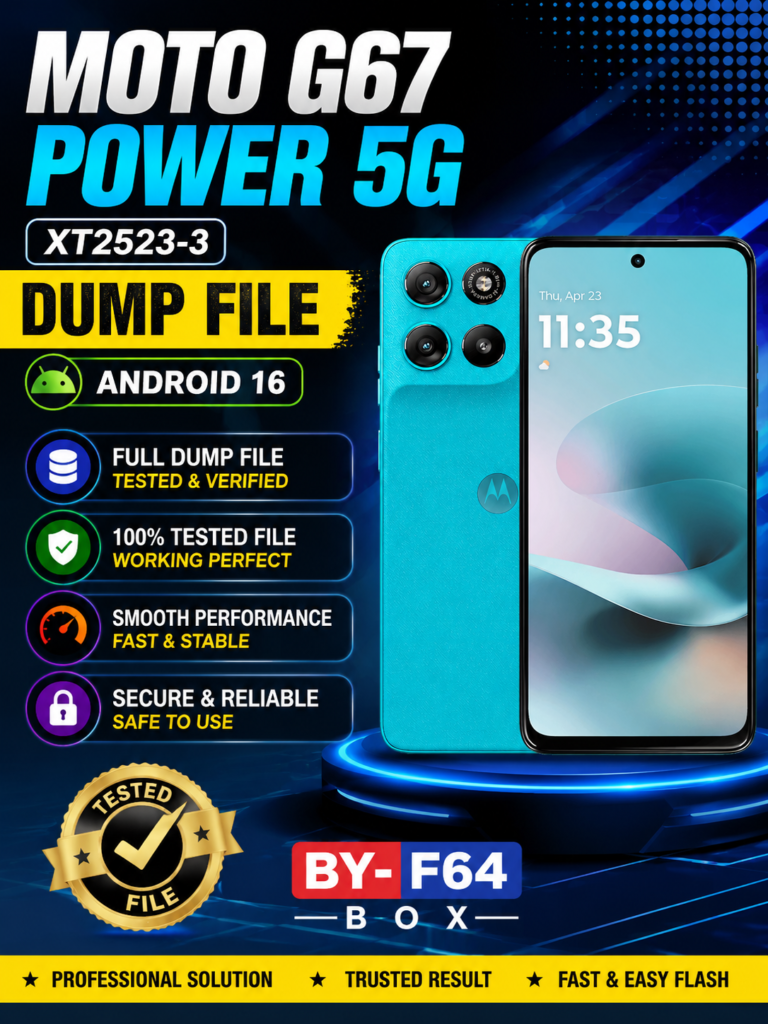
Download the Moto G67 Power 5G XT2523-3 Full Dump File for Android 16, compatible with BY-F64 Box. This file is useful for mobile technicians and software engineers working on software repair and servicing of the Moto G67 Power 5G.
📱 File Information
Device: Moto G67 Power 5G
Model: XT2523-3
Android Version: Android 16
File Type: Full Dump File
Tool: BY-F64 Box
Category: Motorola Firmware / Dump File
Purpose: Software Repair & Servicing
File Status: Tested
🔧 Moto G67 Power 5G XT2523-3 Full Dump
The Moto G67 Power 5G XT2523-3 Full Dump File can be useful for authorized software repair and servicing tasks. Before flashing, always verify the exact model number, hardware revision, and firmware compatibility with your device.
⚠️ Important
Always take a complete backup before performing any flashing operation. Using an incorrect dump or firmware file may cause boot issues or other software problems. Verify the device model and hardware version carefully before proceeding.
📥 Download
Moto G67 Power 5G XT2523-3 Full Dump File Android 16 BY-F64 Box
File Name: Moto G67 Power 5G XT2523-3 Full Dump Android Version: Android 16 Tool: BY-F64 Box
Download: Click the Download button below to get the file.
DOWNLOAD
🔎 Related Keywords
Moto G67 Power 5G XT2523-3 Full Dump File, Moto G67 Power 5G Dump File, XT2523-3 Dump File, Moto G67 Power Android 16 Firmware, Moto G67 Power 5G Firmware, XT2523-3 Firmware, Motorola Full Dump File, BY-F64 Box Dump File, Motorola Android 16 Dump File, Moto G67 Power Software Repair
Disclaimer: This file is intended for authorized mobile repair and servicing purposes only. Always verify compatibility before flashing.