Home Blog Page 31

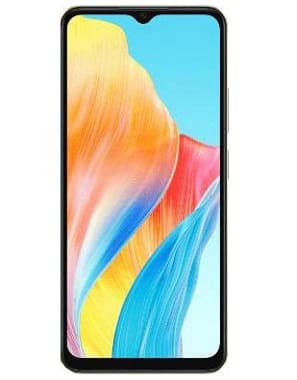
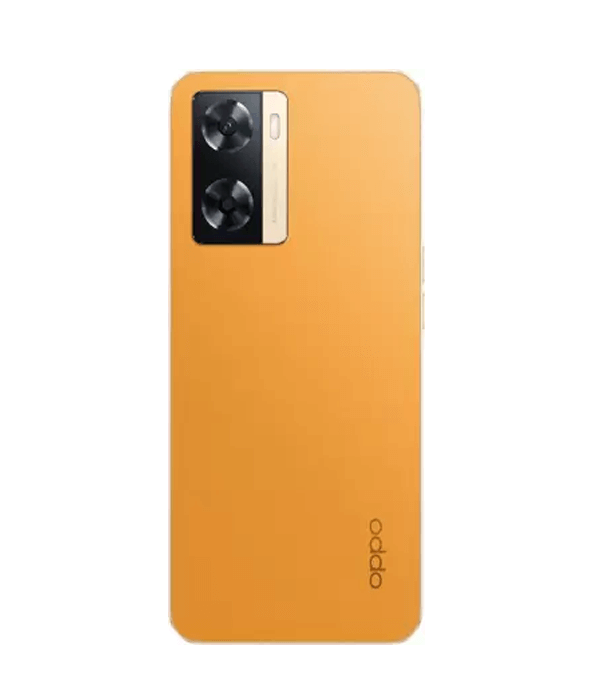
OPPO A5 5G CPH2751 Flash File (Stock Rom)

Download  Oppo A5 CPH1809 latest flash file version A.39 from Ms mobile institute and flash your phone for removing all screen locks and fix hang on logo problem. always use latest firmware for flash. Oppo A5 flash tool required login credential to run, if you don’t have then contact me for flash. it’s paid service.

Smartphone deals

Download Oppo A5 CPH1809 Flash File:

Here’s a streamlined process for flashing your OPPO A5 5G (CPH2751) using Qualcomm-based tools—tailored for users with bricked or bootlooping devices:


⚙️ Prepare

  1. Charge your phone to ≥ 50% – essential to prevent failures during flashing (web.theupspot.com).
  2. PC Requirements:
    • Windows PC
    • USB cable (high-quality)
    • Qualcomm USB drivers (VCOM)
    • QFIL (Qualcomm Flash Image Loader) or QPST/MSM Download Tool
  3. Firmware & Tools:
    • Stock firmware for CPH2751 if available; otherwise use firmware intended for CPH2751 in QFIL or as .ofp for MSM Tool
    • Scatter file (for QFIL) or .ofp for MSM Tool

🔧 Flash via QFIL (Qualcomm Flash Image Loader)

  1. Install Qualcomm drivers so your phone is recognized in EDL or Download mode
  2. Launch QFIL as Administrator.
  3. In QFIL:
    • Load “rawprogram0.xml” via “Browse” > select your firmware folder
    • Load “patch0.xml”
  4. Power off your device completely.
  5. Press and hold both Volume Up + Power, then connect to USB to enter EDL mode
  6. QFIL should detect the device—showing a COM port. Click Download.
  7. Wait patiently. Flashing takes ~10–15 min
  8. Once completed, the phone will reboot. If stuck, do a factory reset via stock recovery.

⚠️ If QFIL Doesn’t Detect Device

  • Check drivers: Use Device Manager → Qualcomm HS‑USB QDLoader
  • Ensure you’re in EDL mode: it’s Qualcomm’s emergency download mode
  • Manual EDL entry: Bridge test points or hold Vol Up + Vol Down + power during USB connection (web.theupspot.com, reddit.com)
  • Try again until QFIL shows a COM port (reddit.com)

🛠 Alternative: MSM Download Tool

  1. Use stock .ofp firmware
  2. Launch MSM Download Tool
  3. Load firmware package
  4. Power off device, hold both Volume Up + Volume Down, plug USB
  5. Tool should detect phone—click Start (gsmmafia.com, reddit.com, xdaforums.com, reddit.com)
  6. Wait until it finishes, then reboot

✅ After Flashing

  • First boot may take 5–10 minutes
  • If stuck on boot logo, perform a factory reset via Recovery

📝 Summary Table

StepAction
1Charge ≥ 50%, install Qualcomm drivers
2Download stock firmware + tools (QFIL/MSM)
3Use QFIL: load XMLs → power off → Vol Up + Power while USB → Download
4If no detection: force EDL by pin bridge or Vol Up + Vol Down + Power
5Or use MSM Tool with .ofp: hold both Vol buttons during USB connect
6Wait for success, then reboot → factory reset if needed

🔁 EDL Mode Recap

EDL (Emergency Download Mode) is Qualcomm’s serial flashing protocol.

  • Typically: Vol Up + Power
  • If that fails: bridge test points on the board during connection

📌 Important Tips

  • Backup any personal data before flashing.
  • Use the exact firmware for CPH2751 if possible (even if only generic Oppo A5, it still works).
  • Drive installer as Administrator.
  • Use official sources (e.g. Oppo/XDA) for firmware and drivers when possible.

¿Need direct download links for firmware or help identifying CPH2751 files? Happy to assist!

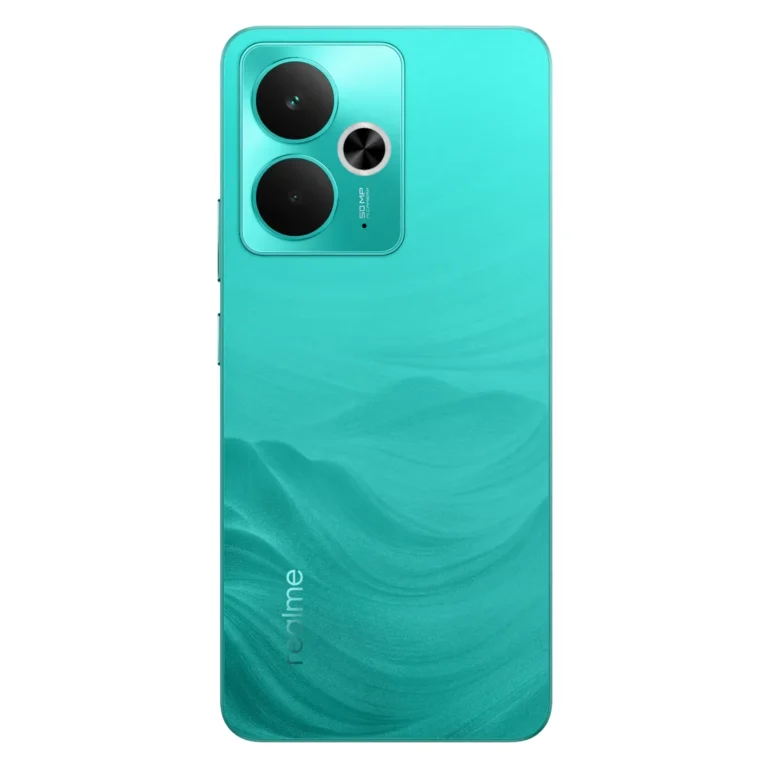
Realme 12 Pro Plus 5G RMX3840 FLASH FILE(Stock ROM) Tested


🔹 Key Specs & Performance

  • Processor: Snapdragon 7s Gen 2 (4 nm), with Adreno 710 GPU (realme.com). Delivers smooth everyday performance and solid gaming capabilities.
  • RAM/Storage: Available in 8 GB/12 GB RAM with 128/256/512 GB internal storage (UFS 3.1). Also supports up to 24 GB virtual RAM (reddit.com).
  • Battery & Charging: 5,000 mAh battery with 67 W SUPERVOOC fast charging (~50% in ~19 min) (realme.com).
  • Build & Display:
    • 6.7″ curved AMOLED, FHD+ (2412×1080), 120 Hz refresh, peak brightness ~950 nits, HDR10+, 10-bit colour (gsmarena.com).
    • Premium vegan-leather back and golden accent inspired by luxury watches (techlusive.in).
    • IP65 dust/water resistance (gsmarena.com).

Download Realme 12 Pro Plus 5G RMX3840 Flash File Firmware:

RMX3840GDPR_11_15.0.0.702EX01_2025051417330000
Phone Name = Realme 12 Pro+ 5G
Project No = 23683
Region = EU, TR
RMX3840GDPR_11_15.0.0.700EX01
phoneName = realme 12 Pro+ 5G
projectno = 23683
RMX3840export_11_15.0.0.600EX01_2025022610270000
Phone Name = Realme 12 Pro+ 5G
Project No = 23683
RMX3840export_11_14.0.0.1501EX01_2024101018230108
Phone Name = Realme 12 Pro+ 5G
Project No = 23682
RMX3840

Flashing your Realme 12 Pro Plus 5G (RMX3840) involves installing or updating the phone’s firmware using official or third-party tools. This can be used to:

  • Downgrade/upgrade your software
  • Unbrick a soft-bricked device
  • Fix software issues or bootloops

⚠️ Important Warning: Flashing firmware can void your warranty and may brick your device if done improperly. Make a complete backup before proceeding.


✅ Requirements:

  1. Realme 12 Pro Plus 5G (RMX3840)
  2. PC or Laptop (Windows)
  3. USB Cable
  4. Firmware File: Official Realme firmware for RMX3840 (OFP or ZIP)
  5. Tools:
    • Realme Flash Tool (for OFP format)
    • ADB & Fastboot Drivers or Qualcomm QFIL tool (depending on boot mode)
    • Qualcomm USB Drivers (if in EDL mode)
  6. Unlocked Bootloader (Optional, depending on method)

📥 Step-by-Step Flashing Guide:

Method 1: Using Realme Flash Tool (OFP File)

Best for official flashing if the phone is working or in Fastboot Mode.

🔹 Step 1: Install Necessary Drivers

🔹 Step 2: Download Firmware

🔹 Step 3: Install Realme Flash Tool

🔹 Step 4: Boot into Fastboot Mode

  • Power off the phone
  • Hold Volume Down + Power until Fastboot screen appears
  • Connect to PC via USB

🔹 Step 5: Flash Firmware

  • Launch the Realme Flash Tool
  • Load the OFP firmware file
  • Click on “Flash”
  • Wait for the process to complete and the device will reboot

🔁 Method 2: Using QFIL Tool (Qualcomm EDL Mode)

Use if the device is hard bricked or stuck in a bootloop.

⚠️ Note:

You may need a test point or authorized account to enter EDL mode on newer Qualcomm devices.


📌 Tips & Warnings:

  • Battery: Ensure it’s above 50%
  • Unlock Bootloader: Sometimes necessary for custom firmware or downgrades
  • Do not disconnect during flashing
  • Use official firmware only to avoid bricking
  • Flashing stock firmware generally relocks the bootloader and wipes data

Would you like links to download official firmware and tools for your exact Realme RMX3840 variant?

Realme 11 Pro+ 5G RMX3741 Flash File (Stock ROM)

Realme 11 Pro+ 5G RMX3741 Flash File (Stock ROM)Flash File Firmware from Ms mobile institute With this file you can unlock device Screen lock Pattern, FRP and can upgrade or downgrade the device. Always use latest flash file to flash Realme 11 Pro+ check device version by dial code *#899# in emergency dial. download the file with direct download link given below and read all flashing instructions before flashing the phone.

Realme 11 Pro+ 5G RMX3741 Flash File Download :-
RMX3741export_11_15.0.0.700EX01_2025051419010000
Phone Name = Realme 11 Pro+ 5G
Project No = 22711
RMX3741export_11_15.0.0.700EX01_2025051419000194
Phone Name = Realme 11 Pro+ 5G
Project No = 22710
RMX3741export_11_14.0.0.1601EX01
phoneName = realme 11 Pro+ 5G
projectno = 22710
RMX3741export_11_14.0.0.915EX01_2025020718380220
Phone Name = Realme 11 Pro+ 5G
Project No = 22711

🛠️ Recommended Flashing Guide

  1. Select the firmware version you want to flash. For latest and more stable features, choose Android 14 build (14.0.0.900EX01 from July 2024, ~8 GB).
  2. Download and unzip the ROM .zip—it includes firmware, USB drivers, and flash tool.
  3. Install the USB drivers (MTK or Oppo/Realme).
  4. Open the flash tool (SP Flash Tool or Oplus/MSM Download Tool).
  5. Load the scatter or OFP file (depends on the toolkit) from the firmware folder.
  6. Boot your Realme into flashing mode:
    • With phone powered off, press Volume Up + Volume Down while connecting to PC.
  7. Start flashing and wait till the tool shows success.
  8. Reboot your phone—data will be wiped, so backup is essential.

📝 Tips & Warnings

  • Choose the firmware matching your region (Global, EU, etc.).
  • Flashing always wipes data—backup is mandatory.
  • Use the stock flash tool included; some require login credentials (RomExperts, GsmMafia). If so, you can:
    1. Use a tool like SP Flash Tool instead.
    2. Or reach out via WhatsApp/contact info on the site.
  • If bootloader unlock is needed, follow Realme’s official procedure.
  • On Reddit, users report that flashing the official OFP/ROM via Realme/SP Flash Tool can restore a bootlooped device

All Mobile Phone Driver 2025 (MTK SPD Qualcomm Oppo Vivo Oneplus 2025

0

Here’s a comprehensive step-by-step guide to installing MTK, SPD, and Qualcomm USB drivers for mobile phones on Windows systems. These drivers are essential for flashing firmware, unlocking, or repairing devices using tools like SP Flash Tool, Miracle Box, QFIL, etc.


🔧 Prerequisites

  • Windows PC (Disable Driver Signature Enforcement if needed)
  • USB Cable
  • Drivers (MTK, SPD, Qualcomm)
  • Optional: ADB & Fastboot tools

📥 Download Drivers (Links for search)

  • MTK USB Driver: Search for “MTK VCOM USB Driver latest”
  • SPD USB Driver: Search for “Spreadtrum USB Driver latest”
  • Qualcomm USB Driver: Search for “Qualcomm HS-USB QDLoader 9008 driver”

All Latest Drivers Download FREE 2025


📌 General Tip Before Installation

On Windows 10/11, some drivers may not install unless Driver Signature Enforcement is disabled:

How to Disable Driver Signature Enforcement:

  1. Press Shift + Restart on your PC.
  2. Go to: Troubleshoot > Advanced Options > Startup Settings > Restart.
  3. Press F7 to disable driver signature enforcement.

🟡 1. Install MTK USB VCOM Drivers (MediaTek)

Method 1: Automatic Installation

  1. Extract the driver package (usually .zip or .rar).
  2. Run InstallDriver.exe or DriverInstall.exe.
  3. Follow the prompts, and restart your PC.

Method 2: Manual Installation

  1. Open Device Manager.
  2. Connect your MTK phone in switched-off state.
  3. Look for a MediaTek Preloader USB VCOM Port under Other Devices.
  4. Right-click > Update Driver > Browse to driver folder > Install.

✅ Confirmed if you see MediaTek USB Port or similar without warning icon.


🟢 2. Install SPD Drivers (Spreadtrum)

Method:

  1. Extract SPD_USB_Driver folder.
  2. Run dpinst.exe (for 32-bit or 64-bit based on your OS).
  3. Accept installation; ignore unsigned driver warnings.
  4. Restart PC.

📌 For manual:

  • Connect phone (powered off) while holding boot key (e.g., Vol Down).
  • Use Device Manager to install drivers as above.

🔵 3. Install Qualcomm QDLoader USB Driver

Method:

  1. Extract and open Qualcomm_USB_Driver folder.
  2. Run Setup.exe or QDLoader_HS-USB_Driver_*.exe.
  3. Accept terms and install.
  4. Restart PC.

Verification:

  • Boot phone to EDL mode (9008).
  • In Device Manager, look for Qualcomm HS-USB QDLoader 9008.

🛠️ If it shows as QHUSB_BULK, driver is missing or not properly installed.


📦 Optional: ADB & Fastboot Drivers

For general debugging and flashing:

  1. Install Minimal ADB & Fastboot
  2. Run installer.
  3. Test with command: adb devices

❗ Troubleshooting Tips

  • Use USB 2.0 ports (some 3.0 ports cause issues)
  • Always extract driver files before installing.
  • Try different versions if a specific driver doesn’t work.
  • Use trusted sources (e.g., XDA Developers, official tools).

If you need direct links or want me to help you with a specific device brand (like Vivo, Xiaomi, etc.), I can provide tailored instructions or packages. Let me know!

BFT Best Flash Tool V1.6 (Miracle Team) – Latest Version FREE

BFT Best Flash Tool V1.6 is a powerful and free Windows tool by Miracle Team. This tool allows users to perform many tasks like unlock screen lock, FRP Remove, Account Unlock, Bootloader Unlock, Demo Fix, MDM Remove, Mi Account Reset, Read/Write RPMB, Factory Reset, Write Flash/Write Select, and Write Flash IMEI Repair in Android phones.

BFT Best Flash Tool is a powerful tool that can detect and work with many Oppo, Vivo, Tecno, Xiaomi Redmi, Infinix, and other smartphones. It lets you connect your device to various flashing, unlocking, and repairing tools like SP flash, Miracle Box, UMT, MRT, MCT, and CM2 Dongle.Features

BFT Best Flash Tool V1.6 FREE Download:-

Jio bharat V3 Flash file (Stock Rom)

Here’s a clear step-by-step guide to flashing a Jio Bharat V3 (SPD/Unisoc‑based keypad phone) using the ASR CPU Flash Tool (also known as SPD Tool):


🔧 Prerequisites

  1. Windows PC with USB port
  2. USB data cable
  3. SPD/Unisoc USB drivers (ensure installed)
  4. ASR CPU Flashing Tool (aka SPD Flash Tool)
  5. Jio Bharat V3 firmware zip matching your exact model (e.g., JBV162W1)

📝 Flashing Steps

1. Install Drivers & Tool

  • Install SPD (Spreadtrum) USB drivers on your PC.
  • Download and unzip both the SPD Flashing Tool and the firmware zip

2. Launch the Flashing Tool

  • Navigate into the unzipped folder of the ASR/ SPD Tool.
  • Run Aboot.exe (or similar “SPRD” executable) to open the tool window

3. Load the Firmware

  • Click Load Packet or Release Package depending on the tool’s UI.
  • Select the .zip firmware file for your exact model (LF062, KW101, JBV162W1, etc.)

4. Begin Flash Mode

  • With the firmware loaded, click Start downloading (or “Download”) button in the tool
  • Power off the phone completely.
  • Press and hold the “*” star key (boot key varies by model).
  • Connect the phone to PC via USB while holding the key.
  • Once connected, the tool should detect a port and start flashing automatically

5. Monitor the Flashing

  • A progress bar or status indicator will show the flashing process.
  • When complete, you’ll typically see “Passed” or “Success”

6. Final Steps

  • Click Stop downloading in the tool.
  • Disconnect the phone and power it back on.
  • The phone should boot up with a fresh firmware, resolving software issues.

✅ Troubleshooting Tips

  • Ensure correct model firmware—flashing the wrong one may brick the phone.
  • Double-check that drivers installed correctly (Device Manager should show “SPD”/“Qualcomm” or similar on connect).
  • Use a good USB cable and port; faulty connections may cause tool to freeze or fail to detect device.
  • If flashing hangs at “logo” or boot screen, try a different firmware or re-run from scratch.

🧾 Summary Table

StepDescription
1️⃣Install SPD drivers; unzip tool & firmware
2️⃣Run Aboot.exe (SPD/ASR Flash Tool)
3️⃣Load ZIP packet for your phone
4️⃣Click “Start”, hold "*", connect USB
5️⃣Wait until “Passed”; click “Stop”
6️⃣Disconnect and reboot device

⚠️ Important: This process is based on the widely used SPD/ASR flash tools and firmware for Jio Bharat V-series phones (msmobileinstitute.com. Always ensure you’re using files specific to your model and proceed carefully.

If you need links to the tool, firmware for your exact model, or driver help, let me know—happy to help you finish the flashing successfully!

Moto G64 5G XT2431-1 Frp Reset File Android 15 100% Tested 2025

Motorola Moto G64 is Powered by Mediatek Dimensity 7025 (6 nm) based Latest Chipset (CPU). It comes with 8GB RAM in base variant and 12GB of RAM in higher variant. Motorola Moto G64 come with 6000mAh non-removable battery and support charging 30W. Motorola Moto G64 runs on Moto Stock OS is based on Android 14 and packs 8/128GB and 12/256GB of inbuilt storage and phone have dedicated SD Card slot to increase device storage.

Moto G64(XT2431-1) FRP UNLOCK FILE
Download Motorola Moto G64 XT2431-1 Mediatek Dimensity 7025 (6 nm) Format+Frp File. This file is based on Moto Stock OS and used for Format+Frp and other problems like hang on logo, brick after software update or in any experiment , fix hanging issue and other software related issues. Always use latest flash file to flash your device.

How To Flash Motorola Moto G64 XT2431-1:

Extract File Using WinRAR or 7zip
Install MOTO MTK Driver
Double Click On SP Flash Tool (you can use any MTK tool) and Load Firmware Folder
Connect Direct Cable.
Showing MediaTek Port On Device Manager
Your Flashing Will Start…
Wait For Some Minutes And After Complete.
Connect phone in Fast Boot mode.
Then Flash with Fast Boot File Give in Folder.
After Flash Done Your Problem Will Solved Done.
Motorola Moto G64 5G (XT2431-1) Test Point Connect

Motorola Moto G64 5G XT2431-1 test point
Motorola Moto G64 5G XT2431-1 Frp Reset File Download :-

Software Fix Tool Motorola Official Flash Tool

Software Fix Tool Motorola Official Flash Tool

Motorola Official Flash Tool

This document provides information on using the Motorola Official Flash Tool. Please follow the instructions carefully.

Getting Started

Before you begin, ensure you have the following:

  • A compatible Motorola device.
  • The correct firmware files for your device model. Incorrect firmware can brick your device.
  • The Motorola Official Flash Tool software installed on your computer. Download the latest version from the official Motorola website.
  • A USB cable to connect your device to your computer.
  • A fully charged device battery. This is crucial to prevent interruptions during the flashing process.

Flashing Process

The flashing process involves several steps:

1.Backup: Before proceeding, back up all important data from your device. Flashing will erase all data.
2.Installation: Install the necessary drivers for your device.
3.Connection: Connect your device to your computer using the USB cable.
4.Selection: Select the appropriate firmware file within the Motorola Flash Tool. Double-check the firmware version to ensure compatibility.
5.Flashing: Initiate the flashing process. Do not interrupt the process once it has begun.
6.Verification: After the flashing is complete, verify the successful installation of the firmware.
7.Reboot: Reboot your device.

Troubleshooting

If you encounter any issues during the flashing process, consult the official Motorola support documentation or forums. Common problems include:

  • Driver issues
  • Incorrect firmware selection
  • Interrupted connection

Disclaimer: Flashing your device can void your warranty. Proceed at your own risk.

Software Fix Tool Motorola Official Flash Tool Download Free

ADB App Control Tool Free download

ADB AppControl – a new and handy desktop program, that will allow you to easily manage applications on your android device. You can disable unwanted pre-installed system apps and bloatware, or install new ones using a modern graphical interface. The program includes many useful tool & tweaks which allow you to get the better experience with your device. This is exactly the tool that you will use for many years – after trying ADB AppControl you will see that working with applications via adb (USB Debugging Enable) has never been so easy.

System Requirements: Windows 7, 8, 8.1, 10, 11 and .NET Framework 4.6 or higher.

* Due to Android restrictions, system applications cannot be permanently deleted and their apk files will remain on the system. There is no way to remove them without root privileges. These applications will not start and run – they are not installed for the operating system.

ADB App Control Tool

How To Use ADB App Control Tool :-

Realme C55 RMX3710 Flash File (Stock ROM) 100% Tested

Download Realme C55 RMX3710 Flash File. With this file you can unlock device Screen lock Pattern, FRP and can upgrade or downgrade the device. Always use latest flash file to flash Realme C55 check device version by dial code *#899# in emergency dial. download the file with direct download link given below and read all flashing instructions before flashing the phone,Easy way.

Download Realme C55 RMX3710 Flash File Firmware:
RMX3710226AEexport_11_14.0.0.2000EX01
phoneName = realme C55
projectno = 226AE
RMX3710GDPR_11_14.0.0.1800EX01_2025020716050000
Phone Name = Realme C55
Project No = 226AD
RMX3710export_11_14.0.0.1320EX01
phoneName = realme C55
projectno = 226AF
  • RMX3710export_11_A.64_2023111512460114
  • RMX3710export_11_A.63_2023111222280105
About Realme C55

Realme C55 is Powered by MediaTek Helio G88 Latest Chipset (CPU). It comes with 6GB of RAM. Realme C55 come with 5000mAh non-removable battery and fast charging 33W. Realme C55 runs  Realme UI 4.0 is based on Android 13 and packs 128GB of inbuilt storage and the phone have dedicated SD Card slot to Extend device storage.

How To Flash Realme C55 RMX3710:-

  1. Download the firmware & extract
  2. Out of the icon appearing, Double click on Download Tool
  3. After tool launch on your pc, click on Start All
  4. Switch off your mobile and connect it to pc by pressing volume up and down button
  5. It will lead you to successful flashing.