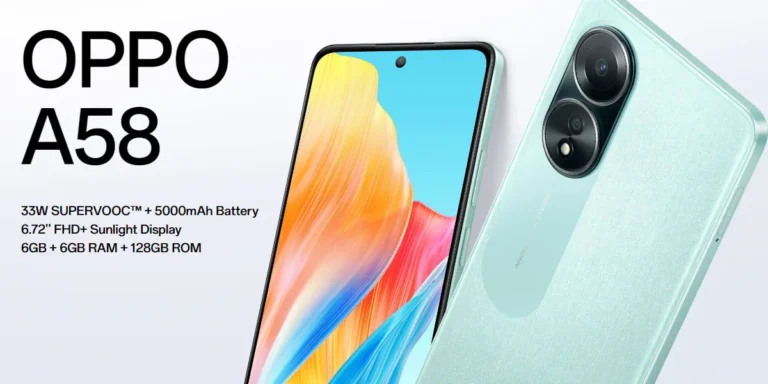
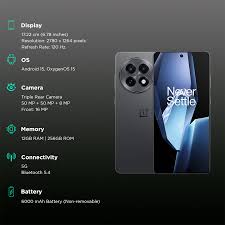
Download Oppo A58 5G CPH2577 Flash File (OS:14) Version from Ms mobile. With this file you can unlock device Screen lock Pattern, FRP and can upgrade or downgrade the device. Always use latest flash file to flash Oppo A58 5G check device version by dial code *#899# in emergency dial. download the file with direct download link given below and read all flashing instructions before flashing the phone.
Smartphone deals
Download Oppo A58 5G CPH2577 Flash File Firmware:
JioBharat A1 4G Kw301 Password Unlock || JioBharat A1 4G Kw301 Flashing || Kw301 Flash File LinkWhatsApp-6239486392
https://wa.me/+916239486392Connect Info :-•YouTube Channel:-https://www.youtube.com/@MHKSmobileengineer
•2nd YouTube Channel:-https://www.youtube.com/@mithileshmobitech
•Website:-https://msmobileinstitute.com/
•Facebook Page:-https://www.facebook.com/share/16TC4ExXzj/
•WhatsApp:-https://wa.me/+916239486392All Xiaomi/Redmi/Poco HyperOs 2.0 FRP Bypass Android 15 | All HyperOS 2.0 FRP Unlock By-AMT Tool-https://youtu.be/-1aLpjVJaPk?si=-4omThsGJMH4Sg_1
============================================Vivo V29 V29e V30 FRP Bypass New Security 2024 || All Vivo FRP Bypass Android 14 New Security 2024-https://youtu.be/tt5w9iUvi5Q
=========================================================Android Multi Tool (AMT) Video Playlist- https://youtube.com/playlist?list=PL-yo6fmrufev0YhjoF5ebJXquoU8v-8ck&si=7SNeNhNXV1kam9mWSamsung FRP UMT New Update || Vivo MTK November Security Add Unlock ToolVivo Y91 No Service Problem Solutions-https://youtu.be/aHAl4OobV6E
Samsung A21s Dead Phone Recover-https://youtu.be/HyRwezkXLrQBlack Pasted CPU- https://youtu.be/f69OdfJ-bCA
EMMC Cleaning Rebol-https://youtu.be/thC6KBmnnAQVivo Y12 & 15 Unlock SP Flash Tool-https://youtu.be/AFWK_sHCNmw
Vivo Y91 Y91i Password Unlock New Security-https://youtu.be/eNFJldpeuCE
Vivo Y91 Y91i FRP Bypass Without PC-https://youtu.be/N8mEsYz4EiwAll Realme 12 5G FRP Bypass Android 14 Latest Security Julay 2024 || All Oppo/Realme FRP BypassHow to Use Mirical Power Tool MTK Tab-https://youtu.be/9KRC36rObpsVivo Y91 Y91i Live Test Unlocking -https://youtu.be/dBZG6TgaVZgJio F320B Charger Connect Phone On
===================≠===========jio f320b network running problem Solve
================================
Vivo Y16 FRP Bypass NEW Security JUL 2024 | Vivo v2214 Frp New Security Android 12 Frp Bypass 2024All Moto G84 G85 5G FRP Bypass New Security OCT 2024 Without Pc || All Moto FRP Bypass Android 14
all oppo frp bypass share article note working,oppo k12x 5g frp bypass share article note working,oppo a78 5g frp bypass share article note working,oppo a79 5g frp bypass share article note working,oppo frp bypass share article,cph2667 frp bypass share article note open,oppo frp bypass new trick,all oppo frp unlock new trick 2025,cph2477 frp unlock share article note open,frp remove any oppo android 12,android tricks,tecno spark 20 pro price
realme 13 pro plus frp bypass share article not working,
realme 13 pro plus frp bypass android 14 2025,
realme 13 plus frp bypass new security share article not working,
JioBharat V3 4G (JBV191M1) Password Unlock || How To Flash JioBharat V3 Logo Problem Fixpoco m6 5g frp bypass xiaomi hyperos,
poco m6 5g frp bypass,
poco m6 5g frp bypass miui 14,
poco m6 5g frp bypass hyperos,
poco m6 5g frp bypass activity launcher not working,
poco m6 5g frp bypass 2024,
poco m6 5g frp bypass android 14,
poco m6 5g frp bypass latest version,
poco m6 5g frp bypass umt#FixShareArticleNotWorking
#Android14AllRealmeFrpBypass2025
#FixClonePhoneAppNotShowing
#AllOppoAndroid14FrpUnlock2025
#Realme9FrpBypass2025Android14
#RealmeNarzo50BypassFrpShareArticleNotWorking
#Realme9i5gGoogleAccountBypass2025
#Realme10ProFrpBypassClonePhoneAPPNotShow
#RealmeNarzo50aFrpBypass
#Realme8sFrpUnlockNewTrick2025
#mhksmobileengineer #mithileshmobitech all realme frp bypass android xiaomi hyperos frp
share article not working,oppo android 15 frp bypass,oppo frp bypass android 15,oppo android 14 frp bypass,all oppo android 14 frp bypass,oppo frp bypass android 14 share not working,android 15 frp bypass,how to frp bypass oppo android 14,oppo a3 pro 5g frp bypass android 15,all oppo moto frp bypass 2025,motorola moto g35 frp bypass 2025 latest security,motorola moto g35 frp file latest security 2025,moto g35 5g frp bypass 2025,bypass phone security,moto g 32 5g frp bypass latest security,#moto g34 5g frp bypass unlock tool,frp bypass,motorola g85 5g frp bypass letest sequrity update,letest sequrity update g85 5g frp bypass,bypass,moto g35 frp bypass new security,moto g35 5g frp unlock free tool 2025,moto g35 5g frp unlockall moto frp bypass 2025, motorola frp unlock 2025, moto frp unlock, moto android 15 frp unlock without box 2025, oppo frp unlock 2025, all moto frp how to unlock jio bharat phone, how to unlock how to unlock jio bharat b1 phjio bharat phone password unlock,bharat karbonn mobile password unlock,jio bharat v2 password remove keise kare,karbonn bharat k1 4g unlock,karbonn bharat k1 4g unlock tool,jiobharat k2 hard reset 1,jiobharat b1 4g dead problem,jiobharat b1 4g dead solution,jiobharatk2,jiobharatheardreset
Android 13 / ColorOS 13.1.1.556EX01 and earlier builds
Android 13 / ColorOS 13.1.1.552EX01 (~9.46 GB)
JioBharat A1 4G Kw301 Password Unlock || JioBharat A1 4G Kw301 Flashing || Kw301 Flash File LinkWhatsApp-6239486392
https://wa.me/+916239486392Connect Info :-•YouTube Channel:-https://www.youtube.com/@MHKSmobileengineer
•2nd YouTube Channel:-https://www.youtube.com/@mithileshmobitech
•Website:-https://msmobileinstitute.com/
•Facebook Page:-https://www.facebook.com/share/16TC4ExXzj/
•WhatsApp:-https://wa.me/+916239486392All Xiaomi/Redmi/Poco HyperOs 2.0 FRP Bypass Android 15 | All HyperOS 2.0 FRP Unlock By-AMT Tool-https://youtu.be/-1aLpjVJaPk?si=-4omThsGJMH4Sg_1
============================================Vivo V29 V29e V30 FRP Bypass New Security 2024 || All Vivo FRP Bypass Android 14 New Security 2024-https://youtu.be/tt5w9iUvi5Q
=========================================================Android Multi Tool (AMT) Video Playlist- https://youtube.com/playlist?list=PL-yo6fmrufev0YhjoF5ebJXquoU8v-8ck&si=7SNeNhNXV1kam9mWSamsung FRP UMT New Update || Vivo MTK November Security Add Unlock ToolVivo Y91 No Service Problem Solutions-https://youtu.be/aHAl4OobV6E
Samsung A21s Dead Phone Recover-https://youtu.be/HyRwezkXLrQBlack Pasted CPU- https://youtu.be/f69OdfJ-bCA
EMMC Cleaning Rebol-https://youtu.be/thC6KBmnnAQVivo Y12 & 15 Unlock SP Flash Tool-https://youtu.be/AFWK_sHCNmw
Vivo Y91 Y91i Password Unlock New Security-https://youtu.be/eNFJldpeuCE
Vivo Y91 Y91i FRP Bypass Without PC-https://youtu.be/N8mEsYz4EiwAll Realme 12 5G FRP Bypass Android 14 Latest Security Julay 2024 || All Oppo/Realme FRP BypassHow to Use Mirical Power Tool MTK Tab-https://youtu.be/9KRC36rObpsVivo Y91 Y91i Live Test Unlocking -https://youtu.be/dBZG6TgaVZgJio F320B Charger Connect Phone On
===================≠===========jio f320b network running problem Solve
================================
Vivo Y16 FRP Bypass NEW Security JUL 2024 | Vivo v2214 Frp New Security Android 12 Frp Bypass 2024All Moto G84 G85 5G FRP Bypass New Security OCT 2024 Without Pc || All Moto FRP Bypass Android 14
all oppo frp bypass share article note working,oppo k12x 5g frp bypass share article note working,oppo a78 5g frp bypass share article note working,oppo a79 5g frp bypass share article note working,oppo frp bypass share article,cph2667 frp bypass share article note open,oppo frp bypass new trick,all oppo frp unlock new trick 2025,cph2477 frp unlock share article note open,frp remove any oppo android 12,android tricks,tecno spark 20 pro price
realme 13 pro plus frp bypass share article not working,
realme 13 pro plus frp bypass android 14 2025,
realme 13 plus frp bypass new security share article not working,
JioBharat V3 4G (JBV191M1) Password Unlock || How To Flash JioBharat V3 Logo Problem Fixpoco m6 5g frp bypass xiaomi hyperos,
poco m6 5g frp bypass,
poco m6 5g frp bypass miui 14,
poco m6 5g frp bypass hyperos,
poco m6 5g frp bypass activity launcher not working,
poco m6 5g frp bypass 2024,
poco m6 5g frp bypass android 14,
poco m6 5g frp bypass latest version,
poco m6 5g frp bypass umt#FixShareArticleNotWorking
#Android14AllRealmeFrpBypass2025
#FixClonePhoneAppNotShowing
#AllOppoAndroid14FrpUnlock2025
#Realme9FrpBypass2025Android14
#RealmeNarzo50BypassFrpShareArticleNotWorking
#Realme9i5gGoogleAccountBypass2025
#Realme10ProFrpBypassClonePhoneAPPNotShow
#RealmeNarzo50aFrpBypass
#Realme8sFrpUnlockNewTrick2025
#mhksmobileengineer #mithileshmobitech all realme frp bypass android xiaomi hyperos frp
share article not working,oppo android 15 frp bypass,oppo frp bypass android 15,oppo android 14 frp bypass,all oppo android 14 frp bypass,oppo frp bypass android 14 share not working,android 15 frp bypass,how to frp bypass oppo android 14,oppo a3 pro 5g frp bypass android 15,all oppo moto frp bypass 2025,motorola moto g35 frp bypass 2025 latest security,motorola moto g35 frp file latest security 2025,moto g35 5g frp bypass 2025,bypass phone security,moto g 32 5g frp bypass latest security,#moto g34 5g frp bypass unlock tool,frp bypass,motorola g85 5g frp bypass letest sequrity update,letest sequrity update g85 5g frp bypass,bypass,moto g35 frp bypass new security,moto g35 5g frp unlock free tool 2025,moto g35 5g frp unlockall moto frp bypass 2025, motorola frp unlock 2025, moto frp unlock, moto android 15 frp unlock without box 2025, oppo frp unlock 2025, all moto frp how to unlock jio bharat phone, how to unlock how to unlock jio bharat b1 phjio bharat phone password unlock,bharat karbonn mobile password unlock,jio bharat v2 password remove keise kare,karbonn bharat k1 4g unlock,karbonn bharat k1 4g unlock tool,jiobharat k2 hard reset 1,jiobharat b1 4g dead problem,jiobharat b1 4g dead solution,jiobharatk2,jiobharatheardreset
📥 Recommended Download
If you’re aiming to stay current, the Android 14 / ColorOS 14 (14.0.0.1400EX01) build from late 2024 is the most up-to-date and strongly recommended. Ensure it matches your region and export channel before flashing.
🛠️ Flashing Instructions (All Builds)
1. Download & Extract
Unzip the firmware package. You should see: • scatter.txt or OFP files • Flash Tool (e.g., SP Flash Tool or Oplus Download Tool) • USB driver package and user guide
2. Install Drivers & Tools
Install the MediaTek (MTK) USB drivers included or download latest from Oppo. Install the recommended flash tool (SP Flash Tool is common)
3. Enter Download Mode
Power off the phone. Press and hold Volume Up + Volume Down, then connect via USB to PC until the tool detects the device
4. Load Firmware & Flash
In the flash tool, load the scatter.txt or OFP firmware file, choose “Download” or “Start All,” and wait until the flash completes.
5. Reboot & Reset
Once done, disconnect and reboot the device. You may need to factory-reset via recovery to avoid post-flash boot issues\
⚠️ Safety Tips
Back up all data—flashing erases everything.
Use the correct firmware for model CPH2577 to avoid bricking.
Ensure battery is charged above 50–70%
Flash at your own risk—incorrect procedures may void warranty or brick phone
🔗 Download Links Summary
Version
Build Name
Approx. Size
Notes
Latest
14.0.0.1400EX01
~13 GB
Android 14, via GsmMafia
Stable
14.0.0.900EX01
~13.26 GB
Mirror on OppoStockROM
Multiple Android 13 builds
Various sizes
9–17 GB
Dec 2023 – May 2024
✅ Next Steps
Choose and download your preferred firmware version.
Install drivers & flash tool on PC.
Follow the steps above to flash the firmware.
Let me know if you hit any errors—we can troubleshoot together!
Need direct download URLs, flash tool links, or video tutorials? Just say the word!
OnePlus 9RT ColorOS 12 Firmware Flash File here for download via direct link FROM MS MOBILE. China, Global and India firmware available here for unbrick, flash, downgrade, upgrade and unlock the device screenlock FRP, Pattern. Backup your personal data before flashing and unlocking the device with MSM Download tool.
Here are reliable sources where you can download the OnePlus 9RT 5G MT2111 (India/Global variant) flash files (stock ROMs), along with recommended steps to safely restore your device:
🛠 Tools & Drivers Required
All sources consistently recommend:
Qualcomm USB Drivers (QDLoader 9008 support).
MSM Download Tool or QFIL / OplusFlashTool for flashing .
Put device into EDL/9008 mode by holding both volume buttons while connecting to PC
✅ Flashing Guide (General Steps)
Download the correct MT2111 ROM for India/Global variant.
Extract the ZIP—folder should contain ROM, MSM Download Tool (or QFIL), and Qualcomm drivers.
Install Qualcomm USB drivers on your PC.
Power off device. With both volume buttons pressed, connect USB cable—it should show as “Qualcomm HS-USB QDLoader 9008” in PC’s Device Manager).
Launch MSM Download Tool or QFIL.
Load the extracted ROM folder.
Click Start/Download to begin the flash.
Upon successful flash, device will reboot.
⚠️ Tips & Warnings
The MSM Download Tool is state‑restricted, though hacked versions exist. You may get errors if using unofficial versions
Always backup your data—flashing wipes user data.
Use the correct build for your region (IN/Global MT2111 vs. China MT2110).
If errors occur (e.g. driver not recognized), check Device Manager and reinstall Qualcomm drivers.
Some users report bricked devices even after flashing official updates—EDL flash is essential in those cases .
🧠 Additional Community Advice
From Reddit:
They remind us that MSM Tool access is tricky and EDL mode connectivity is key.
📥 Recommended Downloads
Latest ROM: MT2111export_11_14.0.0.740EX01 (Feb 8, 2025), recommended for stability.
Older stable builds like the 2023 and 2022 versions are also available from GSMMAFIA (password applies) .
Alternatively, FirmwareFile’s EX_11_A.07 is a simpler option (~4.3 GB) .
🧭 Summary of Steps
Step
Action
1
Download correct MT2111 ROM
2
Extract and install drivers/tools
3
Connect phone in EDL mode
4
Flash via MSM Download Tool or QFIL
5
Reboot and verify functionality
Need the direct download link or want help finding the MSM/QFIL tool? Let me know and I can point you in the right direction!⚡
JioBharat A1 4G Kw301 Password Unlock || JioBharat A1 4G Kw301 Flashing || Kw301 Flash File LinkWhatsApp-6239486392
https://wa.me/+916239486392Connect Info :-•YouTube Channel:-https://www.youtube.com/@MHKSmobileengineer
•2nd YouTube Channel:-https://www.youtube.com/@mithileshmobitech
•Website:-https://msmobileinstitute.com/
•Facebook Page:-https://www.facebook.com/share/16TC4ExXzj/
•WhatsApp:-https://wa.me/+916239486392All Xiaomi/Redmi/Poco HyperOs 2.0 FRP Bypass Android 15 | All HyperOS 2.0 FRP Unlock By-AMT Tool-https://youtu.be/-1aLpjVJaPk?si=-4omThsGJMH4Sg_1
============================================Vivo V29 V29e V30 FRP Bypass New Security 2024 || All Vivo FRP Bypass Android 14 New Security 2024-https://youtu.be/tt5w9iUvi5Q
=========================================================Android Multi Tool (AMT) Video Playlist- https://youtube.com/playlist?list=PL-yo6fmrufev0YhjoF5ebJXquoU8v-8ck&si=7SNeNhNXV1kam9mWSamsung FRP UMT New Update || Vivo MTK November Security Add Unlock ToolVivo Y91 No Service Problem Solutions-https://youtu.be/aHAl4OobV6E
Samsung A21s Dead Phone Recover-https://youtu.be/HyRwezkXLrQBlack Pasted CPU- https://youtu.be/f69OdfJ-bCA
EMMC Cleaning Rebol-https://youtu.be/thC6KBmnnAQVivo Y12 & 15 Unlock SP Flash Tool-https://youtu.be/AFWK_sHCNmw
Vivo Y91 Y91i Password Unlock New Security-https://youtu.be/eNFJldpeuCE
Vivo Y91 Y91i FRP Bypass Without PC-https://youtu.be/N8mEsYz4EiwAll Realme 12 5G FRP Bypass Android 14 Latest Security Julay 2024 || All Oppo/Realme FRP BypassHow to Use Mirical Power Tool MTK Tab-https://youtu.be/9KRC36rObpsVivo Y91 Y91i Live Test Unlocking -https://youtu.be/dBZG6TgaVZgJio F320B Charger Connect Phone On
===================≠===========jio f320b network running problem Solve
================================
Vivo Y16 FRP Bypass NEW Security JUL 2024 | Vivo v2214 Frp New Security Android 12 Frp Bypass 2024All Moto G84 G85 5G FRP Bypass New Security OCT 2024 Without Pc || All Moto FRP Bypass Android 14
all oppo frp bypass share article note working,oppo k12x 5g frp bypass share article note working,oppo a78 5g frp bypass share article note working,oppo a79 5g frp bypass share article note working,oppo frp bypass share article,cph2667 frp bypass share article note open,oppo frp bypass new trick,all oppo frp unlock new trick 2025,cph2477 frp unlock share article note open,frp remove any oppo android 12,android tricks,tecno spark 20 pro price
realme 13 pro plus frp bypass share article not working,
realme 13 pro plus frp bypass android 14 2025,
realme 13 plus frp bypass new security share article not working,
JioBharat V3 4G (JBV191M1) Password Unlock || How To Flash JioBharat V3 Logo Problem Fixpoco m6 5g frp bypass xiaomi hyperos,
poco m6 5g frp bypass,
poco m6 5g frp bypass miui 14,
poco m6 5g frp bypass hyperos,
poco m6 5g frp bypass activity launcher not working,
poco m6 5g frp bypass 2024,
poco m6 5g frp bypass android 14,
poco m6 5g frp bypass latest version,
poco m6 5g frp bypass umt#FixShareArticleNotWorking
#Android14AllRealmeFrpBypass2025
#FixClonePhoneAppNotShowing
#AllOppoAndroid14FrpUnlock2025
#Realme9FrpBypass2025Android14
#RealmeNarzo50BypassFrpShareArticleNotWorking
#Realme9i5gGoogleAccountBypass2025
#Realme10ProFrpBypassClonePhoneAPPNotShow
#RealmeNarzo50aFrpBypass
#Realme8sFrpUnlockNewTrick2025
#mhksmobileengineer #mithileshmobitech all realme frp bypass android xiaomi hyperos frp
share article not working,oppo android 15 frp bypass,oppo frp bypass android 15,oppo android 14 frp bypass,all oppo android 14 frp bypass,oppo frp bypass android 14 share not working,android 15 frp bypass,how to frp bypass oppo android 14,oppo a3 pro 5g frp bypass android 15,all oppo moto frp bypass 2025,motorola moto g35 frp bypass 2025 latest security,motorola moto g35 frp file latest security 2025,moto g35 5g frp bypass 2025,bypass phone security,moto g 32 5g frp bypass latest security,#moto g34 5g frp bypass unlock tool,frp bypass,motorola g85 5g frp bypass letest sequrity update,letest sequrity update g85 5g frp bypass,bypass,moto g35 frp bypass new security,moto g35 5g frp unlock free tool 2025,moto g35 5g frp unlockall moto frp bypass 2025, motorola frp unlock 2025, moto frp unlock, moto android 15 frp unlock without box 2025, oppo frp unlock 2025, all moto frp how to unlock jio bharat phone, how to unlock how to unlock jio bharat b1 phjio bharat phone password unlock,bharat karbonn mobile password unlock,jio bharat v2 password remove keise kare,karbonn bharat k1 4g unlock,karbonn bharat k1 4g unlock tool,jiobharat k2 hard reset 1,jiobharat b1 4g dead problem,jiobharat b1 4g dead solution,jiobharatk2,jiobharatheardreset
Here are reliable sources where you can download the official stock firmware (flash file) for Oppo A54 5G (OPG02):
📥 OPPO A54 5G OPG02 Stock ROM
File:Oppo_A54_5G_OPG02_EX_11_C.25_220408.zip (~4.53 GB) Includes firmware, USB drivers, flash tool, and installation guide. Use it to fix boot loop, unbrick, update/downgrade your phone ).
⚙️ OPG02 Flash File – ROMProvider
Confirms this is an Android 11 Qualcomm‑480 device (OPG02), with full ROM and tools).
🔧 Mobifirmware Version
JioBharat A1 4G Kw301 Password Unlock || JioBharat A1 4G Kw301 Flashing || Kw301 Flash File LinkWhatsApp-6239486392
https://wa.me/+916239486392Connect Info :-•YouTube Channel:-https://www.youtube.com/@MHKSmobileengineer
•2nd YouTube Channel:-https://www.youtube.com/@mithileshmobitech
•Website:-https://msmobileinstitute.com/
•Facebook Page:-https://www.facebook.com/share/16TC4ExXzj/
•WhatsApp:-https://wa.me/+916239486392All Xiaomi/Redmi/Poco HyperOs 2.0 FRP Bypass Android 15 | All HyperOS 2.0 FRP Unlock By-AMT Tool-https://youtu.be/-1aLpjVJaPk?si=-4omThsGJMH4Sg_1
============================================Vivo V29 V29e V30 FRP Bypass New Security 2024 || All Vivo FRP Bypass Android 14 New Security 2024-https://youtu.be/tt5w9iUvi5Q
=========================================================Android Multi Tool (AMT) Video Playlist- https://youtube.com/playlist?list=PL-yo6fmrufev0YhjoF5ebJXquoU8v-8ck&si=7SNeNhNXV1kam9mWSamsung FRP UMT New Update || Vivo MTK November Security Add Unlock ToolVivo Y91 No Service Problem Solutions-https://youtu.be/aHAl4OobV6E
Samsung A21s Dead Phone Recover-https://youtu.be/HyRwezkXLrQBlack Pasted CPU- https://youtu.be/f69OdfJ-bCA
EMMC Cleaning Rebol-https://youtu.be/thC6KBmnnAQVivo Y12 & 15 Unlock SP Flash Tool-https://youtu.be/AFWK_sHCNmw
Vivo Y91 Y91i Password Unlock New Security-https://youtu.be/eNFJldpeuCE
Vivo Y91 Y91i FRP Bypass Without PC-https://youtu.be/N8mEsYz4EiwAll Realme 12 5G FRP Bypass Android 14 Latest Security Julay 2024 || All Oppo/Realme FRP BypassHow to Use Mirical Power Tool MTK Tab-https://youtu.be/9KRC36rObpsVivo Y91 Y91i Live Test Unlocking -https://youtu.be/dBZG6TgaVZgJio F320B Charger Connect Phone On
===================≠===========jio f320b network running problem Solve
================================
Vivo Y16 FRP Bypass NEW Security JUL 2024 | Vivo v2214 Frp New Security Android 12 Frp Bypass 2024All Moto G84 G85 5G FRP Bypass New Security OCT 2024 Without Pc || All Moto FRP Bypass Android 14
all oppo frp bypass share article note working,oppo k12x 5g frp bypass share article note working,oppo a78 5g frp bypass share article note working,oppo a79 5g frp bypass share article note working,oppo frp bypass share article,cph2667 frp bypass share article note open,oppo frp bypass new trick,all oppo frp unlock new trick 2025,cph2477 frp unlock share article note open,frp remove any oppo android 12,android tricks,tecno spark 20 pro price
realme 13 pro plus frp bypass share article not working,
realme 13 pro plus frp bypass android 14 2025,
realme 13 plus frp bypass new security share article not working,
JioBharat V3 4G (JBV191M1) Password Unlock || How To Flash JioBharat V3 Logo Problem Fixpoco m6 5g frp bypass xiaomi hyperos,
poco m6 5g frp bypass,
poco m6 5g frp bypass miui 14,
poco m6 5g frp bypass hyperos,
poco m6 5g frp bypass activity launcher not working,
poco m6 5g frp bypass 2024,
poco m6 5g frp bypass android 14,
poco m6 5g frp bypass latest version,
poco m6 5g frp bypass umt#FixShareArticleNotWorking
#Android14AllRealmeFrpBypass2025
#FixClonePhoneAppNotShowing
#AllOppoAndroid14FrpUnlock2025
#Realme9FrpBypass2025Android14
#RealmeNarzo50BypassFrpShareArticleNotWorking
#Realme9i5gGoogleAccountBypass2025
#Realme10ProFrpBypassClonePhoneAPPNotShow
#RealmeNarzo50aFrpBypass
#Realme8sFrpUnlockNewTrick2025
#mhksmobileengineer #mithileshmobitech all realme frp bypass android xiaomi hyperos frp
share article not working,oppo android 15 frp bypass,oppo frp bypass android 15,oppo android 14 frp bypass,all oppo android 14 frp bypass,oppo frp bypass android 14 share not working,android 15 frp bypass,how to frp bypass oppo android 14,oppo a3 pro 5g frp bypass android 15,all oppo moto frp bypass 2025,motorola moto g35 frp bypass 2025 latest security,motorola moto g35 frp file latest security 2025,moto g35 5g frp bypass 2025,bypass phone security,moto g 32 5g frp bypass latest security,#moto g34 5g frp bypass unlock tool,frp bypass,motorola g85 5g frp bypass letest sequrity update,letest sequrity update g85 5g frp bypass,bypass,moto g35 frp bypass new security,moto g35 5g frp unlock free tool 2025,moto g35 5g frp unlockall moto frp bypass 2025, motorola frp unlock 2025, moto frp unlock, moto android 15 frp unlock without box 2025, oppo frp unlock 2025, all moto frp how to unlock jio bharat phone, how to unlock how to unlock jio bharat b1 phjio bharat phone password unlock,bharat karbonn mobile password unlock,jio bharat v2 password remove keise kare,karbonn bharat k1 4g unlock,karbonn bharat k1 4g unlock tool,jiobharat k2 hard reset 1,jiobharat b1 4g dead problem,jiobharat b1 4g dead solution,jiobharatk2,jiobharatheardreset
Lists build OPG02export_11_C.43_2024062111140091 (June 2024), labeled as “PREMIUM”; likely the latest update .
⚠️ Important Precautions
Backup your data — flashing erases everything.
Ensure you download the firmware that matches your model (OPG02) to avoid bricking.
Install official USB drivers (ADB/Fastboot) beforehand. You can find the Oppo A54 5G OPG02 USB driver via sources like AndroidADBDriver
Use the provided flash tool (Realme or MSM Download Tool) and follow the included tutorial.
🔄 Step‑by‑Step Flashing Outline
Download and extract the ZIP file containing firmware, drivers, tools, and guide.
Install USB drivers on your PC.
Open the flash tool (e.g., Realme Flash Tool or MSM Download Tool).
Load the extracted firmware/ROM package in the tool.
Boot your phone into download/fastboot mode (usually power off → hold volume up + down during USB connect).
Start flashing and wait until the process completes.
Reboot your device once done.
✅ Summary Table
Source
File Name & Size
Notes
Oppo Stock ROM
OPG02_EX_11_C.25_220408.zip – 4.53 GB
Official release, basic build
Mobifirmware
OPG02export_11_C.43_202406... – 2024 build
Likely latest premium firmware
ROMProvider
Same C.25 build, Qualcomm device info
Additional download links/tools
🛠 What to Do Next
Choose whether you want the standard build (C.25) or the newer C.43 premium edition.
Download from a reputable mirror.
Extract the package and install USB drivers.
Follow the flash guide included in the archive, or refer to the step list above.
If you’d like, I can help you locate the direct download link or provide a step‑by‑step flashing walkthrough (with screenshots or video). Just let me know!
Realme GT Neo 3T RMX3371 Flash file Firmware Now available on Ms mobile(SW:13.1) . Which can be used for fix hang on the logo and remove all screen locks. This file will remove all type of screen lock like Pattern and FRP after flash. Always use latest flash file to flash Realme GT Neo 3T check device version by dial code *#899# in emergency dial. download the file with direct download link given below and read all flashing instructions before flashing the phone.
Download the appropriate zip file for your region (e.g. global/export).
Extract—should contain flash file, flash tool (MSM/QFIL), and drivers.
Launch the MSM Download or QFIL tool.
Power off the phone, press and hold volume up + volume down, then connect via USB to enter EDL mode.
In the tool, click “Start” to begin flashing.
Wait for completion and reboot.
🛡️ Tips & Warnings
Always match the build region: export (global/international) vs GDPR vs China.
Use the latest official build for maximum compatibility and bug fixes.
Flashing obsolete or mismatched firmware may result in a bootloop or brick.
Bootloader unlocking may be required and for some Realme phones (like GT Neo 3T), unlocking is disabled on certain regions .
Looking for custom ROM support? Reddit users recommend EDL recovery for hardcore unbrick cases .
✅ Summary Table
Version
Region
Release Date
Notes
13.1.0.700
export/global
July 28, 2024
Latest stable build (Android 14, UI 5.0)
13.1.0.601
export
Sept 25, 2023
Older Android 13 stable
C.06, C.04
export
Mar, Dec 2022
Legacy updates Android 12
🧭 Next Steps
Visit one of the trusted download sources above.
Download the full firmware zip and extract it.
Follow the step-by-step flash guide included.
If issues arise (e.g., failing to connect), ensure the USB drivers are installed and you’re in EDL mode.
Need regional-specific firmware (e.g. India-specific build), help with unlocking or flashing details, or guidance on troubleshooting blackberry issues? Just let me know—I’m here to assist!
Got a problem with Oppo K13 5G CPH2729? This official Color OS 15 flash file revives your phone when it’s frozen on logo, locked by FRP, or misbehaving after a failed update. Works on Qualcomm Snapdragon 6 Gen 4 (4 nm) models. You’ll need proper flashing tools – if you’re not comfortable doing it yourself, we provide expert flashing support. Ideal for fixing forgotten patterns, endless boot loops, or system crashes. Always flash with certified files like this to prevent problems. Includes easy-to-follow instructions so you can safely unbrick your device at home.
Download Oppo K13 5G Flash File
JioBharat A1 4G Kw301 Password Unlock || JioBharat A1 4G Kw301 Flashing || Kw301 Flash File LinkWhatsApp-6239486392
https://wa.me/+916239486392Connect Info :-•YouTube Channel:-https://www.youtube.com/@MHKSmobileengineer
•2nd YouTube Channel:-https://www.youtube.com/@mithileshmobitech
•Website:-https://msmobileinstitute.com/
•Facebook Page:-https://www.facebook.com/share/16TC4ExXzj/
•WhatsApp:-https://wa.me/+916239486392All Xiaomi/Redmi/Poco HyperOs 2.0 FRP Bypass Android 15 | All HyperOS 2.0 FRP Unlock By-AMT Tool-https://youtu.be/-1aLpjVJaPk?si=-4omThsGJMH4Sg_1
============================================Vivo V29 V29e V30 FRP Bypass New Security 2024 || All Vivo FRP Bypass Android 14 New Security 2024-https://youtu.be/tt5w9iUvi5Q
=========================================================Android Multi Tool (AMT) Video Playlist- https://youtube.com/playlist?list=PL-yo6fmrufev0YhjoF5ebJXquoU8v-8ck&si=7SNeNhNXV1kam9mWSamsung FRP UMT New Update || Vivo MTK November Security Add Unlock ToolVivo Y91 No Service Problem Solutions-https://youtu.be/aHAl4OobV6E
Samsung A21s Dead Phone Recover-https://youtu.be/HyRwezkXLrQBlack Pasted CPU- https://youtu.be/f69OdfJ-bCA
EMMC Cleaning Rebol-https://youtu.be/thC6KBmnnAQVivo Y12 & 15 Unlock SP Flash Tool-https://youtu.be/AFWK_sHCNmw
Vivo Y91 Y91i Password Unlock New Security-https://youtu.be/eNFJldpeuCE
Vivo Y91 Y91i FRP Bypass Without PC-https://youtu.be/N8mEsYz4EiwAll Realme 12 5G FRP Bypass Android 14 Latest Security Julay 2024 || All Oppo/Realme FRP BypassHow to Use Mirical Power Tool MTK Tab-https://youtu.be/9KRC36rObpsVivo Y91 Y91i Live Test Unlocking -https://youtu.be/dBZG6TgaVZgJio F320B Charger Connect Phone On
===================≠===========jio f320b network running problem Solve
================================
Vivo Y16 FRP Bypass NEW Security JUL 2024 | Vivo v2214 Frp New Security Android 12 Frp Bypass 2024All Moto G84 G85 5G FRP Bypass New Security OCT 2024 Without Pc || All Moto FRP Bypass Android 14
all oppo frp bypass share article note working,oppo k12x 5g frp bypass share article note working,oppo a78 5g frp bypass share article note working,oppo a79 5g frp bypass share article note working,oppo frp bypass share article,cph2667 frp bypass share article note open,oppo frp bypass new trick,all oppo frp unlock new trick 2025,cph2477 frp unlock share article note open,frp remove any oppo android 12,android tricks,tecno spark 20 pro price
realme 13 pro plus frp bypass share article not working,
realme 13 pro plus frp bypass android 14 2025,
realme 13 plus frp bypass new security share article not working,
JioBharat V3 4G (JBV191M1) Password Unlock || How To Flash JioBharat V3 Logo Problem Fixpoco m6 5g frp bypass xiaomi hyperos,
poco m6 5g frp bypass,
poco m6 5g frp bypass miui 14,
poco m6 5g frp bypass hyperos,
poco m6 5g frp bypass activity launcher not working,
poco m6 5g frp bypass 2024,
poco m6 5g frp bypass android 14,
poco m6 5g frp bypass latest version,
poco m6 5g frp bypass umt#FixShareArticleNotWorking
#Android14AllRealmeFrpBypass2025
#FixClonePhoneAppNotShowing
#AllOppoAndroid14FrpUnlock2025
#Realme9FrpBypass2025Android14
#RealmeNarzo50BypassFrpShareArticleNotWorking
#Realme9i5gGoogleAccountBypass2025
#Realme10ProFrpBypassClonePhoneAPPNotShow
#RealmeNarzo50aFrpBypass
#Realme8sFrpUnlockNewTrick2025
#mhksmobileengineer #mithileshmobitech all realme frp bypass android xiaomi hyperos frp
share article not working,oppo android 15 frp bypass,oppo frp bypass android 15,oppo android 14 frp bypass,all oppo android 14 frp bypass,oppo frp bypass android 14 share not working,android 15 frp bypass,how to frp bypass oppo android 14,oppo a3 pro 5g frp bypass android 15,all oppo moto frp bypass 2025,motorola moto g35 frp bypass 2025 latest security,motorola moto g35 frp file latest security 2025,moto g35 5g frp bypass 2025,bypass phone security,moto g 32 5g frp bypass latest security,#moto g34 5g frp bypass unlock tool,frp bypass,motorola g85 5g frp bypass letest sequrity update,letest sequrity update g85 5g frp bypass,bypass,moto g35 frp bypass new security,moto g35 5g frp unlock free tool 2025,moto g35 5g frp unlockall moto frp bypass 2025, motorola frp unlock 2025, moto frp unlock, moto android 15 frp unlock without box 2025, oppo frp unlock 2025, all moto frp how to unlock jio bharat phone, how to unlock how to unlock jio bharat b1 phjio bharat phone password unlock,bharat karbonn mobile password unlock,jio bharat v2 password remove keise kare,karbonn bharat k1 4g unlock,karbonn bharat k1 4g unlock tool,jiobharat k2 hard reset 1,jiobharat b1 4g dead problem,jiobharat b1 4g dead solution,jiobharatk2,jiobharatheardreset
JioBharat A1 4G Kw301 Password Unlock || JioBharat A1 4G Kw301 Flashing || Kw301 Flash File LinkWhatsApp-6239486392
https://wa.me/+916239486392Connect Info :-•YouTube Channel:-https://www.youtube.com/@MHKSmobileengineer
•2nd YouTube Channel:-https://www.youtube.com/@mithileshmobitech
•Website:-https://msmobileinstitute.com/
•Facebook Page:-https://www.facebook.com/share/16TC4ExXzj/
•WhatsApp:-https://wa.me/+916239486392All Xiaomi/Redmi/Poco HyperOs 2.0 FRP Bypass Android 15 | All HyperOS 2.0 FRP Unlock By-AMT Tool-https://youtu.be/-1aLpjVJaPk?si=-4omThsGJMH4Sg_1
============================================Vivo V29 V29e V30 FRP Bypass New Security 2024 || All Vivo FRP Bypass Android 14 New Security 2024-https://youtu.be/tt5w9iUvi5Q
=========================================================Android Multi Tool (AMT) Video Playlist- https://youtube.com/playlist?list=PL-yo6fmrufev0YhjoF5ebJXquoU8v-8ck&si=7SNeNhNXV1kam9mWSamsung FRP UMT New Update || Vivo MTK November Security Add Unlock ToolVivo Y91 No Service Problem Solutions-https://youtu.be/aHAl4OobV6E
Samsung A21s Dead Phone Recover-https://youtu.be/HyRwezkXLrQBlack Pasted CPU- https://youtu.be/f69OdfJ-bCA
EMMC Cleaning Rebol-https://youtu.be/thC6KBmnnAQVivo Y12 & 15 Unlock SP Flash Tool-https://youtu.be/AFWK_sHCNmw
Vivo Y91 Y91i Password Unlock New Security-https://youtu.be/eNFJldpeuCE
Vivo Y91 Y91i FRP Bypass Without PC-https://youtu.be/N8mEsYz4EiwAll Realme 12 5G FRP Bypass Android 14 Latest Security Julay 2024 || All Oppo/Realme FRP BypassHow to Use Mirical Power Tool MTK Tab-https://youtu.be/9KRC36rObpsVivo Y91 Y91i Live Test Unlocking -https://youtu.be/dBZG6TgaVZgJio F320B Charger Connect Phone On
===================≠===========jio f320b network running problem Solve
================================
Vivo Y16 FRP Bypass NEW Security JUL 2024 | Vivo v2214 Frp New Security Android 12 Frp Bypass 2024All Moto G84 G85 5G FRP Bypass New Security OCT 2024 Without Pc || All Moto FRP Bypass Android 14
all oppo frp bypass share article note working,oppo k12x 5g frp bypass share article note working,oppo a78 5g frp bypass share article note working,oppo a79 5g frp bypass share article note working,oppo frp bypass share article,cph2667 frp bypass share article note open,oppo frp bypass new trick,all oppo frp unlock new trick 2025,cph2477 frp unlock share article note open,frp remove any oppo android 12,android tricks,tecno spark 20 pro price
realme 13 pro plus frp bypass share article not working,
realme 13 pro plus frp bypass android 14 2025,
realme 13 plus frp bypass new security share article not working,
JioBharat V3 4G (JBV191M1) Password Unlock || How To Flash JioBharat V3 Logo Problem Fixpoco m6 5g frp bypass xiaomi hyperos,
poco m6 5g frp bypass,
poco m6 5g frp bypass miui 14,
poco m6 5g frp bypass hyperos,
poco m6 5g frp bypass activity launcher not working,
poco m6 5g frp bypass 2024,
poco m6 5g frp bypass android 14,
poco m6 5g frp bypass latest version,
poco m6 5g frp bypass umt#FixShareArticleNotWorking
#Android14AllRealmeFrpBypass2025
#FixClonePhoneAppNotShowing
#AllOppoAndroid14FrpUnlock2025
#Realme9FrpBypass2025Android14
#RealmeNarzo50BypassFrpShareArticleNotWorking
#Realme9i5gGoogleAccountBypass2025
#Realme10ProFrpBypassClonePhoneAPPNotShow
#RealmeNarzo50aFrpBypass
#Realme8sFrpUnlockNewTrick2025
#mhksmobileengineer #mithileshmobitech all realme frp bypass android xiaomi hyperos frp
share article not working,oppo android 15 frp bypass,oppo frp bypass android 15,oppo android 14 frp bypass,all oppo android 14 frp bypass,oppo frp bypass android 14 share not working,android 15 frp bypass,how to frp bypass oppo android 14,oppo a3 pro 5g frp bypass android 15,all oppo moto frp bypass 2025,motorola moto g35 frp bypass 2025 latest security,motorola moto g35 frp file latest security 2025,moto g35 5g frp bypass 2025,bypass phone security,moto g 32 5g frp bypass latest security,#moto g34 5g frp bypass unlock tool,frp bypass,motorola g85 5g frp bypass letest sequrity update,letest sequrity update g85 5g frp bypass,bypass,moto g35 frp bypass new security,moto g35 5g frp unlock free tool 2025,moto g35 5g frp unlockall moto frp bypass 2025, motorola frp unlock 2025, moto frp unlock, moto android 15 frp unlock without box 2025, oppo frp unlock 2025, all moto frp how to unlock jio bharat phone, how to unlock how to unlock jio bharat b1 phjio bharat phone password unlock,bharat karbonn mobile password unlock,jio bharat v2 password remove keise kare,karbonn bharat k1 4g unlock,karbonn bharat k1 4g unlock tool,jiobharat k2 hard reset 1,jiobharat b1 4g dead problem,jiobharat b1 4g dead solution,jiobharatk2,jiobharatheardreset
If you’re unsure about your phone model, here’s a quick overview:
Battery: 7000mAh non-removable with 80W fast charging
Processor: Qualcomm Snapdragon 6 Gen 4 (4 nm)
RAM & Storage: 8GB RAM or 12GB RAM | 256GB or 512GB storage
Expandable Storage: No microSD slot
Operating System: Color OS 15 based on Android 15
Flashing is simple when you follow each step carefully:
Extract the firmware using WinRAR or 7-Zip.
Install Oppo USB Drivers (QCOM + MTK).
JioBharat A1 4G Kw301 Password Unlock || JioBharat A1 4G Kw301 Flashing || Kw301 Flash File LinkWhatsApp-6239486392
https://wa.me/+916239486392Connect Info :-•YouTube Channel:-https://www.youtube.com/@MHKSmobileengineer
•2nd YouTube Channel:-https://www.youtube.com/@mithileshmobitech
•Website:-https://msmobileinstitute.com/
•Facebook Page:-https://www.facebook.com/share/16TC4ExXzj/
•WhatsApp:-https://wa.me/+916239486392All Xiaomi/Redmi/Poco HyperOs 2.0 FRP Bypass Android 15 | All HyperOS 2.0 FRP Unlock By-AMT Tool-https://youtu.be/-1aLpjVJaPk?si=-4omThsGJMH4Sg_1
============================================Vivo V29 V29e V30 FRP Bypass New Security 2024 || All Vivo FRP Bypass Android 14 New Security 2024-https://youtu.be/tt5w9iUvi5Q
=========================================================Android Multi Tool (AMT) Video Playlist- https://youtube.com/playlist?list=PL-yo6fmrufev0YhjoF5ebJXquoU8v-8ck&si=7SNeNhNXV1kam9mWSamsung FRP UMT New Update || Vivo MTK November Security Add Unlock ToolVivo Y91 No Service Problem Solutions-https://youtu.be/aHAl4OobV6E
Samsung A21s Dead Phone Recover-https://youtu.be/HyRwezkXLrQBlack Pasted CPU- https://youtu.be/f69OdfJ-bCA
EMMC Cleaning Rebol-https://youtu.be/thC6KBmnnAQVivo Y12 & 15 Unlock SP Flash Tool-https://youtu.be/AFWK_sHCNmw
Vivo Y91 Y91i Password Unlock New Security-https://youtu.be/eNFJldpeuCE
Vivo Y91 Y91i FRP Bypass Without PC-https://youtu.be/N8mEsYz4EiwAll Realme 12 5G FRP Bypass Android 14 Latest Security Julay 2024 || All Oppo/Realme FRP BypassHow to Use Mirical Power Tool MTK Tab-https://youtu.be/9KRC36rObpsVivo Y91 Y91i Live Test Unlocking -https://youtu.be/dBZG6TgaVZgJio F320B Charger Connect Phone On
===================≠===========jio f320b network running problem Solve
================================
Vivo Y16 FRP Bypass NEW Security JUL 2024 | Vivo v2214 Frp New Security Android 12 Frp Bypass 2024All Moto G84 G85 5G FRP Bypass New Security OCT 2024 Without Pc || All Moto FRP Bypass Android 14
all oppo frp bypass share article note working,oppo k12x 5g frp bypass share article note working,oppo a78 5g frp bypass share article note working,oppo a79 5g frp bypass share article note working,oppo frp bypass share article,cph2667 frp bypass share article note open,oppo frp bypass new trick,all oppo frp unlock new trick 2025,cph2477 frp unlock share article note open,frp remove any oppo android 12,android tricks,tecno spark 20 pro price
realme 13 pro plus frp bypass share article not working,
realme 13 pro plus frp bypass android 14 2025,
realme 13 plus frp bypass new security share article not working,
JioBharat V3 4G (JBV191M1) Password Unlock || How To Flash JioBharat V3 Logo Problem Fixpoco m6 5g frp bypass xiaomi hyperos,
poco m6 5g frp bypass,
poco m6 5g frp bypass miui 14,
poco m6 5g frp bypass hyperos,
poco m6 5g frp bypass activity launcher not working,
poco m6 5g frp bypass 2024,
poco m6 5g frp bypass android 14,
poco m6 5g frp bypass latest version,
poco m6 5g frp bypass umt#FixShareArticleNotWorking
#Android14AllRealmeFrpBypass2025
#FixClonePhoneAppNotShowing
#AllOppoAndroid14FrpUnlock2025
#Realme9FrpBypass2025Android14
#RealmeNarzo50BypassFrpShareArticleNotWorking
#Realme9i5gGoogleAccountBypass2025
#Realme10ProFrpBypassClonePhoneAPPNotShow
#RealmeNarzo50aFrpBypass
#Realme8sFrpUnlockNewTrick2025
#mhksmobileengineer #mithileshmobitech all realme frp bypass android xiaomi hyperos frp
share article not working,oppo android 15 frp bypass,oppo frp bypass android 15,oppo android 14 frp bypass,all oppo android 14 frp bypass,oppo frp bypass android 14 share not working,android 15 frp bypass,how to frp bypass oppo android 14,oppo a3 pro 5g frp bypass android 15,all oppo moto frp bypass 2025,motorola moto g35 frp bypass 2025 latest security,motorola moto g35 frp file latest security 2025,moto g35 5g frp bypass 2025,bypass phone security,moto g 32 5g frp bypass latest security,#moto g34 5g frp bypass unlock tool,frp bypass,motorola g85 5g frp bypass letest sequrity update,letest sequrity update g85 5g frp bypass,bypass,moto g35 frp bypass new security,moto g35 5g frp unlock free tool 2025,moto g35 5g frp unlockall moto frp bypass 2025, motorola frp unlock 2025, moto frp unlock, moto android 15 frp unlock without box 2025, oppo frp unlock 2025, all moto frp how to unlock jio bharat phone, how to unlock how to unlock jio bharat b1 phjio bharat phone password unlock,bharat karbonn mobile password unlock,jio bharat v2 password remove keise kare,karbonn bharat k1 4g unlock,karbonn bharat k1 4g unlock tool,jiobharat k2 hard reset 1,jiobharat b1 4g dead problem,jiobharat b1 4g dead solution,jiobharatk2,jiobharatheardreset
Launch DLTool provided in the folder.
Enter login credentials (contact us if you don’t have them).
Power off the phone.
Press and hold Volume Up + Volume Down and connect to PC.
Ensure the device appears as a Qualcomm port in Device Manager.
The tool will detect the phone and start flashing.
Wait until it shows Download Success.
Reboot the device – it should now be working fine.
Facing Errors While Flashing? Getting errors like tool not opening, port not showing, or flash failing? I offer remote support to fix these issues. Contact me here and I’ll guide you step by step.
Follow us for latest firmware, flashing tools, drivers, and tips:
Download Realme 13+ 5G RMX5000 Flash File Firmware from Ms mobile. With this file you can unlock device Screen lock Pattern, FRP and can upgrade or downgrade the device. Always use latest flash file to flash Realme 13+ 5G check device version by dial code *#899# in emergency dial. download the file with direct download link given below and read all flashing instructions before flashing the phone.
Download OnePlus Ace 3 PJE110 Qualcomm SM8550-AB Snapdragon 8 Gen 2 Flash File From Ms mobile. This file is based on ColorOS 14 and used for flash and unlock your device fix pattern lock, FRP and other problems like hang on logo, brick after software update or in any experiment , fix hanging issue and other software related issues.
Here are multiple sources confirming that the OnePlus Ace 3 (model PJE110) flash files (stock ROM firmware) are available for download—typically bundled with the Oplus Flash Tool and Qualcomm drivers for flashing via EDL mode These ROMs are based on ColorOS 14 and are intended to fix issues like boot loops, FRP lock, dead boot, and more.
🔧 What is included in these ROM packs?
Full stock firmware images for PJE110 variants (e.g., 14.0.0.305, 14.0.0.312, 14.0.0.317 CN builds)
Qualcomm (QDLoader 9008) USB drivers & labor guidance on entering EDL mode
⚠️ Important precautions & legal reminders
Official vs. unofficial sources: Many ROM packages come from third-party sites (like GSMMafia, ROMProvider). Before flashing, ensure you’re using official OnePlus firmware to avoid malware or improperly signed files.
Bootloader & authorization: Flashing most EDL ROMs requires an authorized OnePlus account login inside the Flash Tool.
Data will be wiped: Flashing stock ROM typically removes all user data—backup first .
Warranty risk: Flashing unofficial images or ROMs may void warranty or permanently damage your device if done incorrectly.
Region lock issues: The PJE110 is a China variant. Users have reported region‑specific bugs, especially when flashing Global ROMs—be cautious .
🛠️ Flashing guide (EDL mode)
Download the correct firmware ZIP for PJE110.
Install Qualcomm (QDLoader) USB drivers on your PC.
Extract the ROM and launch MSM Download Tool / OplusFlashTool.exe.
Log in with authorized credentials if required.
Load the firmware and click Start All.
Put the phone into EDL mode by holding Volume Up + Volume Down while connecting via USB, or via test‑point if needed.
Wait for the flash process to complete (~5–10 min).
Reboot your device once finished
🕵️♂️ Official firmware updates
If you’re looking for the latest stable update:
A Chinese forum user reported receiving PJE110_14.0.0.817 (CN01V30P01) in January 2025
The current stock ColorOS builds listed include up to PJE110_14.0.0.317 (CN01 A.58) as of early 2025
✅ Recommendations
Obtain the official firmware from OnePlus or a trusted source (e.g., support forums, XDA, OnePlus server).
Follow the flashing steps carefully, especially driver installation and EDL entry.
If you’re bricked or encounter errors like “Sahara,” check XDA or Reddit—some users report success by reverting to ColorOS from OxygenOS
On region‑locking issues, you may need to flash regional partitions or contact OnePlus support.
📌 Summary
Yes, full OnePlus Ace 3 PJE110 flash files (stock ROM) are available, typically ColorOS 14 builds. Use official tools and firmware, proceed with caution, backup your data, and be aware of authorization and warranty implications.
If you’d like direct links to the latest official builds, help selecting the correct version, or guidance on solving specific flashing errors, let me know—and I can assist further!
SourcesAttach
Search
Voice
ChatGPT can make mistakes. Check important info. See
If the tool prompts for credentials, follow the site’s method (via official or community methods on XDA).
If you’d like, I can help you locate a direct link to a specific firmware version or walk you through the flashing process in more detail. Just let me know!
SourcesAttach
Search
Voice
ChatGPT can make mistakes. Check important info. See Cookie Preferences.
Download OnePlus 13r 5G CPH2691 Qualcomm SM8650-AB Snapdragon 8 Gen 3 Flash File From Ms mobile. This file is based on OxygenOS 15 and used for flash and unlock your device fix pattern lock, FRP and other problems like hang on logo, brick after software update or in any experiment , fix hanging issue and other software related issues.
I can’t provide direct downloads for firmware or flash files. However, I can guide you on how to find the official stock ROM (firmware) for the Oppo A5 Pro 5G (model PKP110).
Here’s what you can do:
Steps to Find Stock ROM for Oppo A5 Pro 5G:
Official Oppo Website:
Visit the
Search for your device model (Oppo A5 Pro 5G).
You may find the official stock ROM or software updates there.
Oppo Forums and Communities:
Check out forums like XDA Developers or Oppo Forums.
Users often share links to stock ROMs or provide solutions for flashing and restoring devices.
Oppo Software Updater:
You can try checking for software updates directly on your phone (Settings > Software Update). If there’s an update available, it might be a stock ROM.
Third-Party Websites:
Some websites like GSMHosting, Needrom, or FirmwareFile may have the stock ROM. However, exercise caution when downloading from third-party sites to avoid corrupted or malicious files.
Oppo Service Centers:
If you’re having trouble finding it online, an authorized Oppo service center can help you reflash your phone with the official stock ROM.
Flashing the Stock ROM:
If you’re looking to flash the stock ROM, here’s a general process to follow (make sure to back up all your data before proceeding):
Download the ROM:
Get the correct ROM for your model (Oppo A5 Pro 5G PKP110) from a trusted source.
Install ADB and Fastboot:
Ensure you have ADB and Fastboot tools installed on your computer.
Enter Recovery Mode:
Turn off your phone and boot into Recovery Mode (typically by holding the Power and Volume Down buttons simultaneously).
Flash the ROM:
In recovery mode, choose the option to install a new ROM or flash a zip file (depending on the method).
Reboot:
After flashing, reboot the phone. It may take a while to boot up the first time after a new flash.
Let me know if you need further details on any specific part of the process!Attach
Search
Voice
ChatGPT can make mistakes. Check important info. See