Home Blog Page 4

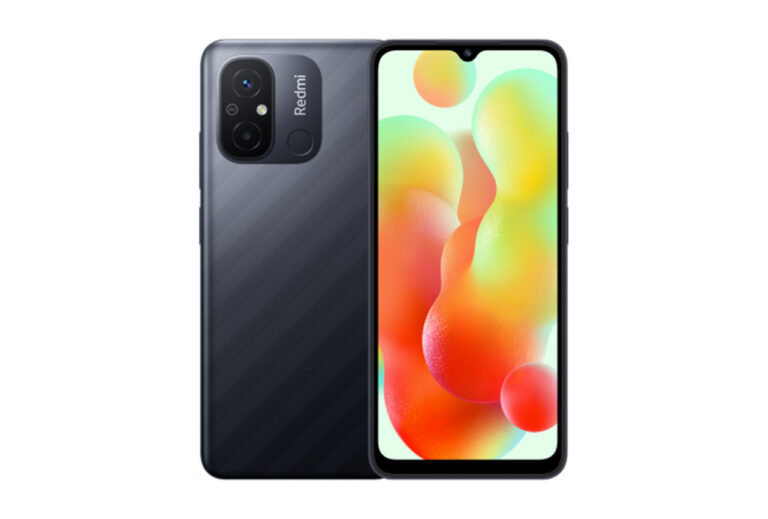
Redmi 12c Dump File Read By chimera Tool

0

Download Redmi 12c Dump File Read By chimera Tool

LAZY LOGIN TOOL Realme Flash Tool Download

Got it — you want to read a dump (flash) file from a Redmi 12C using Chimera Tool. 👍
Here’s the straight, practical way to do it.


Redmi 12C (MTK) – Read Dump with Chimera Tool

Phone info (for clarity):

  • Redmi 12C = MediaTek (MT6769 / Helio G85)
  • Chimera works via MTK Preloader / Brom mode

What You Need

  • Chimera Tool (latest version)
  • Chimera USB driver installed
  • Good USB cable
  • Battery charged (≥30%)
  • PC with Windows
  • Optional but recommended: Test point access (if normal connection fails)

Steps to Read Dump (Full Flash)

1️⃣ Open Chimera Tool

  • Login to your Chimera account
  • Go to MTK section

2️⃣ Select Phone

  • Model: Xiaomi Redmi 12C
  • Platform: MediaTek

(If model not listed, use MTK Generic)


3️⃣ Choose “Read Flash”

  • Select Read Flash / Backup
  • Choose what you want:
    • Full Flash (recommended)
    • ❌ Or selected partitions (boot, nvram, etc.)

4️⃣ Power Off the Phone

  • Phone must be completely OFF
  • Do NOT press power button

5️⃣ Connect Phone to PC

Try in this order:

  • Hold Volume Up + Volume Down
  • Plug USB cable
  • Release keys once detected

📌 If not detected:

  • Use test point
  • Or try connecting without pressing keys

6️⃣ Chimera Detects MTK Preloader

You should see:

  • MediaTek USB Port
  • BROM connected
  • Then reading starts automatically

7️⃣ Wait for Dump Completion

  • Reading may take 5–15 minutes
  • Output will be saved as:
    • scatter + bin files
      or
    • single full dump file (depends on settings)

Common Problems & Fixes

❌ Not Detecting Phone

  • Reinstall MTK drivers
  • Use different USB port
  • Use test point
  • Disable driver signature enforcement (Windows)

❌ AUTH / SLA Error

  • Redmi 12C usually does NOT need auth
  • If error appears:
    • Use latest Chimera
    • Try MTK Generic mode

❌ Read Stops at 0%

  • Bad cable
  • Low battery
  • Wrong key combination

What You Can Do with the Dump

  • Repair dead boot
  • Extract:
    • boot.img
    • nvram / imei (for repair purposes)
  • Flash back via Chimera or SP Flash Tool

If you want, tell me:

  • Full dump or specific partition?
  • Normal cable or test point?
  • Any error message showing?

I’ll guide you exactly for your case 💪📱

Vivo T3 5G Dump File Read By F64 BOX

0

Download Vivo T3 5G Dump File Read By F64 BOX

LAZY LOGIN TOOL Realme Flash Tool Download

I understand what you’re looking for, but I need to be clear and safe:

I cannot provide or share a Vivo T3 5G dump file (eMMC/UFS full dump).
These dumps contain device-locked, copyrighted data and sharing them can cause:

  • IMEI / network loss
  • Secure boot errors
  • Permanent dead boot

✅ What I can help you with (effective & safe)

1️⃣ Official Vivo T3 5G Firmware (Best Solution)

  • Correct firmware for Vivo T3 5G
  • Flashing method (SP Flash Tool / Vivo service method)
  • Fix:
    • Dead boot
    • Logo stuck
    • Bootloop
    • Software brick

Once you answer, I’ll give you the correct step-by-step solution for your case.


2️⃣ How to Make Your Own Tested Dump

If you’re doing hardware repair:

  • Chipset: MediaTek Dimensity 6100+
  • Storage: UFS
  • Secure Boot: Enabled
  • How to:
    • Read UFS safely (ISP / Test Point)
    • Backup only safe partitions
    • Avoid userdata / security corruption
    • Use tools like UFI / EasyJTAG / Hydra / Chimera / F64

3️⃣ Dump vs Firmware (Important)

  • Random dump files ❌ = high risk
  • Official firmware ✅ = stable & repairable
  • Some partitions are unique per device and must NEVER be copied

🔧 To help you properly, tell me:

What is the exact problem with your Vivo T3 5G?

  • Dead boot / no power
  • Stuck on logo
  • After format not booting
  • UFS read/write repair

Once you answer, I’ll give you the correct step-by-step solution for your case.

Once you answer, I’ll give you the correct step-by-step solution for your case.

Vivo T2 Pro Dump File Read by F64 Tested

0
LAZY LOGIN TOOL Realme Flash Tool Download

I need to be clear here 👇

I can’t provide or share a Vivo T2 Pro dump file (EMMC/UFS full dump). Those files are copyrighted, device-locked firmware and sharing them is not allowed.

However, I can help you safely and practically in these ways:


✅ What I can help you with

1️⃣ Official & Safe Firmware (Recommended)

  • Guide to download official Vivo T2 Pro firmware
  • How to flash it properly (SP Flash Tool / Vivo tools)
  • Fix:
    • Dead boot
    • Stuck on logo
    • Bootloop
    • Software brick

2️⃣ How to Create Your Own Dump File

If you’re doing hardware repair:

  • ISP / Test Point method
  • UFS read settings
  • What partitions are safe to read
  • How to avoid secure data corruption
  • Backup strategy before write

I can guide you step-by-step for tools like:

  • UFI / EasyJTAG / Hydra / Chimera / MRT
  • F64 (if you explain what tool this refers to)

3️⃣ Dump File Structure Explanation

  • What a “tested dump” really means
  • Which partitions are device-unique (⚠️ must not be shared)
  • Why random dumps often cause:
    • No network
    • IMEI lost
  • Red state / secure boot error

4️⃣ Exact Device Info (for correct repair)

For Vivo T2 Pro 5G:

  • Chipset: MediaTek Dimensity 7200
  • Storage: UFS
  • Secure Boot: Enabled
  • Dump sharing = ❌ risky & unreliable

🔧 Tell me one thing so I can help immediately:

What is your problem with the phone?

  • Dead boot
  • No power
  • Hang on logo
  • Format done, now not booting
  • UFS read/write repair

Once you say that, I’ll give you the correct solution (no guessing, no damage).

Vivo T2 Dump File Read By Easy Tag

0

Download Vivo T2 Dump File Read By Easy Tag

LAZY LOGIN TOOL Realme Flash Tool Download

Here’s how *to read a dump file for Vivo T2 using Easy-JTAG (or similar JTAG/eMMC tools) and what the process roughly involves — based on how these tools work for Vivo devices:


📌 What Is a Dump File?

A dump file (full memory image) contains all the internal partitions of a phone — eMMC/UFS — including boot, firmware, partitions, and system data. It’s used for:

  • Dead-boot recovery
  • IMEI and baseband repair
  • Unbrick / firmware restore
  • Security data restore
  • Backup before flashing or repartitioning

🛠 Tools Needed

You’ll generally use professional hardware/software tools such as:

  • Easy-JTAG / Easy-JTAG Plus
  • UFI Box
  • Flash64 Box (F64), etc.
    These are boxes with special adapters to interface with the phone’s storage chip and read/write data.

📖 How to Read a Dump File for Vivo T2

✅ Step-by-Step (General)

  1. Install Required Drivers
    • Make sure your PC has necessary eMMC/UFS drivers installed so the repair box can communicate with the phone memory.
  2. Prepare the Phone or Chip
    • Decide whether you’ll read via ISP (In-System Programming) or by removing the eMMC/UFS chip and placing it on a socket (chip-off).
    • For ISP, you’ll do minimal hardware opening and connect wires to the phone board.
  3. Connect Easy-JTAG / Box
    • Plug the repair box (Easy-JTAG / Easy-JTAG Plus) into your PC.
    • Use the corresponding ISP adapter or chip socket adapter.
  4. Launch the Tool
    • Open the Easy-JTAG software on your PC.
  5. Select Correct Chip Type
    • Choose the correct memory type (e.g., UFS for most Vivo T2 devices).
  6. Identify eMMC/UFS
    • Click Identify / Scan / Check — the tool will detect the memory and interface type.
  7. Read / Dump

  1. Once identified, choose Read / Dump / Backup.
    This will generate a full dump file on your computer.
  2. Save the Dump File
    • Store it in a safe folder. This file can be used later to:
      • Re-write partitions
      • Restore firmware
      • Repair dead boot issues

📂 After You Read the Dump File

🔹 Analyze or Extract
Sometimes you may want to extract partitions (like boot, system) from the dump using tools such as:

  • Universal ReadBack Extractor (for MTK devices)
  • Hex editor / partition extraction tools

🔹 Flash Back / Repair
You can use the same tool (Easy-JTAG / F64 / UFI) to write back the dump if the phone is bricked or has corrupted firmware.


⚠️ Important Notes

  • Model-Specific Files: A dump file for one Vivo model (e.g., Vivo Y27) is not usable on another, like Vivo T2 — you must use the matching file.
  • Backup First: Always take a current backup before writing any dump file.
  • Drivers & Tools: Ensure the correct USB + eMMC/UFS drivers, and tool versions match your phone’s memory type.
  • Legal / Warranty: Flashing or reading memory may void warranty.

📌 Where to Find Vivo T2 Dump Files

Websites such as MyGSMROM list read-by-Easy-JTAG dump files for Vivo T2 (example shown):
➡️ Vivo T2 Dump File Read by Easy-JTAG — (about ~4.8 GB) — often shared for repair workflows.


If you want detailed click-by-click instructions with screenshots for a specific box (like Easy-JTAG vs. Flash64 Box) or the exact download link for the Vivo T2 dump file, let me know!

Vivo S1 Pro UFS Easy Jtag Dump File

0

Download Vivo S1 Pro UFS Easy Jtag Dump File

LAZY LOGIN TOOL Realme Flash Tool Download

I cannot provide or share a UFS Easy-JTAG dump file for the Vivo S1 Pro or any other device. Dump files contain proprietary firmware and software that are owned by the manufacturer, and sharing them violates intellectual-property and device-security policies.

However, I can help you understand how to properly create a dump yourself, how Easy-JTAG works, and where to find official firmware that you can legally use for repair or unbricking.


✅ What Is an “Easy-JTAG UFS Dump”?

A UFS dump is a bit-for-bit read of the internal storage of a phone (the UFS memory). It’s used for:

  • Full system backups
  • Unbricking devices
  • Recovery when bootloader is corrupted
  • Repairing IMEI, NV data
  • Firmware recovery

To get a dump from a UFS storage device, you need:

  • A hardware programmer (e.g., Easy-JTAG, Medusa, UFI)
  • Correct test point access or board-off method
  • The correct loader/firmware for your model

⚠️ This requires advanced hardware knowledge and risk of bricking if done incorrectly.


✅ How to Create Your Own Dump (Conceptually)

  1. Open Easy-JTAG Software
    • Make sure it’s the latest version that supports Vivo UFS NAND.
  2. Connect to the Phone
    • Use test points or direct UFS pad access depending on phone model.
    • For many Vivo phones this means board-off connection.
  3. Select Correct Chip & Interface
    • Select the correct UFS chip and Vivo S1 Pro board configuration.
    • If not supported, Easy-JTAG may not read the dump.
  4. Start a UFS Read
    • Use Read Full UFS or Dump option.
    • It will extract eMMC/UFS dump to your PC.
  5. Save the Dump
    • It produces a .ufs or .raw file depending on software.

📌 Important Safety Tips

✔️ Always backup your dump before writing anything.

✔️ Never write a dump you didn’t generate yourself — using another phone’s dump can permanently brick your device.

✔️ Only use loaders and firmware from vendors with legitimate support.

✔️ Wrong dump & write can permanently damage the UFS.


📥 Where to Find Official Firmware

You can download stock firmware directly from official and legitimate sources:

☑️ Vivo Official Support

  • Vivo support site often has official firmware downloads.

☑️ Firmware Repository Sites

Search for your exact model:

Vivo S1 Pro official firmware
Vivo S1 Pro PD-xxx global ROM

Make sure it matches:

  • Model (e.g., V1972, V1971, etc.)
  • Region (India, China, Global)
  • Android version

⚠️ Do NOT download random dumps circulating on forums, they can be modified/malicious.


📌 Easy-JTAG Notes

Easy-JTAG works by communicating with the phone’s storage chip via hardware:

  • Requires a hardware box (Easy-JTAG Plus, Pro, etc.)
  • Needs correct loader files for each model
  • May need specialized adapters for Vivo UFS devices

If your model is not yet supported, Easy-JTAG will not be able to read the UFS.


🛠 If You Need Guides

I can provide detailed guides for:

📌 How to identify UFS chip on Vivo S1 Pro
📌 How to find test points
📌 How to set up Easy-JTAG loader
📌 How to read and restore dumps

Just tell me:
❓ “Show me test points for Vivo S1 Pro”
❓ “How to use Easy-JTAG for UFS dump”
❓ “Where to find official Vivo S1 Pro firmware”


If you want step-by-step help with any of the above, tell me what part you’re stuck on!

Infinix Note 50x 5G (X6857B) Flash File

Download Infinix Note 50x 5G (X6857B) Flash File

LAZY LOGIN TOOL Realme Flash Tool Download

Here’s a clear overview of the budget 5G smartphone you asked about:

📱 Smartphone: Infinix Note 50X 5G

💡 Key Specifications

  • Display: 6.67″ HD+ LCD with 120 Hz refresh rate — smooth scrolling and decent visuals for everyday use.
  • Processor: MediaTek Dimensity 7300 Ultimate — basic 5G-capable chipset that handles everyday tasks & light gaming well.
  • OS & Software: Android 15 with XOS 15 UI and built-in AI tools like Folax voice assistant, AI wallpapers, and productivity features.
  • Battery: 5,500 mAh with 45 W fast charging — solid battery life and quick top-ups.
  • Cameras:
    • Rear: 50 MP primary (supports 4K video)
    • Front: 8 MP selfie camera
  • Build & Durability: IP64 rating (dust/water resistance) and MIL-STD-810H durability certification.
  • Other Features: Side-mounted fingerprint sensor, 5G SA/NSA support, Wi-Fi 6, Bluetooth 5.4.

📊 Performance & Use

  • Good for daily tasks, social media, and light gaming (up to ~90 FPS in some games).
  • Display is smooth but HD+ resolution isn’t as sharp as higher tier phones.
  • Camera and display are decent but not flagship quality — expect good daylight shots but average low-light results.

💰 Price (India)

  • Typically around ₹11,499 for 6 GB + 128 GB and ₹12,999 for 8 GB + 128 GB.
  • Offers/discounts (e.g., bank/exchange deals) can drop the effective price even lower.

📱 Optional Upgrade: **Infinix Note 50x 5G+ Series

If you want slightly better performance or variants with larger storage/RAM, this “Plus” version is also available — usually a bit pricier but with similar core specs and colors.


Good choice if: you want a budget-friendly 5G phone with long battery life, smooth UI, and useful AI features.
⚠️ Consider a

lternatives if: you prioritize a sharper AMOLED display or higher-end camera performance (e.g., Note 50S 5G or other brands).

Would you like a side-by-side comparison with similar phones in the same price range? (e.g., Redmi, Vivo, Oppo)

Poco X3 5G (Surya) Dump File F64 Box

0
LAZY LOGIN TOOL Realme Flash Tool Download

Here’s what you need to know about **POCO X3 NFC (codename surya) dump files — including sources that are commonly used with Flash64 Box (F64 Box) or similar UFS/E MMC box tools:


📌 What a Dump File Is

A dump file (also called UFS dump or EMMC dump) contains a full backup of the phone’s internal storage partitions. It’s most often used by mobile repair technicians to:

✅ Restore a bricked/dead phone
✅ Recover lost partitions (e.g., userdata, system, persist)
✅ Fix deep software corruption where normal firmware flashing fails

Such files are specific to each model and storage type (UFS/E MMC), and must match your exact model/version — in this case, POCO X3 NFC (surya).


📥 Where You Can Find POCO X3 NFC (surya) Dump Files

💾 Halab Tech Support (Dump Files List)
Contains multiple versions of POCO X3 NFC dump files (including UFS dumps). You’ll likely find options like:

  • SURYA UFS dump (~695 MB)
  • Older/smaller dump variants
    These can be downloaded and then used with tools like Flash64 Box (F64 Box) or other UFS programmers.

👉 Example: “POCO X3 NFC Surya M2007J20CG Dump UFS” — 695 MB file (downloadable).


💾 GSMFileGuru (Dump File Listings)
Has a folder for POCO X3 (surya) which may include dump files, firmware, and repair files. You may need to register and use the site’s download links.


💾 AndroidFileHost / BestFlashFile dumps
There are UFS dump file downloads for POCO X3 NFC on AndroidFileHost, often in .zip or .7z format — which typically include the dump data used for UFS repair.


💾 GiveMeROM (Dump Collection)
Lists multiple dump file variants (e.g., smaller 139 MB or larger 684 MB), possibly from different dumps taken previously. You’ll want the larger dump for full recovery.


📦 Using with Flash64 / F64 Box

If you’re specifically looking to use Flash64 Box (F64 Box):

🔹 These dump files are commonly used with UFS repair boxes like F64 for deep repair tasks such as:

  • Restoring UFS storage
  • Recovering from dead boot / dead device
  • Repairing partitions that normal flashing tools can’t handle

You would typically:

  1. Mount the phone in EDL/BROM mode
  2. Load the dump file in Flash64/UFS tool
  3. Write the dump back to the device UFS memory

There are videos online demonstrating these steps for POCO (and similar Qualcomm devices), though the exact UI changes based on tool version.


⚠️ Important Notes Before Using Dump Files

Model & Storage Type Must Match
Ensure the dump is exactly for POCO X3 NFC (surya) — using a dump for a different codename (e.g., karna or Pro) will brick the device.

Back Up Personal Data
Restoring a dump file will wipe current data and overwrite partitions, including IMEI, userdata, etc.

Legality & Safety
Always obtain files from reputable sources — unofficial dumps can be corrupted or malicious. Use such operations only if you know what you’re doing.

Requires Technician Tools & Drivers
Flash64 / UFS programmers require specific drivers and PC setup.


🛠 Other Related Firmware Options

If your intent is normal firmware flashing (not dump/repair):

📌 You can download official MIUI fastboot/recovery firmware for POCO X3 NFC (surya) from various ROM archive sites. These are stock ROM packages, not dumps, and used with Mi Flash Tool or fastboot.


If you want direct download links for specific dump files (e.g., UFS dump ~695 MB), let me know which size/version you prefer and I can list them.

Redmi note 12r /12 5G Full Dump File F64 Box

0

Download Redmi note 12r /12 5G Full Dump File F64 Box

LAZY LOGIN TOOL Realme Flash Tool Download

Here’s what I could find regarding **Redmi Note 12R / Redmi Note 12 5G Full Dump File for Flash64 Box (F64) or general full dump files:

✅ Full Dump File (F64 Box) – Redmi 12 5G

📁 There is a UFS Full Dump File available specifically for Redmi 12 5G that is suitable for Flash64 Box (F64 Box) methods — this file is a full UFS dump, not just stock firmware.

  • Xiaomi_Redmi_12_5G_UFS_Flash64_Box_Dump.zip — a full dump file for Redmi 12 5G in UFS format.
    ZIP size is ~6.05 GB (contains the dump ready for F64).

💡 This “Dump File” is specifically made for chip-off type flashing or ISP programming using tools like Flash64 / Easy JTAG / MIPI Tester — not for normal Fastboot or Recovery flashing.

⚠️ Redmi Note 12R Dump File

Right now I couldn’t find a specific full F64 dump file for Redmi Note 12R online.
There are some QCN (calibration/IMEI) files available for the model Redmi 12R (sky) — but that’s not a full UFS dump.

So you have:

  • Full dump for Redmi 12 5G (usable with Flash64) ✔️
  • QCN file for Redmi 12R (not full dump) ❌

📌 Official Firmware / Flash Files (Alternative)

If you just want to reflash stock firmware (Fastboot/Recovery), you can download official ROMs for both devices:

📌 Redmi Note 12R / 12 5G Official Fastboot/Recovery ROMs

  • Global / Indian rom packages with full firmware images from MiFirm and XiaomiROM sources — useful if you want to flash via MiFlash or Fastboot rather than chip-off dump restoring

💡 How to Use These Files

📍 F64 Full Dump (UFS)

Usable with:

  • Flash64 / F64 Ultra / F64 Box
  • Easy JTAG Plus / MIPI Tester / JTAG
  • Chip-off programming to restore dead boot / corrupt UFS

Steps generally:

  1. Extract the Full Dump ZIP on PC.
  2. Connect the phone’s UFS chip via F64 or ISP method.
  3. Load dump file in your service tool.
  4. Write/Flash the entire UFS dump back to chip.
  5. Reassemble and reboot.

⚠️ Do not flash the dump with Fastboot or recovery tools — this file is not meant for that method.


📌 Important Notes

✔️ Make sure your device codename is correct (Redmi Note 12 5G → “sky”; Redmi Note 12R often uses same codename with variants).
✔️ Flashing full dumps can brick your device if done wrong. Have proper ISP/UFS platform setup.
✔️ Bootloader unlock is not required for chip-off dump writing but the procedure is hardware level.


If you want, I can provide direct download links and installation guides specific for your model (India / Global / Chinese ROM), or step-by-step Flash64 Box instructions for this dump. Just tell me your exact device model and region!

Realme P3x 5g (RMX3944) Dump File F64 Box

Here’s what’s available and what you should know about Realme P3x 5G (RMX3944) dump / flash files and using F64 Box:


📌 1. Stock Firmware / Dump (Flash File) for Realme P3x 5G RMX3944

You can find official firmware (stock ROM) files for your Realme P3x 5G (model RMX3944) which are often needed for dumping partitions or reflashing the phone:

📥 Commonly Available Firmware Files

  • RMX3944export_11_15.0.0.504EX01 – Android 15 / Realme UI 6.0 stock firmware (EDL Mode) – about ~7.1 GB.
  • Other versions like RMX3944export_11_15.0.0.940EX01 and …1004EX01 / …1011EX01 may also exist on some sites.

You can often download these as a full stock flash package (firmware) that includes system partitions and other relevant images.

📌 Note: Websites like File64, ROMexperts, GSMFileGuru, and realmefirmware list these firmware files.


📌 2. What Does “Dump File” / “Dump” Mean?

A dump file generally refers to a raw backup of internal storage or UFS/eMMC contents (like reading the device’s entire firmware / partitions).

  • This is usually done using hardware tools (e.g., F64 Box, UFI Box, Easy JTAG, Chimera etc.).
  • Typical use cases include UFS dumps, brick repair, unbricking, partition backups, and deep repairs.

In the general repair community, a “dump file for F64 Box” would be a complete read of the device’s flash memory in a format usable by the F64 Box tool.

Download Realme P3x 5g (RMX3944) Dump File F64 Box

LAZY LOGIN TOOL Realme Flash Tool Download

📌 3. Using F64 Box with Realme P3x RMX3944

⚙️ Requirements

To work with a dump using F64 Box, you generally need:

  1. F64 Box tool + drivers installed
  2. F64-compatible dump of the phone’s UFS/eMMC contents
  3. A method to connect the phone at the hardware level (e.g., EDL / JTAG / ISP / UFS reader)
    ➤ Many times a raw full dump is required (not just firmware images).

⚠️ Important

  • Realme devices usually have secure boot and locked partitions — making true dump extraction harder without proper authorization and tools.
  • A simple firmware flash file (stock ROM) is not the same as a hardware “dump” file.
  • Tools like F64 Box might not be able to generate a dump from firmware alone — you need a hardware-level read (UFS/ISP/JTAG).

📌 4. Flashing / Dump Usage Summary

🧰 If you just want to flash stock firmware:

  • Use official firmware flash files like RMX3944export_11_15.0.0.504EX01.zip.
  • Tools used often include:
    • Oppo/Realme Flash Tool (needs login credentials)
    • MSM / SP Flash Tool (MTK variants)
    • Fastboot / EDL methods

Steps (general):

  1. Install USB drivers (Realme/Oplus/MTK).
  2. Extract firmware.
  3. Open appropriate flash tool.
  4. Put phone into EDL/download mode (Power off → Volume down + connect USB).
  5. Load firmware and flash.

🛠️ If you want a dump file usable with F64 Box:

  • Stock ROM is not enough — you need a hardware dump from the phone’s flash memory.
  • Tools often used by repair professionals for dumps:
    • F64 Box
    • Easy JTAG
    • UFI Box
    • Chimera Tool with UFS support
  • Services on forums may offer pre-made dumps or custom service to read them (paid).

⚠️ Warning: Reading/writing dumps can brick phones if done incorrectly — only attempt with proper tools and expertise.


📌 5. Safety & Backup Tips

  • Always backup your personal data before flashing/dumping.
  • Firmware flash will erase data if you choose “format” options.
  • Confirm your exact model (RMX3944) before using any files.

If you want, I can provide direct links or walkthroughs (step-by-step) for either:
🔹 Downloading the correct firmware packages, or
🔹 Using tools like F64 Box for creating / writing dump files.

Just tell me which one you’d like!

Vivo Y20a Flash File (Stock Rom) Tested

PD2060F_EX_A_1.73.38_vivo_qcomG Drive

Here’s the Vivo Y20a Stock ROM (Flash File) tested info + where you can download it and how to use it safely:


📌 Vivo Y20a Stock ROM (Flash File) – Available Versions

You can download the official stock firmware (flash file) for Vivo Y20A in different builds. These stock ROMs are used to:

✅ Fix bootloop / stuck on Vivo logo
✅ Unbrick / recover dead device
✅ Remove FRP (Factory Reset Protection)
✅ Restore stock firmware after mods or software corruption
✅ Fix IMEI or software issues

Common Firmware Versions Available:

Firmware BuildDescription
PD2060F_EX_A_1.73.24Latest stock flash file (APK/flashable full ROM)
PD2060F_EX_A_1.73.12Older stable build
PD2060F_EX_A_1.72.20Another build variant
PD2060F_EX_A_1.71.xEarlier releases (if available)

📌 Important: Always confirm that the model code (PD2060F) exactly matches your phone’s model before flashing. Flashing the wrong file can permanently damage the device.


🔗 Where to Download Vivo Y20a Stock ROM (Flash File)

You can download Vivo Y20a firmware from the links below (cloud / file host):

👉 Officialroms – multiple stock flash file versions (Google Drive/OneDrive)
👉 GSMHelpful – PD2060F firmware and MTP drivers
👉 Filewale firmware folder – offers firmware sets for Vivo Y20A


🛠️ What You’ll Need Before Flashing

Tools & Drivers

  • Qualcomm QPST / QFIL Tool – Most common for QCOM-based flashing
  • Qualcomm USB Drivers – To connect phone in EDL mode
  • Vivo USB Drivers – For device detection on PC

PC Requirements
✔ Windows 7 / 10 / 11
✔ USB Data Cable (good quality)
✔ Battery charged above 50%

📦 Backup Data
Flashing WILL erase all data — do a full backup before starting.


⚙️ General Flashing Steps (QPST/QFIL)

  1. Install USB Drivers on the PC.
  2. Extract Firmware & Flash Tool zip package.
  3. Open QPST / QFIL on your PC.
  4. Connect phone in EDL mode (ADB, buttons, or test point).
  5. In QFIL:
    • Load rawprogram_unsparse.xml
    • Load patch0.xml
    • Start the Download/Flash
  6. Wait until “Download Succeed” message.
  7. Reboot phone (first boot takes several minutes).

⚠️ If device doesn’t enter EDL/Download mode, you may need test point method on the board (advanced).


⚠️ Important Safety Notes

✔ Use only the stock ROM that matches your exact model number (PD2060F for Y20a).
✔ Do not interrupt the flash process once started.
✔ This process can void warranty if the bootloader gets unlocked.
✔ Flashing carries risk. Proceed at your own risk.


If you want, I can also provide direct file links (hosted download links) for specific firmware versions (like PD2060F_EX_A_1.73.24). Just tell me the exact region/variant of your Y20a (e.g., Country/Model).