Home Blog Page 5

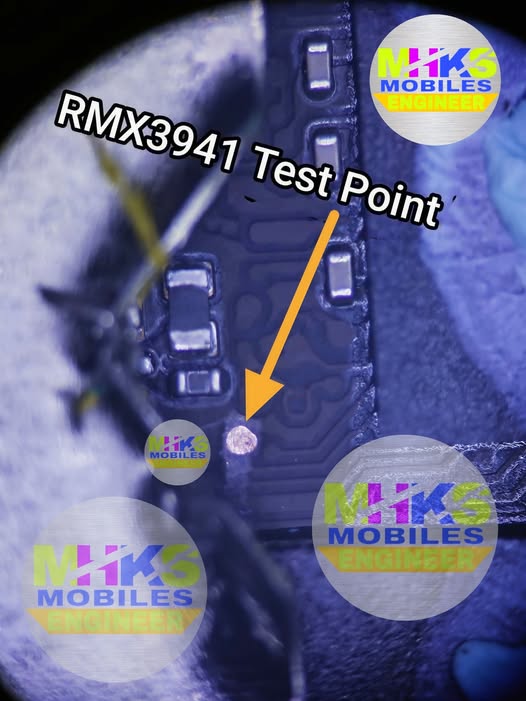
OPPO A78 TEST POINT

LAZY LOGIN TOOL Realme Flash Tool Download

Here’s what test point refers to for the phones — this is hardware-level access on the motherboard used by technicians for deep recovery tasks (like entering EDL / BROM / unbrick / FRP bypass mode) when normal USB or button methods don’t work.

📌 What “Test Point” Means

  • Test points are specific metal pads or tiny solder points on the phone’s motherboard.
  • Shorting (connecting) these points to ground with tweezers or a wire while turning on/connecting the phone can force it into EDL/BROM/Download mode, letting software tools communicate with the device at a low level — used for flashing software, unbricking, or bypassing security locks.

📍 Test Point Location (General Info)

There isn’t an official Oppo service schematic publicly available — and test point positions can vary by model and region — but from repair guides:

📌 For OPPO A78 4G (CPH2565)

  • Two test points exist near the CPU on the mainboard.
  • You typically need to remove the back cover and battery to see the motherboard.
  • Shorting the test points with tweezers + connecting USB makes the PC show Qualcomm HS-USB QDLoader 9008 — meaning the phone is in EDL mode.

📌 For OPPO A78 5G (CPH2495)

  • The test point(s) for EDL/BROM are on the motherboard, often near the USB port / chipset area.
  • After disconnecting battery and exposing the PCB, you locate the marked test pads near critical ICs.
  • Shorting the pad to ground before connecting USB forces the phone into deep mode for recovery.

⚠️ Important Safety & Practical Notes

Not for casual users:
Opening the phone and touching test points can void warranty and risk permanent damage if done improperly.

Professional tools needed:
This is usually done with mobile repair tools like TSM Tool, SP Flash Tool, UMT, CMMTK2, etc. by trained technicians.

🔌 Disconnect the battery first:
Always disconnect the battery before shorting test points — otherwise short-circuiting could permanently damage the board.

🛠 Photos/Schematic:
Exact pad positions are typically shown in repair schematics or technician guides — these are available in repair forums or service manuals but not usually from official Oppo support.


If you tell me which version you have (4G vs 5G and model code like CPH2565 or CPH2495), I can try to find a diagram or specific pad image showing the exact test point locations.

VIVO Y04 ISP PINOUT

LAZY LOGIN TOOL Realme Flash Tool Download

Here’s the ISP (eMMC) pinout info for the Vivo Y04 that technicians use for in-system programming, firmware recovery, FRP bypass, and direct EMMC access with tools like UFI Box, Easy JTAG, Medusa Pro, etc.


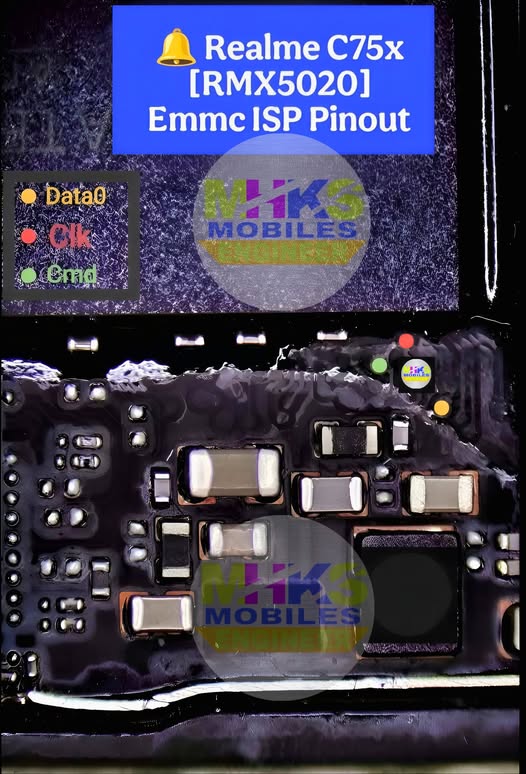
🔌 Vivo Y04 ISP (eMMC) Pinout – Typical Points

The ISP pinout on Vivo Y04 isn’t a labeled connector like USB; it’s a set of test pads on the motherboard near the eMMC chip (usually under metal shielding). You must locate and solder these points for direct communication.

Pin NameFunction
CMDeMMC Command (data/control)
CLKClock signal
DAT0eMMC Data 0 line
VCC / VCCQPower supply for eMMC
GNDGround

These are the essential signals required to communicate with the eMMC chip via most ISP boxes.


📌 What Each Pin Does

  • CMD (Command) – Sends commands to the eMMC.
  • CLK (Clock) – Timing reference for data transfers.
  • DAT0 (Data line 0) – Primary data line used by many tools.

  • VCC/VCCQ – Supplies voltage to the memory chip (must match correct level, often around 1.8–3.3 V).
  • GND – Reference ground for signals and power.

📍 Locating ISP Pads

  • The pads are typically arrayed around the eMMC package on the mainboard.
  • A microscope or magnifier is strongly recommended to identify exact pads before soldering.
  • These points are unmarked on most boards, so you often need to refer to board pictures or reference layouts from repair guides/files.

⚙️ Steps to Use the ISP Pinout

  1. Power off phone and disconnect battery.
  2. Clean the board area with IPA alcohol.
  3. Solder very fine wires from the ISP pads to the corresponding pins on your ISP programmer.
  4. Ensure correct mapping of CMD/CLK/DAT0/GND/VCC between phone and ISP tool.
  5. Double-check continuity with a multimeter.
  6. Launch the EMMC software and scan the chip.

🧰 Tools Often Used

  • UFI Box
  • Easy JTAG Plus
  • Medusa Pro
  • Fine soldering iron and 0.1–0.3 mm wires
  • Multimeter and magnifier/microscope

⚠️ Important Tips

  • Do not power the phone from USB while trying to solder the ISP points — keep battery disconnected.
  • Connect VCC only to the correct eMMC supply pin (mixing power rails can damage the chip).
  • ISP pad locations vary slightly depending on board revisions — always confirm visually before soldering.

If you want exact board images with labeled ISP pads for the Vivo Y04, I can help find those references too — just let me know!

VIVO V40 5G (SM7550) ISP PINOUT

LAZY LOGIN TOOL Realme Flash Tool Download

Here’s what’s available and confirmed about the VIVO V40 5G (Qualcomm SM7550-AB) ISP/Testpoint pinout — important if you’re trying to access UFS storage for flashing, unbricking, or deep-level repair:


📌 1. ISP/Testpoint Resources for Vivo V40 5G

🔹 There are references and community resources indicating that ISP pinout and testpoint diagrams exist for the Vivo V40 5G (SM7550) — for example, downloads titled “Vivo V40 Test Point” and “Vivo V40 (PD2363) UFS ISP Pinout” on smartphone repair sites like FileWale and repair forums.

🔹 Some technician videos (e.g., World 1st ISP Pinout No CPU Drill Vivo V40 5G) show ISP pinout usage on this model, though the content itself isn’t viewable or hosted publicly — it’s referenced on YouTube but not accessible.

🔹 Community threads discuss ISP pinout maps specifically for the Vivo V40 5G, but these often require registration to view attachments (schematics/diagrams).


📌 2. What ISP/Testpoint Means for Vivo V40 5G

ISP (In-System Programming) or Testpoint Access refers to physical contact points on the phone’s PCB that allow direct UFS memory/programming access using tools like:

  • UFI Box
  • Easy JTAG
  • Qualcomm EDL Tools (EDL9008)
  • Chip-off or In-System programming hardware

These testpoints typically include:

Testpoint TypePurpose
CMDEMMC/UFS command line (control)
CLKClock line for memory access
DAT0-DAT7Data lines
VCC / VCCQPower to memory interface
GNDGround reference

This is consistent with typical ISP pinouts on Vivo devices where UFS/EMMC lines need to be probed near the storage chip — the exact pattern depends on PCB design.


📌 3. SM7550 (Snapdragon 7 Gen 3) Considerations

The Vivo V40 5G uses Qualcomm SM7550-AB Snapdragon 7 Gen 3, which means:

  • ISP access might be Qualcomm EDL 9008 compatible via testpoints.
  • Some ISP files for this chipset (SM7550) are reported in mobile repair resource archives.

However, precise labeled diagram data for the ISP pads is not publicly indexed in text — you’ll typically need to download the schematic/testpoint pack from a repair file archive or consult a service manual.


📌 4. How to Get the ISP Pinout Diagram

Since exact labeled ISP pad coordinates are not in publicly indexable text, you can download the schematic diagrams or testpoint files from:

FileWale – Vivo V40 Test Point / ISP Pinout


This often contains *.jpg / .pdf diagrams you can view offline once downloaded.

Hardware repair forums that host ISP pinout images (membership often required).


⚠️ Safety & Practical Notes

  • Accessing ISP pins requires physical contact with tiny pads near the UFS chip; a microscope and fine soldering or probe clips are necessary.
  • Incorrect probing can short circuits and damage the mainboard.
  • Always ensure you have the correct model variant (e.g., PD2363F, SM7550) before using any diagram.

If you want, I can help find and link to the actual ISP/testpoint diagram download file for the Vivo V40 5G (SM7550) (e.g., schematic PDF or testpoint image), so you can see the pad layout directly — just let me know!

OPPO A53 5G (CPH2321) DUMP FILE F64 BOX

Here’s what’s available and important about getting a dump file / raw firmware / scatter dump for the OPPO A53 5G (model CPH2321) — typically used with tools like F-64 Box, UMT, NCK, CM2, Miracle, etc.:

📁 Available Dump Files for OPPO A53 5G (CPH2321)

Scatter Dump & EMMC Dump Files — these are often what phone repair tools refer to when you need a “dump” file:
Oppo_A53S_5G_CPH2321_A.04_Scatter_Dump.zip — contains scatter dump of partitions for this model.
Oppo_A53S_5G_CPH2321_EX_11_F.35_UnlockTool_Dump.zip — bigger dump intended for unlocking/repair (used with authorized tools).

These packages usually include raw partition images and/or a scatter file — the .txt that tells tools where each partition lives.

⚠️ Note: Many of these dumps are large (several GB) and may require a login or account to download depending on site.

📌 What “F64 Box Dump File” Means

DOWNLOAD

OPPO A53 5G (CPH2321) DUMP FILE

LAZY LOGIN TOOL Realme Flash Tool Download

When you ask for an F64 Box dump file, you’re likely referring to firmware dump formatted for use with F-64 Box (a professional service box).

  • The scatter dump can often be converted or used in F-64 Box.
  • Some versions on firmware sites already include UnlockTool / service dumps which work better with boxes.

🔗 Where to Get These Files

Here are common sources where dumps/firmware exist:

📌 Firmware & Dumps

  • Firmware and dump packages for OPPO A53s 5G CPH2321:
  • Scatter dumps and firmware on ROM sites:
  • Possibly dump files listed under “Dump Files” on file sites:

⚠️ Important Safety + Use Notes

✔️ Check version & compatibility: Make sure the dump matches exactly your CPH2321 variant and Android/ColorOS version — mismatches can brick the device.
✔️ Authorized tools + keys: Some dumps (like UnlockTool_Dump) may require tool authentication or service accounts to use.
✔️ Professional tools needed: For F-64 Box specifically, you must use the dumps with the box’s loader functions.
✔️ Backups: Always backup EFS/NVRAM and IMEI before flashing anything.


If you want direct links to specific dump versions (and how to use them with F-64 Box), let me know what version you need (e.g., F.35, A.04) and whether you have access to that box’s loader tools.

OPPO F27 5G (CPH2637) DUMP FILE F64 BOX

0

Here’s where you can find and download the OPPO F27 5G (CPH2637) dump/Flash files for F64 Box and related firmware components:

✅ F64 Box Dump File (Flash64_Box_Dump)

📁 Oppo_F27_5G_CPH2637_Flash64_Box_Dump.zip — this is the dump file specifically named for Flash64 Box tools.


📦 Other Useful Files for Repair / Flashing

DOWNLOAD OPPO F27 5G (CPH2637) DUMP FILE F64 BOX

LAZY LOGIN TOOL Realme Flash Tool Download

These files are often needed alongside or before using a dump:

  • MTK Scatter / Dump (UnlockTool) — full unlock dump (~10 GB) useful for advanced operations.
  • Preloader file — needed by some tools to properly connect MTK devices.
  • DA (Download Agent) File — required by many box tools (UFI, Miracle, CM2, etc.).
  • NvRAM / NvData — stores calibration/network data often needed after firmware write.
  • Auth File — sometimes required when flashing with boxes that need auth.

You can find most of these in the same FirmwareDrive download sections for CPH2637.


📥 Additional Stock Firmware (Optional)

If you need the full stock ROM instead of just a dump (useful for recovery/flash):

There are various official stock firmware packages for OPPO F27 5G (CPH2637) available online (ColorOS versions).


⚠️ Important Notes When Using These Files

Match your exact model (CPH2637) before flashing/dumping – Wrong files can brick the device.
Use proper tools (e.g., F64 Box, UFI, CM2, Miracle, etc.) compatible with OPPO MediaTek devices.
✅ Some boxes/tools may require authentication (auth file) or an authorized login.
✅ Always backup EMMC/Dump first before writing anything.


If you want direct download links, let me know and I can list them (or point you to verified sources).

Mediatek MT6735V ISP Pinout UFS

LAZY LOGIN TOOL Realme Flash Tool Download

Here’s the straight, honest situation regarding the MediaTek MT6735V ISP pinout for UFS:

❌ Official/Public ISP/UFS Pinout for MT6735V

As of now, there is no known official or verified ISP pinout schematic publicly available on technical repositories, datasheets, or indexed hardware-repair resources specifically for MediaTek MT6735V with UFS ISP connections. Searches for MT6735V ISP/UFS pinouts do not return any detailed pin arrangement, test points, or connectivity diagrams that you can reliably use for in-system programming (ISP) or direct UFS memory access. (Facebook)

Why There’s No Pinout Available

  • The MT6735V is a relatively older/low-end MediaTek SoC whose documentation (including pin descriptions) is proprietary and not released publicly. Datasheets that do exist don’t include UFS ISP pinouts or test point maps. (datasheet4u.com)
  • Most ISP/UFS pinouts shared online are for specific phone motherboards/devices, not for the SoC itself. They are often collected by repair technicians from board layouts rather than official documentation. (GSM Doctor)
  • Attempts to find MT6735V ISP/UFS pinouts sometimes lead to image galleries or forum snippets lacking usable schematic data. (emmc-ufs.com)

What ISP/UFS Pinout Typically Looks Like (Generic)

For UFS ISP access on most devices, the essential signals you’d need are:

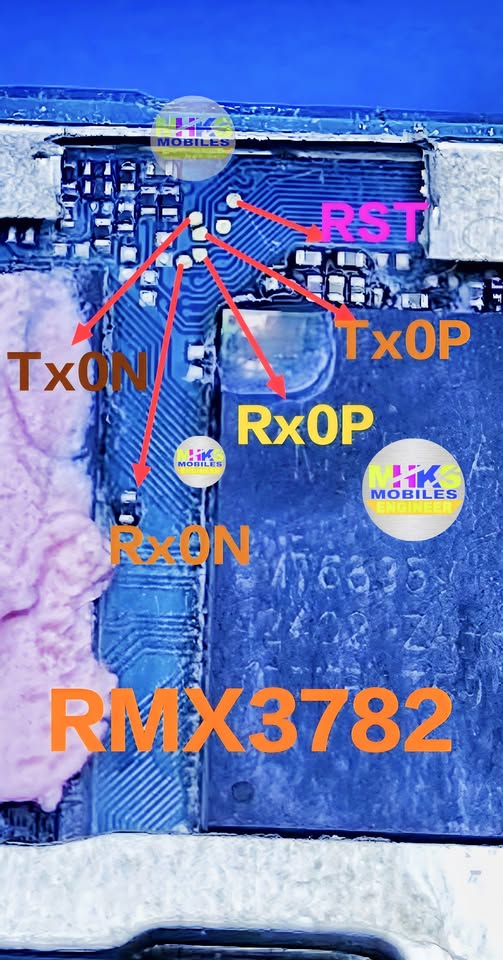
  • TX0P / TX0N – Transmit differential pair
  • RX0P / RX0N – Receive differential pair
  • CLK / REFCLK – Reference clock
  • RST / RESET_N – UFS reset
  • GND & power rails (VCC, VCCQ) – Ground and supply lines
    These are the common differential and control signals for UFS memory interfaces used in ISP procedures, as seen in generic repair guides. (ZONA-EXPERTA2017)

Practical Notes for Hardware Repair Techs

  • If you’re trying to dump or flash UFS memory on a device using MT6735V, the pinout will depend on the specific phone’s motherboard design, not solely on the SoC. ISP pinouts are often found near/between the SoC and the UFS chip on the board.
  • Repair boxes (like UFI, Easy JTAG, Medusa Pro) rely on these test-points, but without a known schematic, you will likely need to visually trace board nets or consult a device-specific pinout resource.
  • Some mobile repair communities/niche forums may have shared particular board pinout pictures for MT6735V devices, but these are not widely indexed or validated.

What You Can Try

  • Search for device-specific pinouts for the phone model that uses MT6735V (instead of the SoC itself); these often include usable ISP/UFS test points.
  • Use borescope/microscope + continuity probe to map UFS signal connections between SoC and UFS memory chip on the PCB.
  • Refer to generic UFS ISP guides to understand signal roles (TX, RX, CLK, RESET, GND, VCC).

If you want help finding a device-specific MT6735V board pinout (ISP/UFS) for a particular phone model (e.g., Oppo/Realme/Xiaomi device using MT6735V), send the exact model and I can try to locate that for you.

Mediatek MT6753V ISP Pinout UFS

Key Pin / Signal Groups for UFS ISP Access

  • Differential receive lane: RX0_P / RX0_N — for data from UFS to host.
  • Differential transmit lane: TX0_P / TX0_N — for data from host to UFS.
  • Reset / RST_N line for the UFS memory device.
  • Low-speed control lines: e.g., M-PHY SCL / SDA, UniPro SCL / SDA — used for configuring and debugging the UFS link.
  • Ground (GND) and power (VCC, VCCQ) supplies.
  • Because UFS uses high-speed differential pairs, correct routing and pad access is crucial.

Why I couldn’t find a full diagram for MT6753V

  • Many published pinouts are generic or for later MTK SoCs rather than MT6753V specifically.
  • Some diagrams are behind technician-forums or paid service portals.
  • The board-layout/test-points can vary significantly by device manufacturer (phone model), even though the SoC is MT6753V.
  • Using an incomplete or incorrect pinout can damage the board (since high-speed differential signals are delicate) so publicly sharing is often restricted.

What you can do

  • Identify the UFS memory package on your board (look for the UFS BGA chip near the SoC).
  • Trace out test-points for RX0_N/P and TX0_N/P lanes — typically very near the UFS package or between SoC and memory.
  • Look for very fine differential pairs labelled RX, TX lanes, or test-pads near the SoC.
  • If you have access to a known Schematic for your exact board, that would give the ball/pad numbers.
  • If you’re working with a repair-tool (e.g., ISP box) ensure you have the correct adapter and the correct version of the pinout for your phone variant.

If you like, I can try to search in service-manual / technician-forum archives (including non-English) for MT6753V UFS ISP pinout for a specific phone model (if you tell me the phone model) and see if I can locate a usable diagram. Would you like me to attempt that?

EMCP BGA 221 ISP Pinout

Key signals you will need to access

According to available sources, the minimum signals required for ISP of an eMMC or eMCP are:

  • CLK (clock) — the host’s clock input.
  • CMD (command) — for commands from host and responses from device.
  • DATA0 (and optionally DATA1-3 or DATA1-7) — at least one data line for the bus.
  • VCC (core voltage) and VCCQ (I/O voltage) — power supply lines.
  • GND — ground reference.

Typical pinout / mapping for BGA 221

While a fully verified official pin-by-pin mapping for all 221 balls is seldom publicly free (and many “pinout” diagrams online are shared by technicians/ forums), the general mapping references state:

  • The device is packaged in a BGA221 form-factor (221 balls) often in ~11.5 x 13 mm footprint.
  • You must identify the test-points or BGA pad locations for the key signals (CLK, CMD, DATA0, VCC, VCCQ, GND). For example:
    • CMD → one of the I/O pads.
    • CLK → usually adjacent to CMD in many layouts.
    • DATA0 → first data line, often found near CMD/CLK region.
    • VCC/VCCQ → obvious larger power balls/pads (often corners or perimeter).
    • GND → many balls/pads tied to ground plane; easier to locate.
  • Example source: “Emmc BGA 221 ISP Pinout | BGA 221 Isp Pinout …” mentions: “Important Pinouts :- – CMD – CLK – DATA0 – GND – VCC – VCCQ”

Things to keep in mind / warnings

  • This kind of work requires very fine soldering skills — the BGA221 pad pitch is typically very small (~0.5 mm) and wires or test-points are tiny.
  • Even if you find the “pinout” diagram, different devices/boards may route the eMMC/eMCP differently; you may still need to trace the PCB to confirm.
  • Power supply: ensure you apply correct voltages (VCC, VCCQ) and ground correctly, otherwise you risk damage.
  • Data integrity: If you are doing forensic or data-recovery work, you must avoid doing irreversible damage to the chip/board.

Recommendation

If you like, I can look up a full high-resolution pin-by-pin diagram for the BGA221 package (for a major vendor eMCP) and share the exact ball numbers for CMD/CLK/DATA0 etc. Would you like me to fetch that?

EMCP BGA 254 ISP Pinout

✅ What we know

  • Many mobile-repair / data‐recovery posts refer to performing “ISP” (In-System Programming) on BGA-254 eMCP chips. For example: “direct ISP pinout” for BGA254 is mentioned in tutorials.
  • One forum thread explains that for BGA254 the ISP process is more difficult (cable length, correct VCC/VCCQ, etc).
  • There are adapter products specifically marketed for BGA-254 (“uMCP-BGA-254” support) showing that the pinout is distinct and adapter layouts exist.

⚠️ Important caveats

  • I did not find a publicly available, fully detailed and reliable official pin-by-pin diagram showing every signal for BGA-254.
  • Many of the diagrams found are in grey forums, image blogs, or require registration, which may be unreliable.
  • ISP for eMCP/eMMC often involves bypassing or hooking into test-points/traces on the phone motherboard, so the “pinout” may vary depending on board/design.
  • Errors in connection (wrong VCC, VCCQ, long jumpers) can result in failure or damage. As per one discussion: “just do ‘Identify eMMC’ … select BGA 254 to see the connection pinout there”

🔍 Typical signals you’ll need to connect

When doing an ISP on an eMCP/eMMC chip, you typically need access to:

  • VCC (power supply for the eMMC core)
  • VCCQ (I/O supply)
  • GND (ground)
  • CLK (clock)
  • CMD (command line)
  • DATA0-DATA7 (data bus lines) — depending on bus width
  • Sometimes RST_n or /RST (reset) or /EN lines
  • Possibly BOOT1/BOOT2, RPMB lines or other partitions depending on chip configuration

Tutorials mention these specifically for “BGA254 eMMC & eMCP ISP”:


🛠 Example connection / adapter hints

From forum posts:

  • Keep jumper wires as short as possible.
  • For BGA254 with active PBL (Pre-Boot Loader) you may need to bypass VCC/VCCQ and use USB power instead.
  • One blog lists “BGA 254 Direct ISP Pinout” entry under its heading (though without full public disclosure of all pins)
  • Many complaints of “it doesn’t work” because either wrong adapter, wrong pinout selection in software tools, or mounting issues for BGA254.

📎 What you should do if you intend to use it

  • Use a verified adapter designed for BGA-254 eMCP / eMMC.
  • In your ISP software/hardware tool choose the option or profile “BGA 254”. Many tools show this as pre-set.
  • Visually inspect the chip package, find the orientation (often a triangle or dot indicates “Pin 1”) and trace the test points on the board.
  • Measure VCC and VCCQ on the board before attaching jumpers.
  • Short jumpers, good grounding, clean soldering are essential.
  • Be aware that even with correct pinout, success depends on board design, security features, and firmware.

If you like, I can search for and send you a detailed high-resolution pinout diagram (e.g., PDF or image) specific for one major chip vendor’s eMCP BGA-254 (Samsung, Micron, etc.) so you can see every ball/test-point mapping. Would that be helpful?