
Home Blog Page 5

Realme 12X 5G RMX3998 Flash File (Stock ROM) Tested

Download  Realme 12X 5G  RMX3998 Flash File Firmware from MS Mobile. With this file you can unlock device Screen lock Pattern, FRP and can upgrade or downgrade the device. Always use latest flash file to flash Realme 12X 5G check device version by dial code *#899# in emergency dial. download the file with direct download link given below and read all flashing instructions before flashing the phone.

Download Realme 12X 5G RMX3998 Flash File Firmware:

RMX3998export_11_15.0.0.602EX01
Realme 12x 5G 
Project No = 23705

You’re looking for the Realme 12X 5G (RMX3998) flash file (stock ROM)—the official firmware image to reinstall or recover your device. Here are some reliable options and useful instructions:


Available Flash Package Versions

1. Version 11.14.0.1.522 (EX01)Released June 29, 2024

  • Identified as official global firmware (Realme UI 5.0, Android 14).
  • File name: RMX3998export_11_14.0.1.522(EX01)_2024062916160086.zip.
  • Approximate size: 6.8 GB.
  • These details line up across sources like RealmeFirmware.com, OppoStockROM, and GetDroidTips.

2. Version 11.15.0.0.602 (EX01)March 1, 2025

  • Slightly newer build, also Realme UI 5.0 (Android 14).
  • File name: RMX3998export_11_15.0.0.602EX01_2025030111460123.
  • Available on ROMexperts and File64, published in April 2025.

Where & How to Download

Option A: Version 11.14.0.1.522

  • Available via RealmeFirmware.com (official tracker), OppoStockROM, or GetDroidTips tutorials.

Option B: Version 11.15.0.0.602

  • Downloadable from ROMexperts or File64.

Flashing Instructions (General Steps)

  1. Choose the correct firmware for your exact model (RMX3998) and region (EX01).
  2. Download and extract the ZIP file using WinRAR or 7‑Zip.
  3. Install necessary tools and drivers:
    • Realme QCom + MTK drivers or USB VCOM drivers.
    • Flash Tool: SP Flash Tool or Oplus Flash Tool (depending on source).
  4. Boot into flashing mode:
    • Power off device → hold Volume Up + Volume Down → connect USB cable.
  5. Load firmware in flash tool, click Start or Start All to begin flashing.
  6. Wait for completion (success message/green indicator), then disconnect and reboot.
  7. Always back up data first, as flashing will erase user data.

Quick Comparison Table

VersionFile NameRelease DateSizeNotes
11.14.0.1.522 (EX01)RMX3998export_11_14.0.1.522(EX01)_2024062916160086.zipJune 29, 2024~6.8 GBStable global release
11.15.0.0.602 (EX01)RMX3998export_11_15.0.0.602EX01_2025030111460123March 1, 2025Newer build, potentially bug-free

Final Recommendations

  • For a well-tested official build, go with 11.14.0.1.522.
  • If you prefer the latest firmware, choose 11.15.0.0.602, but ensure it’s from a reputable source.
  • Always verify the integrity of downloaded files (checksum if available), and ensure full battery and backups before flashing.

Community Note

Many users report issues when the wrong version or method is used, or when credentials (like Oplus tool login) are required and missing. Be sure you have the correct files and a reliable flashing tool before proceeding.


Let me know if you’d like direct download links, official flashing guides, or help troubleshooting if anything goes wrong!

Realme C75 RMX3941 Flash File (Stock ROM) Tested

Download  Realme C75 RMX3941 Flash File Firmware from MS Mobile. With this file you can unlock device Screen lock Pattern, FRP and can upgrade or downgrade the device. Always use latest flash file to flash Realme C75 5G check device version by dial code *#899# in emergency dial. download the file with direct download link given below and read all flashing instructions before flashing the phone.

Download Realme C75 RMX3941 Flash File Firmware:

RMX3941export_11_14.1.0.40028EX0129_2025042311380201zip
phoneName :- Realme C75 4G
project no :- 24702

Here’s what I found regarding the Realme C75 (RMX3941) flash file—here are your options to safely download the stock firmware and flash your device:


Available Flash Files for Realme C75 (RMX3941)

1. Official Stock Firmware (Android 14, Realme UI 5.0)

  • Version: RMX3941export_11_14.1.0.240EX01_2024112401320174
  • Download package includes firmware, USB drivers, SP Flash Tool, and a flash guide
  • File size: ~7.73 GB.

2. Newer Firmware (Android 15)

  • Available on Needrom, listed August 8, 2025.
  • Version: RMX3941export_11_15.0.0.701 (SP06EX01) – Android 15
  • Official listing with installation instructions via SP Flash Tool.

3. Latest April 2025 Builds

  • From RomDevelopers: several variants of 11.14.1.0.400 (EX01) dated June 29 2025, with sizes ranging from ~7 GB to ~17 GB.

4. Backup/Dump Files for Advanced Repairs

  • RXTX provides full device backup useful for:
    • Restoring IMEI/baseband or critical partitions after eMMC/UFS hardware replacement or a bad flash.
    • Full firmware dump for use with SP Flash Tool, UnlockTool, or Pandora.

Recommended Flashing Steps

  1. Select the appropriate firmware version:
    • Use Android 14 build (11.14.1.0.240EX01) for general unbrick or software issue fixes.
    • Opt for Android 15 build if you’re comfortable with newer software and want latest updates.
    • Download from RomDevelopers if you’re looking for the latest build (11.14.1.0.400), but verify integrity and tools.
  2. Prepare your PC:
    • Install required drivers: MTK VCOM or Realme/Oppo USB drivers.
    • Use SP Flash Tool—commonly supported.
    • If using Realme/Oppo “Download Tool,” you may need a service account login.
  3. Backup your device:
    • Flashing will erase data. Make sure you have backups.
    • Consider grabbing RXTX backup if you need to restore IMEI or partition data.
  4. Flashing Instructions:
    • Extract firmware zip.
    • In SP Flash Tool: load scatter file from firmware folder.
    • Choose Download (ensure “Preloader” & NVRAM are ticked).
    • Power off your device.
    • Connect while holding Volume Up + Down.
    • Wait for green ring (success).
    • Disconnect and reboot.

Summary Table

SourceVersionDateFile SizeNotes
ROMExperts / OppoStockROM11.14.1.0.240EX01 (Android 14)Nov 24 2024~7.73 GBGood for general fixes
Needrom11.15.0.0.701 (Android 15)Listed Aug 8 2025Latest official build
RomDevelopers11.14.1.0.400 variantsJun 29 20257–17 GBFlashes latest firmware
RXTX BackupFull dump and backupJun 4 2025Useful for IMEI recovery or eMMC fixes

Need Help Downloading or Flashing?

Let me know if you’d like direct download links, step-by-step guidance for your specific OS (Windows, Linux), or help choosing between Android 14 vs. 15 firmware. I can also assist in interpreting any flash tool errors you run into.


Related Tutorial Video

Realme C75 RMX3941 Full Dump Firmware [By Unlocktool] | USB ONLY

This YouTube video illustrates the full firmware dumping and flashing process—helpful for visual learners.


Stay safe with backups and double-check files—flashing carries some risk, but I’m here if you hit any bumps along the way.

Realme GT Neo 3 RMX3561 Flash File (Stock ROM) Tested


 Realme GT Neo 3 RMX3561 Flash file Firmware Now available on MS Mobile. Which can be used for fix hang on the logo and remove all screen locks. This file will remove all type of screen lock like Pattern and FRP after flash. Always use latest flash file to flash  Realme  GT Neo 3 check device version by dial code *#899# in emergency dial. download the file with direct download link given below and read all flashing instructions before flashing the phone.

Download Realme GT Neo 3 RMX3561 Flash File Firmware:

RMX3561export_11_14.0.0.930EX01
phoneName = realme GT NEO 3
projectno = 216BE

Here’s what I found regarding the Realme GT Neo 3 RMX3561 flash file (stock firmware):


Available Flash Files (Stock ROMs)

Multiple reliable sources list various firmware versions available for download:

  • Realme Firmware (official listing): Shows the India version and Global version—both of which are RMX3561export_11_C.24, released on July 28, 2023, with a size of around 13 GB.
  • GSMMAFIA: Offers a wider range of versions including:
    • RMX3561export_11_13.1.0.800EX01 (Dec 4, 2023)
    • RMX3561export_11_13.1.0.730EX01 (Oct 17, 2023)
    • RMX3561export_11_C.24 (Jul 28, 2023)
    • RMX3561export_11_C.23 (Jul 15, 2023)
    • Earlier versions down to A.06 (May 2022)
  • Mobile Guru4: Confirms similar versions, highlighting that they come with the necessary USB drivers and flash tool in a zip package.
  • OPPO Stock ROM: Provides versions such as:
    • EX A.09, A.13, C.12, C.16, C.18, C.20, C.23, and C.24 spanning from 2022 to mid-2023
  • Mobifirmware: Lists newer 2024 firmware:
    • 14.0.0.900EX01 (July 18, 2024)
    • 14.0.0.524EX01 (March 22, 2024)
    • Also includes 13.1.0 and earlier ones
  • RomProvider: Mirrors many versions from 2022 up to late 2023 (13.1.0 and C.24)

Which Firmware Should You Use?

  • If you want the most up-to-date official version, 14.0.0.900EX01 from July 2024 seems to be one of the latest available publicly.
  • If you prefer to stick to the official Realme site, C.24 (July 2023) is the latest listed there.
  • For earlier or region-specific variants, versions like 13.1.0, C.23, and older are also accessible via other sources.

How to Flash Your Device

Here’s a general guide, drawing from multiple sources:

  1. Download the desired firmware version (zip package containing flash file, drivers, and tool).
  2. Extract the contents on your PC.
  3. Install USB drivers if not already installed.
  4. Run the MSM Download Tool (Realme’s official flasher) or SP Flash Tool, depending on package.
    • Note: MSM Download Tool typically requires valid login credentials (auth ID and password).
  5. Power off your phone, then press and hold Volume Up + Volume Down while connecting it to the PC via USB cable. This is required to boot into EDL (Emergency Download) mode.
  6. In the tool, click Start All or the “Download”/“Start” button to initiate flashing.
  7. Wait until the process completes, then let your device reboot.

Important Notes

  • Backup your data first—flashing will erase everything.
  • You may need login credentials to use the official MSM Download Tool. Some sites offer assistance, but exercise caution with third-party or paid services.
  • For MediaTek-based Realme devices, flashing often requires EDL mode and authentication.
  • If flashing seems complicated or you’re unsure about obtaining auth credentials, consider visiting an authorized Realme Service Center.
  • Learn from others in the community—one Reddit user shared: “If you simply want to remove Chinese app just remove thru adb tho. Much less odds of bricking your device lol.”

Quick Reference Table

TaskLatest Version Available
Official Realme websiteRMX3561export_11_C.24 (Jul 28, 2023)
Latest public firmware lists14.0.0.900EX01 (Jul 18, 2024

Let me know what you’d like to do next:

  • Need a direct link to a specific version?
  • Want detailed flashing steps with pictures or video?
  • Need help identifying whether your device is global, India, or Chinese variant?
  • Or want suggestions for safer alternatives like using ADB to remove bloat rather than full flashing?

Happy to walk you through whatever you need!

Realme P4 Pro 5G RMX5116 Flash File (Stock Rom)

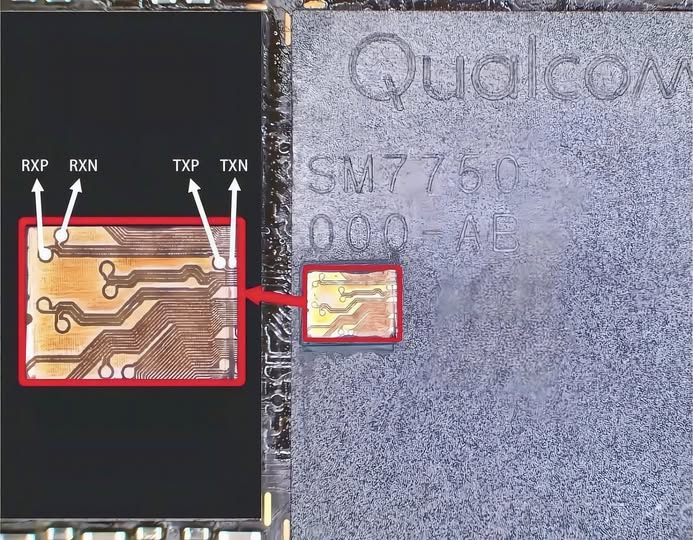
Got a problem with Realme P4 Pro 5G RMX5116? This official Realme UI 6.0 flash file revives your phone when it’s frozen on logo, locked by FRP, or misbehaving after a failed update. Works on Qualcomm SM7750-AB Snapdragon 7 Gen 4 (4 nm) models. You’ll need proper flashing tools – if you’re not comfortable doing it yourself, we provide expert flashing support. Ideal for fixing forgotten patterns, endless boot loops, or system crashes. Always flash with certified files like this to prevent problems. Includes easy-to-follow instructions so you can safely unbrick your device at home.

Download Realme P4 Pro 5G Flash File

RMX5116export_11_15.0.2.516EX01
phoneName = realme P4 Pro 5G
projectno = 25675

I wasn’t able to locate an official or widely recognized flash file (stock firmware) specifically for the Realme P4 Pro 5G (model RMX5116) in my search results. It seems Realme hasn’t made one publicly available yet, and most known firmware downloads are for other models.


What You Can Do Next

1. Check Realme’s Official Support Channels

  • Visit the official Realme support site or Realme’s global firmware repository (like RealmeFirmware.com) to see if RMX5116 has been added as an available model.
  • Some Realme devices are added later, even after launch—this is the most reliable source for legit downloads.

2. Use the Realme Flash Tool with .ofp or OZIP Options

  • If you manage to find an .ofp or .ozip file for RMX5116 (even if unofficial), the Realme Flash Tool can be used to flash it via Fastboot mode—provided the file is compatible. (
  • Note: .ofp files are atomic updates while .ozip is intended for local recovery installs.

3. Look for Community or Third‑Party Sources

  • Websites like GSMAmit, RomExperts, or OppoStockRom often host firmware files and tools for various Realme devices (e.g., the RMX5056 model). However, these sources may not yet support RMX5116.
  • Proceed with caution: these are unofficial, sometimes paid, downloads and could carry risks like malware, mismatched versions, or bricking your device.

4. Follow Realme Flashing Essentials

  • No matter the source, any flashing attempt requires:
    • Correct firmware that matches your device model and region.
    • Realme Flash Tool or equivalent (e.g., SP Flash Tool for MediaTek).
    • Necessary USB drivers installed on your PC.
    • Booting into EDL (Emergency Download Mode) or Fastboot/Download mode.
    • A full backup beforehand—flashing typically wipes your data.

5. Tread Carefully with Paid Services

  • Some sites advertise remote flashing or unlocking services via WhatsApp for a fee. These may seem convenient but carry a high risk, both for your data and device warranty.

Summary Table

StepRecommendation
1⃣Official Source: Always start at Realme’s official firmware page—RMX5116 might not have been released yet.
2⃣Realme Flash Tool: Use only verified OFP/OZIP firmware and be sure it matches your exact model and region.
3⃣Third-Party Downloads: Use cautiously—always scan for malware, ensure version compatibility, and understand the flashing process.
4⃣Backup & Manager Tools: Install proper USB drivers (Qualcomm/MTK), and boot the device into flashing mode safely.
5⃣Avoid Paid Flashing Unless Trusted: Stick to official or well-tested community guides to minimize risk.

TL;DR

There’s no confirmed, publicly available flash file for the Realme P4 Pro 5G (RMX5116) right now. For safety, check official Realme channels first. If you find an .ofp or .ozip for RMX5116, you can use the Realme Flash Tool—but be extremely cautious if sourcing from third-party sites, and always backup your device.

Let me know if you find a specific firmware link or need help with the flashing steps once you do!

Realme P4 5G RMX5110 Flash File (Stock Rom)

Got a problem with Realme P4 5G RMX5110? This official Realme UI 6.0 flash file revives your phone when it’s frozen on logo, locked by FRP, or misbehaving after a failed update. Works on MediaTek Dimensity 7400 (4 nm) models. You’ll need proper flashing tools – if you’re not comfortable doing it yourself, we provide expert flashing support. Ideal for fixing forgotten patterns, endless boot loops, or system crashes. Always flash with certified files like this to prevent problems. Includes easy-to-follow instructions so you can safely unbrick your device at home.

Download Realme P4 5G Flash File

RMX5110export_11_15.0.2.411EX01
phoneName = realme P4 5G
projectno = 25664

I wasn’t able to locate an official Realme stock ROM (flash file) specifically for the Realme P4 5G (RMX5110) on widely trusted sources like realmefirmware.com or firmware repositories. However, I can guide you on how to proceed safely and effectively.


Steps You Can Follow

1. Check Realme’s Official Firmware Repository

Visit the [Realme Firmware site]—which offers official flash files for many models—and look for “All Version Firmware” or search by your model number RMX5110. If it appears, you’ll be able to download a secure and properly packaged stock ROM.

2. Contact Realme Support or Visit Their Community Forums

Occasionally, newer or less common models like P4 5G may not be immediately listed publicly. In such cases, reaching out directly to Realme’s support (via website or community forums) can help—either they may provide the file or confirm whether it’s available.

3. Use Reputable Third-Party Sites Cautiously

Websites like Mobile Guru4 or GsmAmit list flash files for various Realme phones, but there’s no current evidence they include RMX5110.
If you happen to find RMX5110 files on such sites, verify their authenticity, check user comments, and scan files thoroughly before using them to avoid potential risks.

4. Choose the Right Flash Tool According to Chipset

Your device likely uses a MediaTek Dimensity chipset, meaning the appropriate tool would be the MSM Download Tool (EDL mode)—not SP Flash Tool.
Be aware: Realme often requires a service login (via their flash tool), particularly in EDL mode.

5. Proceed Cautiously With Flashing

If you’ve located a valid firmware:

  • Back up all your data.
  • Install the correct USB drivers (Qualcomm/MediaTek as needed).
  • Use the MSM Download Tool (if supported) or Realme’s own flash tool.
  • Make sure your device is connected via USB in EDL mode (often Volume Up + Down while connected).
  • Flash the ROM only if you are confident it’s the correct version—for example, “export_11…_EX01” builds for global ROMs.

What Realme Forums Suggest (via Reddit experiences)

  • Users have noted that Realme’s flash tool requires login credentials, making it less accessible outside of service centers.
  • The built-in “Local Install” feature only supports OTA-format .ozip files and not the full stock ROM typically used for unbricking via PC.

These insights reinforce the importance of obtaining the correct ROM and tool, and exercising care during flashing.


Summary Table

StepAction
1Check realmefirmware.com for RMX5110 firmware
2Contact Realme support/community if not found
3If found on third-party sites, verify authenticity
4Use MSM Download Tool (EDL mode) for flashing Dimensity devices
5Backup data, install drivers, and flash carefully

Let me know if you’d like help locating drivers, step-by-step flashing instructions, or verifying a ROM you’ve found. Stay safe while flashing—incorrect ROMs or tools can brick your device!

Jiobharat Karbonn KW102 flash File (stock rom)

On this page, you will get the original Jio Bharat B1 stock rom firmware link through which you can download the flash file to your computer, by extracting the zip file you will get the mobile firmware.

Mobile phone screen protectors From MS MOBILE.

Download file Jiobharat Karbonn KW102:

Karbonn_KW102_000_02_25_190225

Password– Karbonn_KW102_000_02_25_190225#@#@@#12

The problem will be fixed

  • HANG ON LOGO
  • RESTART FROM LOGO
  • PASSWORD
  • HANGING PROBLEM
  • Flashing will solve all software related problems.

Jio Bharat Karbonn kw102 Flash file (Stock Rom) Download FREE:

On this page, you will get the original Jio Bharat B1 stock rom firmware link through which you can download the flash file to your computer, by extracting the zip file you will get the mobile firmware.

Mobile phone screen protectors

JioBharat ASR Cpu Flash Tool

ASR CPU Flash Tool is a small program for windows  computer. it is allowed users to flash the ASR CPU device come in market like now  Jio Bharat many models has been use the ASR CPU in their features mobile. now if you need to flash your device then need a this flash tool because now in market no other option for flash this CPU devices.

How to flash using ASR Tool?

Download and unzip the ASR CPU Flashing Tool.

Run “Aboot Application” in the tool folder.

Select the ZIP flash file for your Jio phone.

Click “Start downloading“.

Turn off your Jio phone, press *, and connect the USB cable.

Monitor the progress on the tool.

Once “Passed” appears, click “stop downloading” and disconnect the phone.

Supported Jio Bharat phone:

  • LF062

  •  KW101
  • LF012
  • All ASR CPU

ASR CPU Flash Tool:

ASR Flash Tool

ASR Driver

JioBharat V4 4G (JBV191M2) Flash file Stock rom 100% Tested

Jio Bharat V4 Flash file (Stock Rom) Download FREE:

On this page, you will get the original Jio Bharat B1 stock rom firmware link through which you can download the flash file to your computer, by extracting the zip file you will get the mobile firmware.

Mobile phone screen protectors

Jio Bharat V4 4G Flash file (Stock Rom)

Using this flash file you can upgrade or downgrade your phone’s software os and repair mobile hanging slow functioning, logo restoring, Bootloop Issues, IMEI Issues, or Dead Issues, Software Issues.

The problem will be fixed

  • HANG ON LOGO
  • RESTART FROM LOGO
  • PASSWORD
  • HANGING PROBLEM
  • Flashing will solve all software related problems.

JioBharat V4 Flash file (Stock Rom) Download FREE

SPD Flash Tool

SPD Driver

Password -JioBharat V4 4G (JBV191M2)##@@1122

HOW TO FLASH JioBharat V4 4G (JBV191M2):

 JIO PHONE : 

  • Download and Install SPD driver
  • Download and extract flash file and flash tool
  • Open SPD tool and click on load packet button and select flash file
  • When packet file succesfully load on the tool, then click Start downloading button on tool.
  • Now switched off your phone and press  * key then connect usb cable to the phone and PC.
  • Flashing will start as soon as you connect the phone, wait for completion
  • After flashing, click on the stop button in the tool, remove the phone and turn it on.

JioBharat V3 4G (JBV191M1) Flash file (Stock rom) 100% Tested

ioBharat V3 4G

On this page, you will get the original Jio Bharat B1 stock rom firmware link through which you can download the flash file to your  computer, by extracting the zip file you will get the mobile firmware.

Mobile phone screen protectors

Jio Bharat V3 4G Flash file (Stock Rom)

Using this flash file you can upgrade or downgrade your phone’s software os and repair mobile hanging slow functioning, logo restoring, Bootloop Issues, IMEI Issues, or Dead Issues, Software Issues.

The problem will be fixed

  • HANG ON LOGO
  • RESTART FROM LOGO
  • PASSWORD
  • HANGING PROBLEM
  • Flashing will solve all software related problems.

Mobile phone screen protectors

Jio Bharat V3 Flash file (Stock Rom) Download FREE

SPD Flash Tool

SPD Driver

Password -JioBharat V3 4G (JBV191M1)@@##12

HOW TO FLASH JioBharat V3 4G (JBV191M1)

  • Download and Install SPD driver
  • Download and extract flash file and flash tool
  • Open SPD tool and click on load packet button and select flash file
  • When packet file succesfully load on the tool, then click Start downloading button on tool.
  • Now switched off your phone and press  * key then connect usb cable to the phone and PC.
  • Flashing will start as soon as you connect the phone, wait for completion
  • After flashing, click on the stop button in the tool, remove the phone and turn it on.

JioBharat A1 4G (KW301) Flash file Stock rom 100% Tested

On this page, you will get the original Jio Bharat B1 stock rom firmware link through which you can download the flash file to your computer, by extracting the zip file you will get the mobile firmware.

Mobile phone screen protectors

Jio Bharat A1 4G Flash file (Stock Rom)

Using this flash file you can upgrade or downgrade your phone’s software os and repair mobile hanging slow functioning, logo restoring, Bootloop Issues, IMEI Issues, or Dead Issues, Software Issues.

The problem will be fixed

  • HANG ON LOGO
  • RESTART FROM LOGO
  • PASSWORD
  • HANGING PROBLEM
  • Flashing will solve all software related problems.

JioBharat A1 Flash file (Stock Rom) Download FREE

JioBharat A1 4G (KW301)_000_02_30_070325

Jio Bharat ASR Cpu Flash Tool

driver

Password -JioBharat A1 4G (KW301)1122

How To Flash Jio Bharat V2 LF062W :

  • Install Usb Driver ARS CPU
  • Download and open flash tool
  • Select flash file in flash tool
  • click on start and connect phone
  • now wait for completion
About Jio Bharat V2

Single Sim, 3G, 4G, VoLTE No Wifi 512 MB RAM, 4 GB inbuilt
1000 mAh Battery 1.77 inches, 240 x 320 px Display 0.3 MP
Rear Camera Memory Card Supported, upto 128 GB Bluetooth.

   Why You Need the Jio Bharat V2 4G Flash File:

  • Fix Hang on Logo: loop of the startup logo, and get your device up and running smoothly again.
  • Fix Boot Problems: Device Stuck on boot logo flash this files to fix stuck
  • Unlock Screen Lock: Remove screen lock pattern or PIN, this file can help you regain access to your device.
  • Blank Screens: No Graphics Black Screeb Stuck Fix
  • All-in-One Solution: This single file Download and use to fix your all multiple problems,
  • Device Currupted: no command problem